Why we built it
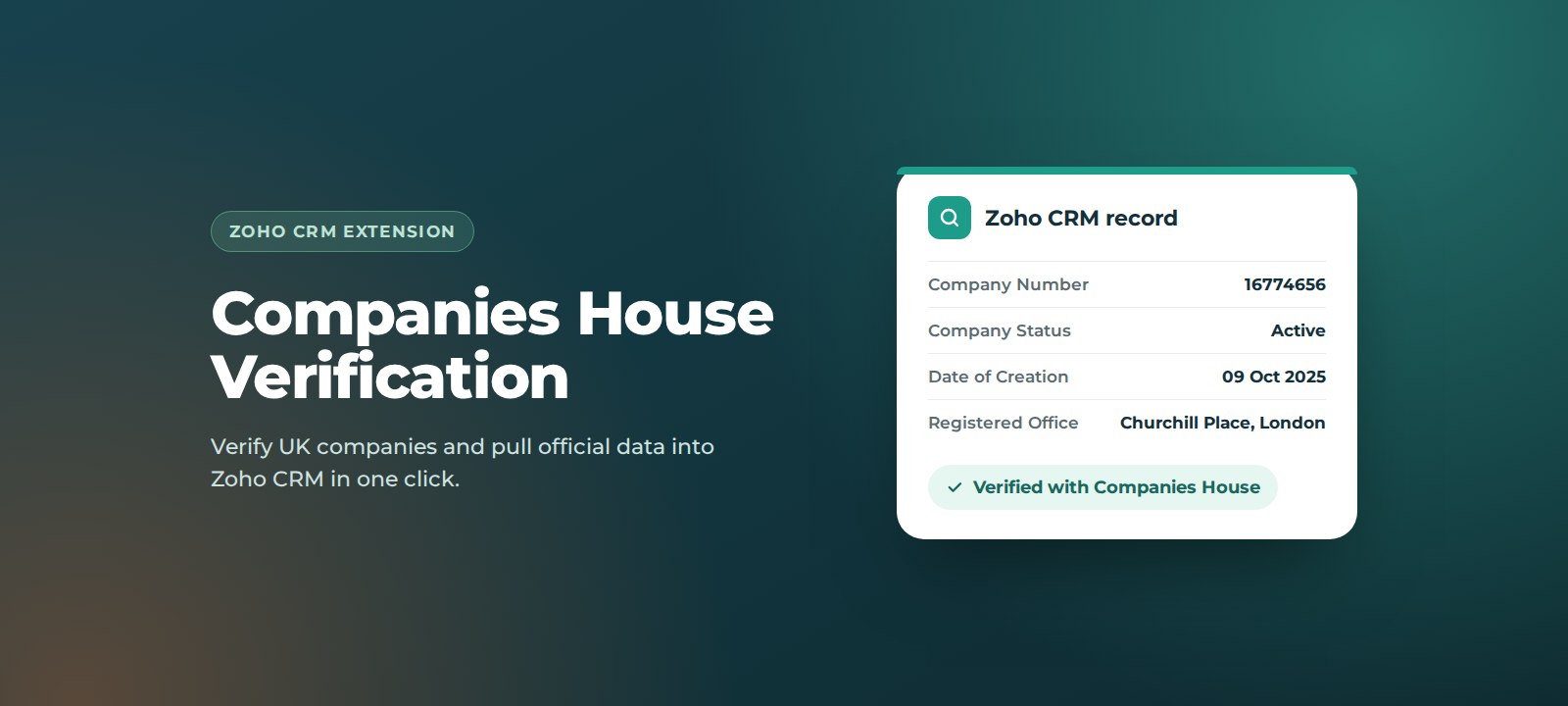
UK sales and onboarding teams check Companies House constantly: to confirm a prospect is real and active, to capture the correct registered name and number, or to see who the directors are. Done by hand, that means switching tabs, copying fields one at a time and hoping nothing is mistyped. Across hundreds of records it leads to slow data entry and company data nobody fully trusts.
Key benefits
- Verified data from the source. Details come straight from the official register, not from whatever was typed into a web form.
- One click instead of ten. Search, select and map in a single pop-up without leaving the record.
- Spot risk early. See at a glance if a company is dissolved, in liquidation or only just incorporated before you invest time in the deal.
- Know who you are dealing with. Bring in the active officers with their role, nationality, country of residence and appointment date.
- Your fields, your way. Common fields are auto-mapped, and you can send any value to any field on your layout.
- Cleaner data, better reporting. Consistent company names and numbers make de-duplication, segmentation and reporting far more reliable.
How it works
The extension reads the company name from the record: the Company field on Leads and the Account Name field on Accounts.
1. Open Company Check
- On a create or edit screen, click Company Check in the top right.
- On a saved record, open the actions drop-down next to the record buttons and choose Company Check.
2. Search and pick the right company
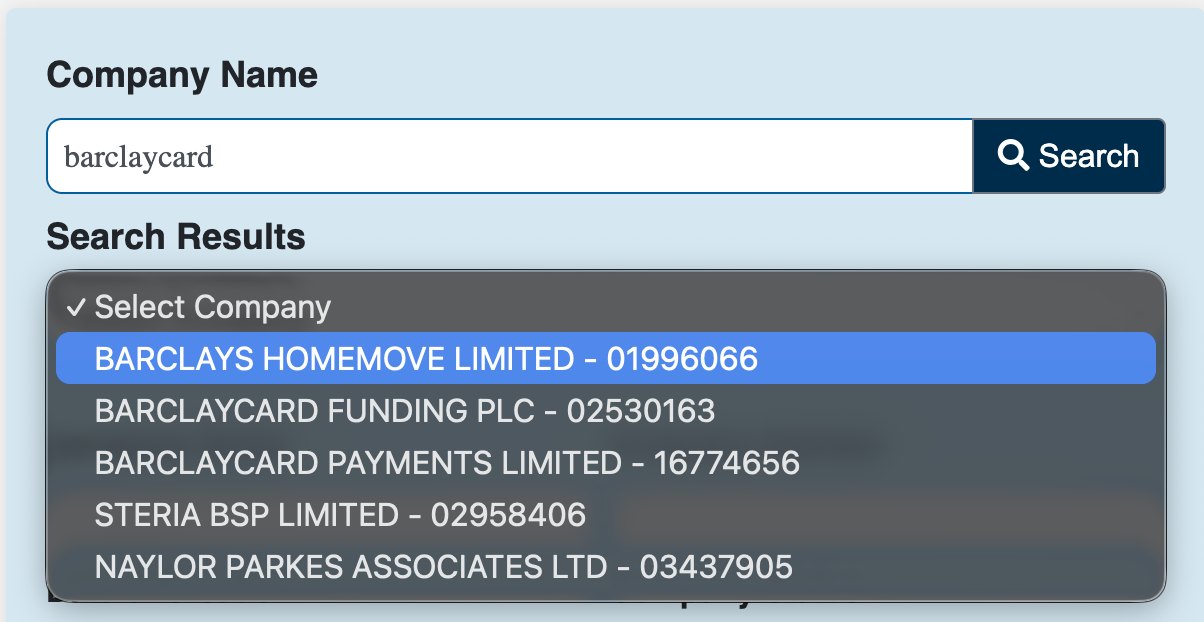
The company name is already filled in. Click Search, open the results drop-down and select the matching company. Each result shows the registered name and company number, so similar names are easy to tell apart.
3. Review the company details
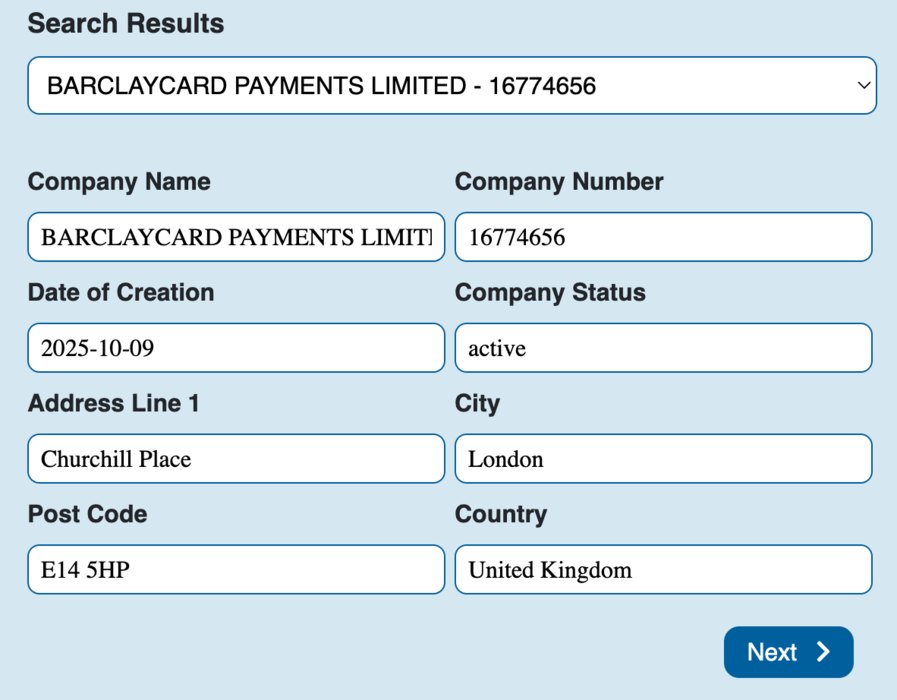
The company number, date of creation, status and registered address are shown for you to check. Click Next when you are happy.
4. Add officers (optional)
The next screen lists every active officer with their role, date of birth, nationality, country of residence and appointment date. To save them, turn on Update Officers Info to CRM and click Next. Officers are added to the Company Operator related list on the record.
Good to know: officers can only be added to a saved record. On a brand-new record, save it first and run the check again from the detail view.
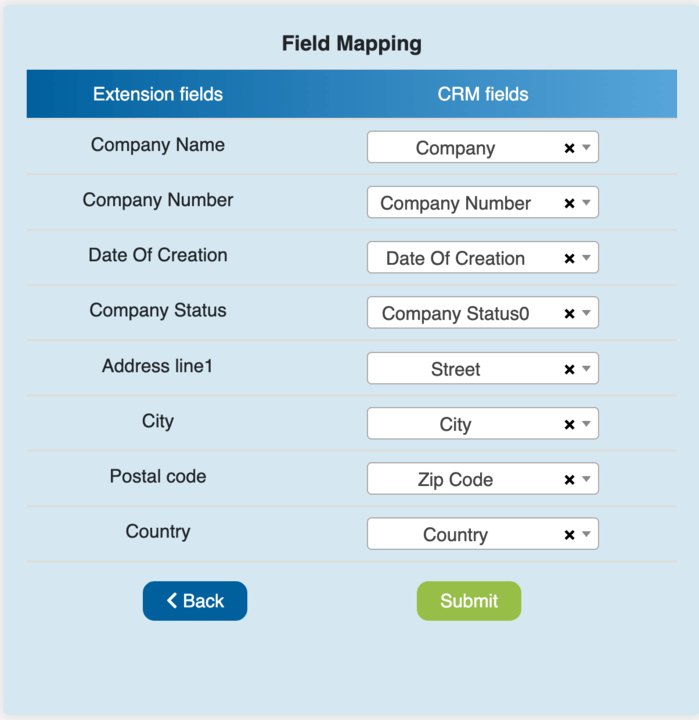
5. Confirm the field mapping and submit
Each value is auto-mapped to the matching CRM field. Change any mapping with the drop-downs, then click Submit. If you ran the check from the detail view, refresh the page to see the new values.
How to set it up
- Install the extension. We will share the installation link with you, or install it for you as part of onboarding.
- Prepare your fields. Make sure your Lead and Account layouts have fields for the data you want to keep, such as Company Number, Company Status and Date of Creation, so you can map to them from the first check.
- Check user access. If you use restricted profiles, confirm the people who need it can see the Company Check button.
- Run a test. Open a Lead for a company you know, run Company Check and confirm the values land where you expect.
Support
Companies House Verification is built and supported by ThoughtLogik’s UK-based Zoho team, so you speak to the people who wrote it.
- Get in touch: email support@thoughtlogik.com, or contact your ThoughtLogik account manager if you have a support plan with us.
- Help us help you faster: tell us the extension name, the CRM module and a link to the record, what you expected to happen and what actually happened, and include a screenshot of any error message.
- Quick check first: make sure the company name on the record is spelt correctly. A shorter keyword, such as the first word of the name, often returns better matches.
- Need it to do more? We can add modules, change the field mapping or tailor the extension to your process.
Frequently asked questions
Which Zoho CRM modules does it work with?
It works on Leads and Accounts, including where those modules have been renamed, for example to Enquiries or Companies. If you need it on another module, we can extend it.
Can I choose which CRM fields the data goes into?
Yes. Common fields are mapped automatically, and you can change any mapping in the final step before you submit, so the data lands in the fields your team already uses.
Why weren’t officers added to my new record?
Officers can only be added to a record that already exists. Save the Lead or Account first, then run Company Check again from the detail view with Update Officers Info to CRM turned on.
Which companies can I look up?
Any company on the Companies House register, which covers companies registered in England, Wales, Scotland and Northern Ireland.
I submitted from the detail view but can’t see the new values. Why?
The record needs a refresh. Reload the page and the updated fields and officers will appear.
Want Companies House Verification in your Zoho CRM? ThoughtLogik is a UK Zoho Premium Partner. Book a free consultation or email support@thoughtlogik.com and we will get you set up.