Short answer
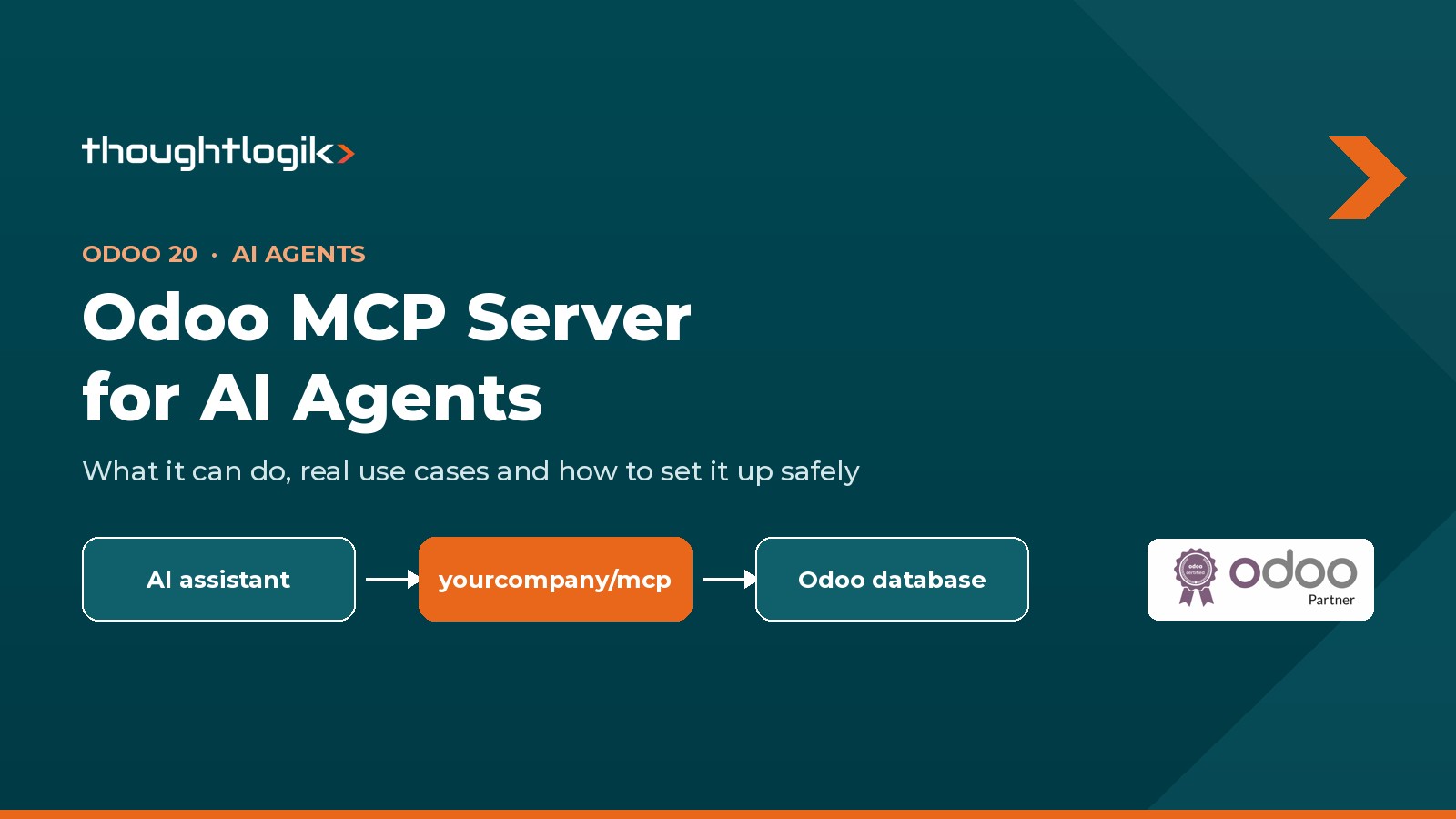
The Odoo MCP server, part of Odoo AI in Odoo 20, lets AI assistants such as Claude, Codex and Antigravity read and update your Odoo data in plain language. The assistant connects to your database URL plus /mcp using an MCP-scoped API key, and acts with that user’s access rights. Only five read-only tools are switched on by default; write and website tools must be enabled one by one.
Key takeaways
- Your Odoo database is the MCP server: connect at yourcompany.odoo.com/mcp with an MCP-scoped API key.
- Five read-only tools are exposed by default; Create Records, Update Records and website tools are opt-in.
- Strong use cases include pipeline reviews, invoicing comparisons, stock and purchasing checks, and quick data fixes.
- Use a dedicated user, short key expiry and staging tests before allowing changes.
Odoo 20 turns your Odoo database into an MCP server, so AI assistants such as Claude, Codex and Antigravity can read and update your ERP data on request. Ask “How much did we invoice last quarter compared to this quarter?” and the assistant queries Odoo and answers in plain English, using only the access your Odoo user already has.
At Thoughtlogik we implement and support Odoo for UK manufacturers, distributors and service businesses. Here we explain how Odoo’s MCP server works, what it can and cannot do, the use cases we think matter most, and how to switch it on safely.
What is MCP?
MCP stands for Model Context Protocol, an open standard for connecting AI assistants to business systems. The official MCP site compares it to a USB-C port: one standard plug for every device. In Odoo, your database itself becomes the MCP server.
How does Odoo’s MCP server work?
The assistant connects to your database address followed by /mcp, for example https://yourcompany.odoo.com/mcp (Odoo documentation).
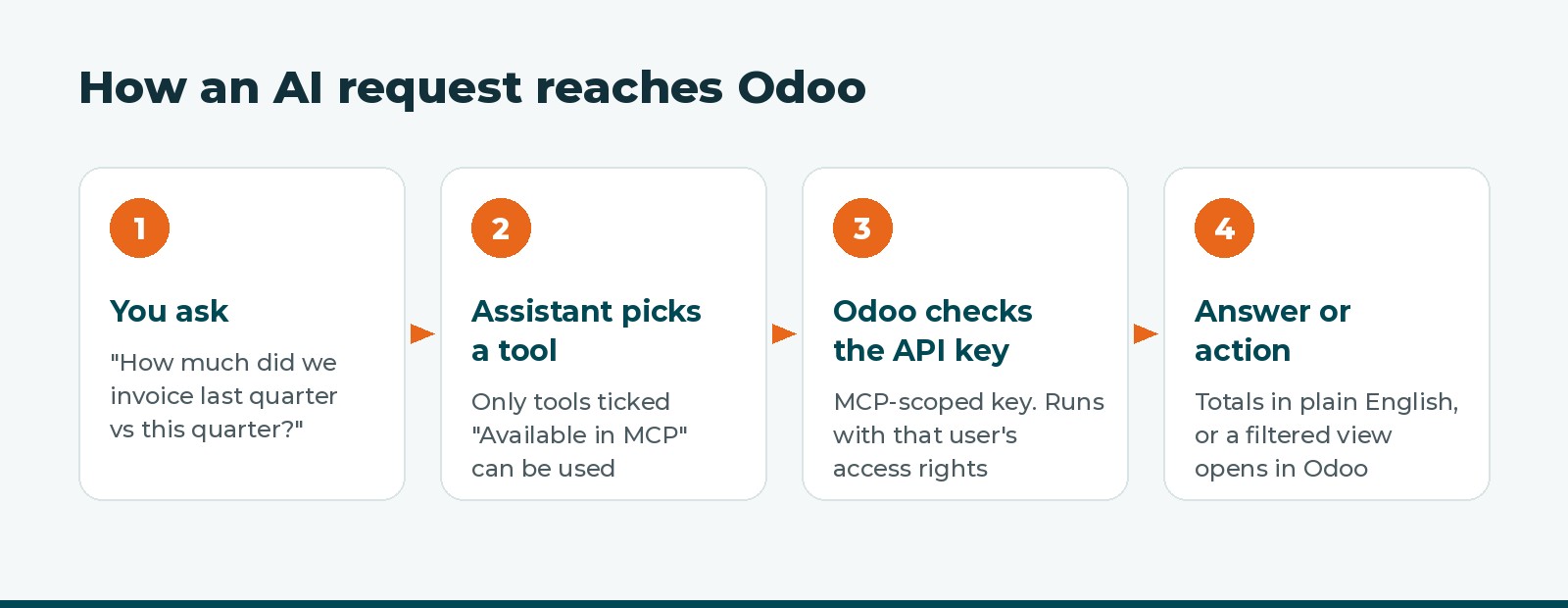
- Create an API key. In My Preferences > Security, add an API key with the MCP scope and an expiry date, such as one month. Odoo shows the key once, so store it safely.
- Connect your assistant. Add the server URL and API key to an MCP-compatible assistant. Odoo documents Claude Desktop, Claude Code, Antigravity and Codex, and the connection runs through Node.js.
- Choose the tools. In developer mode, open Settings > Technical > Server Actions. Each AI tool has an Available in MCP tick box. Only five read-only tools are available by default; everything else must be switched on deliberately.
Once connected, the assistant loads the tools it is allowed to use, picks the right one for each request, and Odoo runs it with the permissions of the user who owns the API key.
The MCP server is part of Odoo AI in Odoo 20. It does not appear in Odoo 19’s documentation, so plan an upgrade if you are on an older version.
What can an AI agent do in Odoo?
Odoo’s tools fall into six groups, from read-only questions to editing your website. Tools marked read-only can run without asking you each time; tools that change data should need your approval (available MCP tools).
| Group | Tools | What the assistant can do | Changes data? |
|---|---|---|---|
| Context | Retrieve initial context | Learn the user, time zone and companies at the start of a session | No |
| Data questions | Get Models, Get Fields, Get Menus, Search, Read group | Find any data the user can access, filter it and total it up | No |
| Data updates | Create Records, Update Records | Create new records and update existing ones that match a filter | Yes |
| Navigation | Open list, kanban, graph or pivot views, Adjust Search, Run view action, Compute Date | Open the right Odoo screen, already filtered and grouped, or a printed report | No |
| Website | Get Snippets, Read and Write Custom CSS, Apply HTML to Page | Edit website pages and site-wide styling | Yes |
| Media and extras | Generate an Image, Search Images, Web Search, Load Skills | Create or find images for content and research facts on the web | Some |
Five tools are available by default: Get Fields, Get Models, Retrieve initial context, Search and Read group. A new connection can answer questions but cannot change anything until you allow it.
Use cases, with example requests
Because Odoo runs the whole business, one assistant can answer questions across finance, sales, stock and production that would normally mean several reports. The first three examples come from Odoo’s documentation; the rest are ones we expect to help our clients most.
| Team | Example request | Tools used | What happens |
|---|---|---|---|
| Sales manager | “Show me my open opportunities grouped by stage, then chart the pipeline value by salesperson.” | Read group, Open Menu Graph | A pipeline view opens in Odoo, already grouped and charted |
| Finance | “How much did we invoice last quarter compared to this quarter?” | Compute Date, Read group | A like-for-like comparison without building a pivot table |
| Production planner | “Which products on my Master Production Schedule have no forecast data, and what is my total forecasted demand this month?” | Search, Read group | Gaps in the plan are spotted before they cause shortages |
| Credit control | “List customers with invoices more than 60 days overdue, largest balance first, and open them in a list.” | Search, Open Menu List | Today’s chase list, filtered in Odoo and ready to work |
| Warehouse manager | “Which products are below their minimum stock level, and which supplier do we usually buy each from?” | Search, Read group | A reorder shortlist without exporting stock reports |
| Purchasing | “Show purchase orders confirmed but not yet received, grouped by vendor.” | Read group, Open Menu Pivot | Late deliveries are visible in one view |
| Sales admin | “Does Azure Interior have a Tax ID on file? If not, set it to XX0123456789.” | Search, Update Records | A quick data fix, with approval before the change is made |
| Sales admin | “Create contacts for these five leads I’m pasting in.” | Create Records | Contacts are created from text without typing each one |
| Marketing | “Add a banner to my homepage announcing our summer sale, using a stock photo.” | Search Images, Apply HTML to Page | The website is updated from a single request |
A worked example: a Monday operations briefing
A food distributor’s operations manager starts the week by asking: “What were last week’s sales by product category, which top-selling products are below minimum stock, and which supplier deliveries are late?” The assistant runs three read-only queries, combines the answers into a short briefing, then opens the late purchase orders as a filtered list in Odoo. Nothing is changed, and the manager has in two minutes what used to take three reports and a spreadsheet.
There are limits. The assistant only acts when asked in a chat, so it does not replace Odoo’s automated actions or scheduled jobs. It works through Odoo’s general tools rather than special business logic, so processes such as confirming orders or posting entries should stay with people until they have been tested carefully.
Security and governance to plan for
Odoo’s design is cautious by default, and your setup should keep it that way. The assistant can only do what the API key’s user can do, and only with the tools you have exposed.
- Use a dedicated user. Create the API key on a user whose access groups match the job, not an administrator. Record rules and multi-company access then apply automatically.
- Expose tools one at a time. Start with the five default read-only tools. Add Create Records or Update Records only for teams that need them.
- Use Readonly Tool carefully. Ticking it lets the assistant run a tool without asking first. Odoo stresses it is advice to the assistant, not a restriction, so only tick it for tools that truly change nothing.
- Set short key expiry. Keys can expire after a set period, such as one month. Review and renew them rather than creating keys that never expire.
- Test changes on staging. Try write tools and website edits on a staging or duplicate database before production.
- Check where data goes. Data the assistant reads is sent to your AI provider, so review its data terms against your GDPR obligations.
Getting started
- Confirm you are on Odoo 20 with Odoo AI available.
- Pick one team and the five questions they ask every week.
- Create a dedicated user and an MCP-scoped API key with a one-month expiry.
- Connect with the default read-only tools and check the answers against your reports.
- Expose write tools for specific tasks, tested on staging first.
As an Odoo Partner, Thoughtlogik helps businesses use AI in Odoo with confidence. We plan Odoo 20 upgrades, set up access groups so the assistant sees the right data, decide which tools each team should have, and train people on requests that get reliable answers.
Want to put AI to work in your Odoo? We will plan your Odoo 20 setup, access rights and first use cases. Book a free consultation or see our Odoo services.
Frequently asked questions
Which Odoo version has the MCP server?
It is documented for Odoo 20 as part of Odoo AI. It does not appear in Odoo 19’s documentation.
What is the Odoo MCP server URL?
Your database URL followed by /mcp, for example https://yourcompany.odoo.com/mcp.
Which AI assistants can connect to Odoo?
Odoo documents Claude Desktop, Claude Code, Antigravity and Codex. Other MCP-compatible assistants may also work.
Can the AI change data in Odoo?
Only if you allow it. By default just five read-only tools are exposed. Create Records, Update Records and website tools must be switched on in Server Actions.
Does the assistant respect Odoo access rights?
Yes. It authenticates with an API key and acts with that user’s permissions, so access groups and record rules still apply.
Sources
- AI MCP server, Odoo 20.0 documentation
- Available MCP tools, Odoo 20.0 documentation
- What is the Model Context Protocol?, modelcontextprotocol.io