Short answer
Odoo analytic accounting tags every journal item with extra dimensions, such as project, department or region, without changing your chart of accounts. You group analytic accounts into analytic plans, split each transaction across them with an analytic distribution, and automate the splits with analytic distribution models. The result is a live P&L by project, department or any other dimension, plus budgets and project profitability that update as you post.
Key takeaways
- Analytic accounts are the buckets you report on: a project, a department, a branch.
- Analytic plans are the dimensions, and one line can carry an account from every plan at once.
- Applicability rules make a plan mandatory on the right documents and account ranges.
- Distribution models apply recurring splits automatically, such as rent or utilities.
- Analytic budgets show committed spend before it happens, and projects show live margin.
Your profit and loss tells you whether the business made money. It does not tell you which project, department, branch or product line made it, or which one quietly lost it. That is the job of analytic accounting in Odoo.
Analytic accounting adds a second layer of tagging to every journal item. The same electricity bill still posts to Utilities, but it can also be split 60/30/10 across Manufacturing, Marketing and Admin. The same consultant timesheet can count against a client project and a delivery team at once.
This guide explains the four building blocks in Odoo 19: analytic accounts, analytic plans, analytic distribution and analytic distribution models. We then show how they feed analytic budgets and project profitability, with use cases from the kinds of businesses we implement for.
How to enable analytic accounting in Odoo
Go to Accounting > Configuration > Settings and enable Analytic Accounting in the Analytics section. Enable Budget Management in the same section if you also want analytic budgets.
1. Analytic accounts: the buckets you report on
An analytic account is a single bucket that collects costs and revenue: one project, one department, one branch, one vehicle. It is not part of the general ledger, so creating hundreds of them never clutters your balance sheet or P&L.
Create them under Accounting > Configuration > Analytic Accounts. Each one holds:
| Field | What it does |
|---|---|
| Analytic Account | The name, for example Project Phoenix or Leeds Branch |
| Customer | Optional link to the customer the project is for |
| Reference | An optional code to make it easier to find |
| Plan | The analytic plan (dimension) it belongs to |
| Company | One company, or blank to share it across a multi-company setup |
| Currency | Change it if the account is tracked in a different currency |
Example. A consultancy creates one analytic account per client engagement. Every timesheet, expense and invoice tagged to “Acme CRM Rollout” now rolls up into a live margin for that engagement. Projects in the Odoo Project app are linked to an analytic account, which is what powers the project profitability panel covered later.
2. Analytic plans: the dimensions of your business
An analytic plan groups analytic accounts into one dimension you want to analyse. Typical plans are Projects, Departments, Regions or Product Lines. Because each plan is independent, a single journal line can carry an account from every plan at once: Project Phoenix, Marketing and North region.
This is what makes Odoo’s model so flexible. Instead of cramming every combination into one long list of accounts, you report on each dimension separately or cross them in a pivot view.
Create plans under Accounting > Configuration > Analytic Plans. The key settings are:
- Parent: links the plan to another plan to build a hierarchy.
- Default Applicability: Optional (users may add an account), Mandatory (the entry cannot be confirmed without one) or Unavailable (the plan is not offered).
- Color: the tag colour used for this plan on invoice and bill lines.
Each plan has two smart buttons: Subplans, to add child plans, and Analytic Accounts, to see the accounts in it. Every plan needs at least one analytic account.
Applicability rules: make the right plan mandatory in the right place
The Applicability tab overrides the default for specific situations. Each line can filter on a Domain (the type of document), Financial Accounts Prefixes, a Product Category and a Company, then set the plan to Optional, Mandatory or Unavailable. A line here always overrides the plan’s default.
| Business rule | How to set it up |
|---|---|
| Every vendor bill must be assigned to a department | Departments plan, Applicability line: Domain = Vendor Bill, Mandatory |
| Only expense accounts need a cost centre | Cost Centres plan, Applicability line: Financial Accounts Prefixes = your expense range, Mandatory |
| Projects only apply to one company in the group | Projects plan default Optional, Applicability line: Company = UK Ltd, Mandatory |
| Fleet costs must be tagged to a vehicle | Vehicles plan, Applicability line: Product Category = Fuel and Maintenance, Mandatory |
Mandatory rules are the biggest lever for data quality. If analytic tagging is optional everywhere, it will be missed, and your departmental P&L will never reconcile.
Subplans: a hierarchy when you need one
Subplans create a parent and child structure. A Regions plan might have UK and Europe subplans, each with its own branch accounts. A Projects plan might split into Fixed Price and Time and Materials. You can then report at either level.
3. Analytic distribution: splitting one line across many buckets
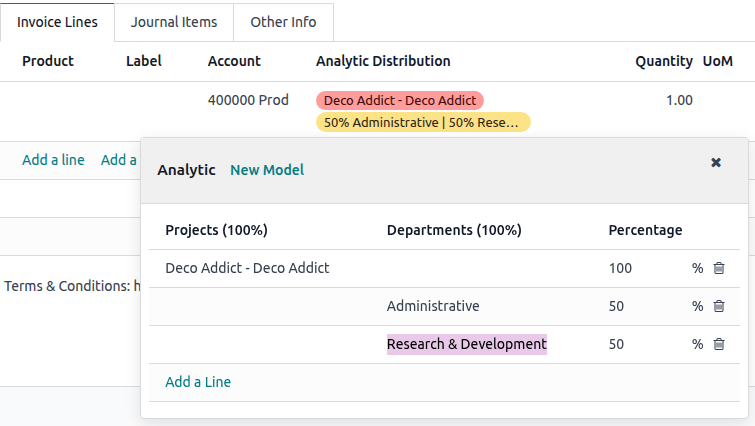
Analytic distribution is where plans and accounts meet a real transaction. On any invoice or bill line, click the Analytic Distribution column. The Analytic window shows one column per plan, and you pick accounts and percentages in each.
The important detail is that each plan is distributed independently. In the screenshot below, 100% of the line goes to the Deco Addict project, and the same line is also split 50% Administrative and 50% Research and Development in the Departments plan.
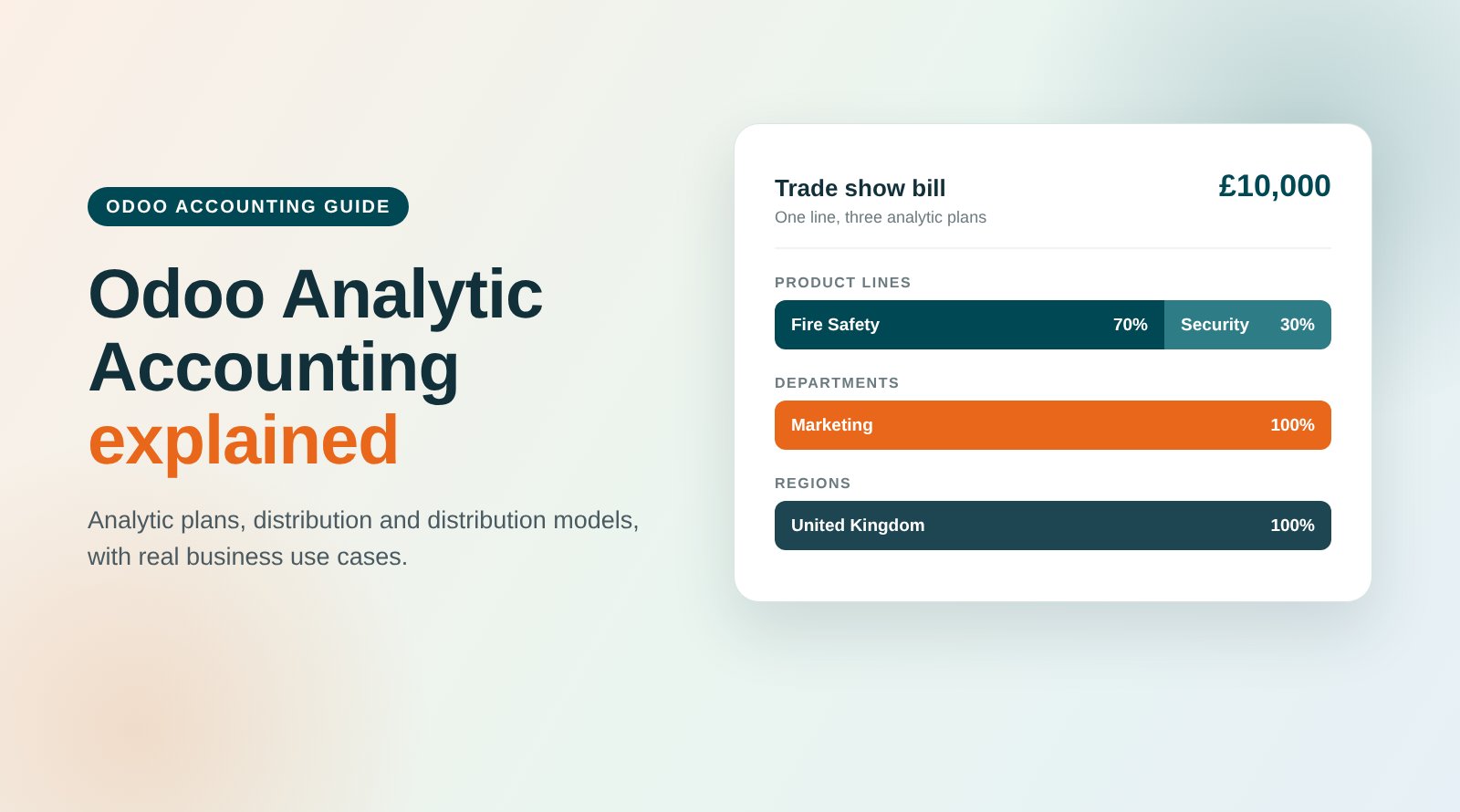
Worked example. A UK manufacturer receives a £10,000 bill from a marketing agency for a trade show. Finance distributes it like this:
| Plan | Analytic account | % | Amount |
|---|---|---|---|
| Product Lines | Fire Safety | 70% | £7,000 |
| Product Lines | Home Security | 30% | £3,000 |
| Departments | Marketing | 100% | £10,000 |
| Regions | UK | 100% | £10,000 |
The general ledger shows one £10,000 marketing expense. Analytic reports show it by product line, by department and by region, each adding up to the full amount.
The distribution is prefilled wherever possible, based on applicability rules and distribution models, so users rarely type it by hand. It can also start earlier in the process: set it on a sales order or purchase order line and it flows through to the invoice or bill.
Fixing history in bulk
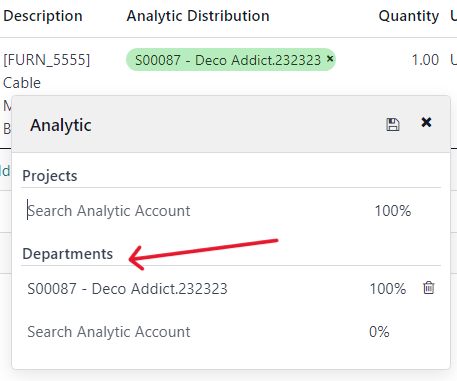
Forgot to tag last month’s entries? Go to Accounting > Review > Journal Items, select the lines, click the Analytic Distribution column, add the distribution and click Update. If the column is hidden, enable it from the optional columns icon.
Need a P&L by project, department or site? We design Odoo analytic structures around the reports your leadership team actually uses. Book a free consultation or see our Odoo implementation services.
4. Analytic distribution models: automate the split
Distribution models are rules that apply a distribution automatically when a journal item matches set conditions. They turn analytic accounting from a manual chore into something that happens in the background.
Create them under Accounting > Configuration > Analytic Distribution Models. A model can match on:
- Accounts Prefixes: journal items on accounts starting with given digits
- Partner: a specific customer or supplier
- Product: a specific product
- Company: one company, or all if left blank
- Partner Category and Product Category: extra criteria available from the optional columns or the model’s View
Two rules to remember:
- All conditions on one model must match. If you want “this partner or this product”, create two models.
- Models can be combined and sequenced. When models fill different plans, Odoo can apply several to the same line. Drag and drop to set the order.
Example from the Odoo documentation: shared utilities
Every posting to Utilities (601000) should be split across the Departments plan as 60% Manufacturing, 30% Marketing and 10% Admin. Set Accounts Prefixes to 601. If the chart also holds Electricity (601100) and Gas (601200), the same split covers them too, because they share the prefix.
More models we commonly configure
| Scenario | Condition | Distribution applied |
|---|---|---|
| Office rent shared by headcount | Accounts Prefix = rent account | Departments: 50% Delivery, 30% Sales, 20% Admin |
| A supplier that only serves one site | Partner = that supplier | Sites: 100% Birmingham Warehouse |
| Software licences charged to IT | Product Category = Software | Departments: 100% IT |
| Revenue from a product family | Product Category = Subscriptions | Product Lines: 100% SaaS |
| Group company with its own cost centres | Company = Ireland Ltd and Accounts Prefix = 6 | Cost Centres: 100% Dublin Office |
Tip. While filling a distribution on a bill, or mass-editing journal items, click New Model in the Analytic window to save that split as a rule straight away.
5. The payoff: analytic budgets and project profitability
Analytic budgets: plan versus actual, before the overspend
With Budget Management enabled, go to Accounting > Accounting > Analytic Budgets. Budget lines are built from your plans and accounts, so configure those first. Once a budget is Open, Odoo calculates two columns from the analytic distribution of journal items:
- Achieved: actuals from confirmed journal entries.
- Committed: Achieved plus confirmed purchase orders not yet billed.
The optional Theoretical column shows what should have been spent by today, based on the budget period.
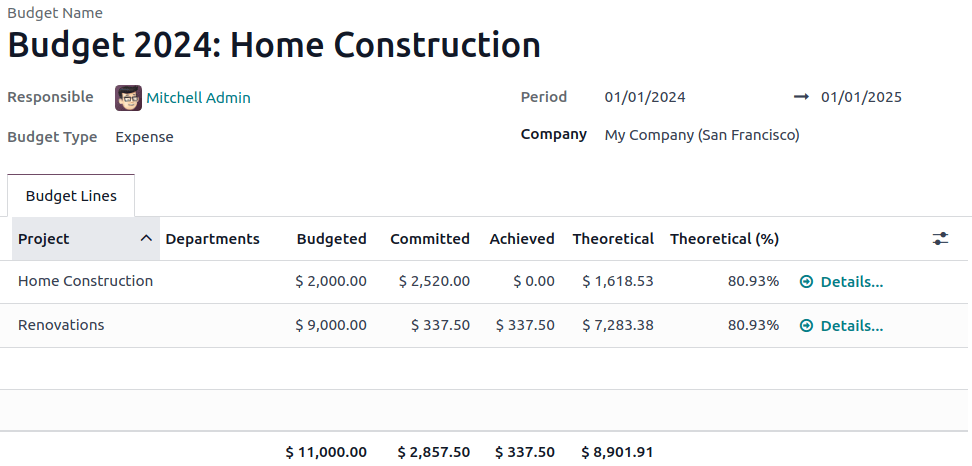
The committed figure is the one finance teams value most. When a buyer raises a purchase order with an analytic distribution, a Budget smart button appears, and any line that would exceed an open budget is highlighted in red. The overspend is visible before the money is committed, not at month end.
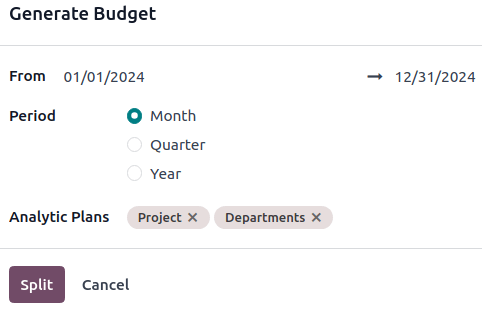
For monthly, quarterly or yearly budgets, click Generate in the Budgets list, set the dates, period and plans, then click Split. Odoo creates a draft budget per period with a line for each account, or each account combination when you pick several plans. Use Accounting > Reporting > Budget Report to filter, drill down and export.
Project profitability: live margin per project
In the Project app, each project’s dashboard includes a profitability panel. It reads all records linked to the project and its analytic account, such as timesheets, sales order items, materials, purchases and expenses. Revenues and costs move from Expected, to To Invoice or To Bill, to Invoiced or Billed as work progresses.
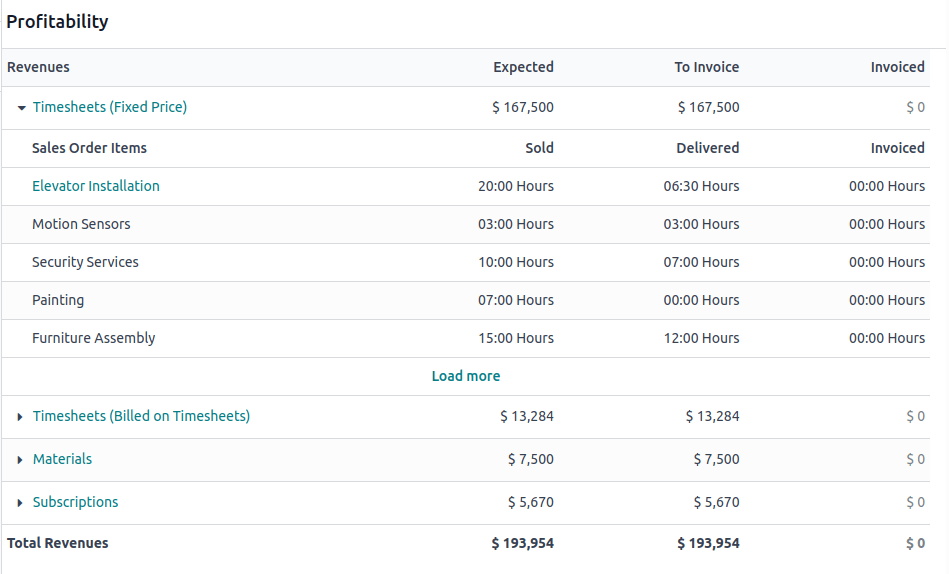
A record only appears here if it is linked to the project and its analytic account, which is why consistent distribution matters so much.
6. Odoo analytic accounting use cases by industry
The same four building blocks fit very different businesses. These are illustrative designs based on patterns we see in implementations.
| Industry | Analytic plans | Models and rules | Question it answers |
|---|---|---|---|
| Professional services | Projects (Fixed Price, Time and Materials); Practices | Projects mandatory on bills and expenses | Which engagements and practices earn margin after people costs? |
| Manufacturing | Product Lines; Departments; Plants | Utilities and rent split by model; Product Lines mandatory on revenue | What does each product line contribute once overheads are shared? |
| Food and drink, multi-site | Sites; Channels (Retail, Wholesale, Online) | Partner models for site-specific suppliers; Channels mandatory on sales | Is wholesale worth the logistics cost compared with retail? |
| Retail and campus stores | Stores; Categories | One model per store’s supplier and rent account | Which store is profitable, and which category drives it? |
| Field service and installation | Contracts; Regions; Vehicles | Fuel and maintenance categories mapped to Vehicles | What does each service contract really cost to fulfil? |
| Charities and grant-funded bodies | Funds and Grants; Programmes | Grant mandatory on every bill; budgets per grant period | Can we show each funder how their money was spent? |
| Property and real estate | Properties; Cost Types | Partner models per managing agent; Properties mandatory on bills | What is the net yield per building? |
A closer look: a consultancy with two dimensions
A 40-person consultancy wants margin by client project and by practice (CRM, ERP, Data). It sets up:
- A Projects plan, mandatory on vendor bills and expenses, with one analytic account per engagement linked to its project.
- A Practices plan, mandatory on revenue and cost of sales accounts.
- A distribution model that sends software subscription bills to the right practice by product category.
- A yearly analytic budget per practice, generated monthly.
The partners now open one pivot to see margin by practice, drill into any project’s profitability panel, and see committed spend against each practice budget before approving a purchase.
Design tips and common mistakes
- Start from the questions, not the settings. List the reports leadership wants each month. Each distinct “by X” becomes a plan.
- Keep plans few and stable. Two to four plans cover most businesses. Too many creates tagging fatigue and gaps.
- Use the chart of accounts for nature, analytics for ownership. Travel is a GL account. Which team travelled is analytic.
- Make it mandatory where it matters, and optional elsewhere, using applicability lines.
- Automate repeatable splits. Rent, utilities, recurring suppliers and subscriptions belong in distribution models.
- Agree allocation keys with finance. A 60/30/10 split is a policy decision. Document it and review it yearly.
- Upgrading from an older Odoo version? Older versions used analytic tags and a single analytic account per line. Map them to plans carefully during migration.
How ThoughtLogik helps
As an Odoo Partner, we design analytic structures around the decisions your leadership team needs to make.
- Workshops to define the reporting dimensions and allocation keys
- Analytic plan, applicability and distribution model configuration
- Budget and project profitability setup
- Cleanup and migration of historic analytic data
Frequently asked questions
What is analytic accounting in Odoo?
It is a second layer of tagging on journal items that tracks costs and revenue by project, department, region or any other dimension, without changing the chart of accounts.
What is the difference between an analytic plan and an analytic account?
An analytic account is a single bucket, such as one project. An analytic plan is the dimension that groups those buckets, such as Projects or Departments.
Can one invoice line be split across several analytic accounts?
Yes. Each plan is distributed independently, so one line can be split by percentage within a plan and also carry accounts from other plans.
How do I make analytic accounts mandatory in Odoo?
Set the plan’s Default Applicability to Mandatory, or add lines in its Applicability tab to make it mandatory only for certain documents, account prefixes, product categories or companies.
What is an analytic distribution model?
A rule that applies a distribution automatically when a journal item matches conditions such as an account prefix, partner, product, category or company.
Does Odoo support budgets by project or department?
Yes. Analytic budgets track budgeted, committed and achieved amounts per analytic account, and purchase order lines that exceed an open budget are highlighted.
Sources: Odoo analytic accounting, Odoo budgets and Odoo project profitability documentation. Screenshots are from the official Odoo documentation.