Short answer
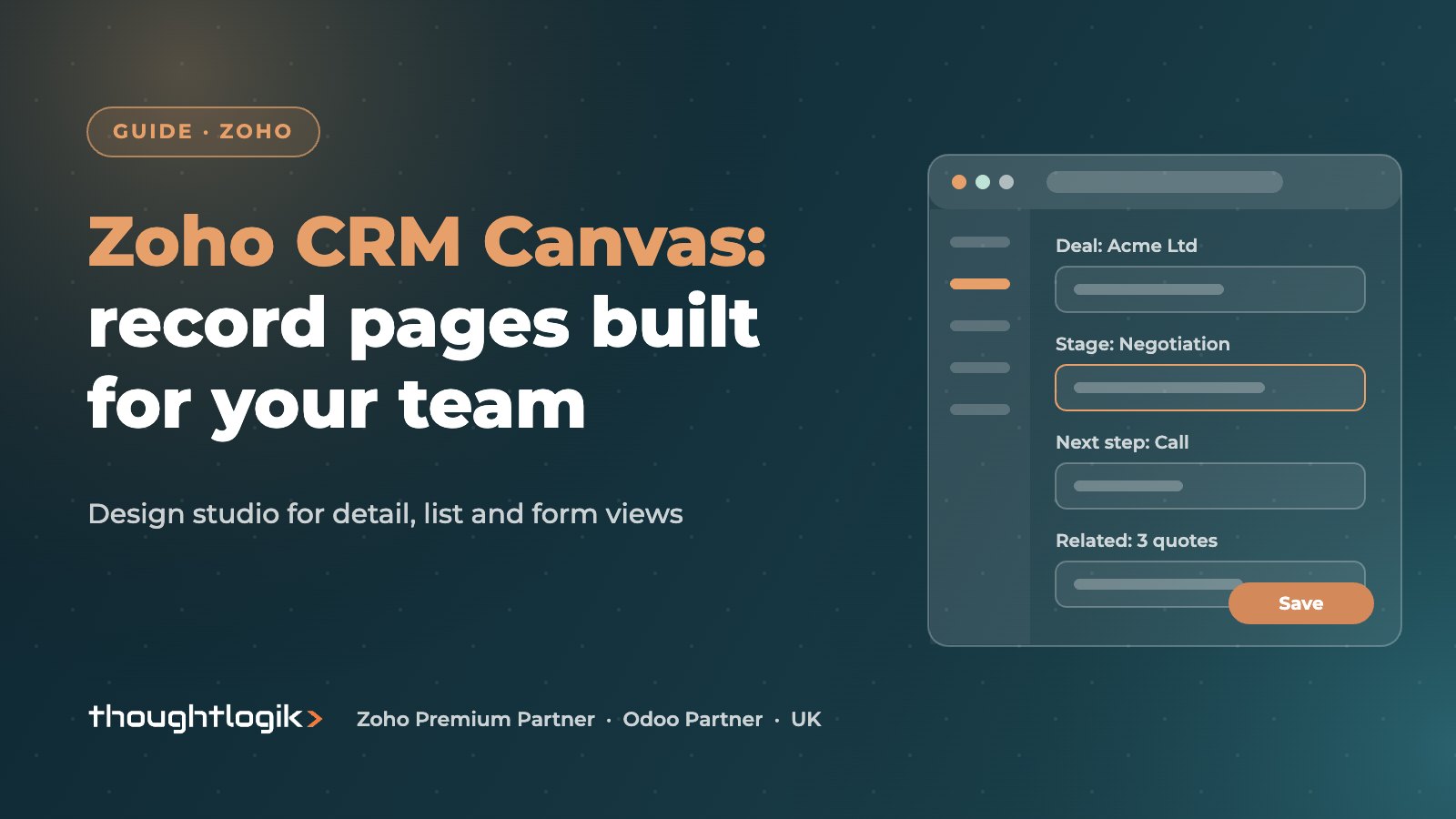
Zoho CRM Canvas is a no-code design studio that changes how records look, not what data they hold. You can redesign the record detail page, list views and forms with sections, tabs, images, icons, buttons and conditional styling, then assign each design to user profiles. It sits on top of your page layouts, so the underlying fields and data stay the same.
Key takeaways
- Canvas changes presentation; page layouts and fields still define the data.
- You can start from a gallery design or build from scratch in Setup, Customization, Canvas.
- Canvas rules apply conditional styling, such as highlighting an overdue value.
- Designs are assigned by profile, so sales and service can see the same record differently.
- Removing a Canvas assignment returns users to the standard view with no data lost.
The standard Zoho CRM record page lists fields in sections, top to bottom. For a record with sixty fields, that means a lot of scrolling to find the three things a salesperson actually needs before a call. Users stop reading the page, then stop updating it. Zoho CRM Canvas tackles that by letting you design the page around how people work. This guide explains what Canvas does, where it fits alongside page layouts, and how to design pages that make a difference.
What is Zoho CRM Canvas?
Canvas is Zoho’s canvas design studio for CRM. It gives administrators a drag-and-drop editor to build custom views of records. According to Zoho, Canvas covers detail views, list views, form views and mobile views, and includes a gallery of ready-made designs and saved presets to speed things up.
Available building blocks include:
- Structure: sections, tabs, tables, flex containers and grids.
- Visual elements: text, images, icons and lines.
- Data: fields, related lists, fields from related modules, links and action buttons.
- Styling: backgrounds, fonts, borders, shadows, spacing and rounded corners, with reusable style presets.
Zoho CRM Canvas vs page layouts
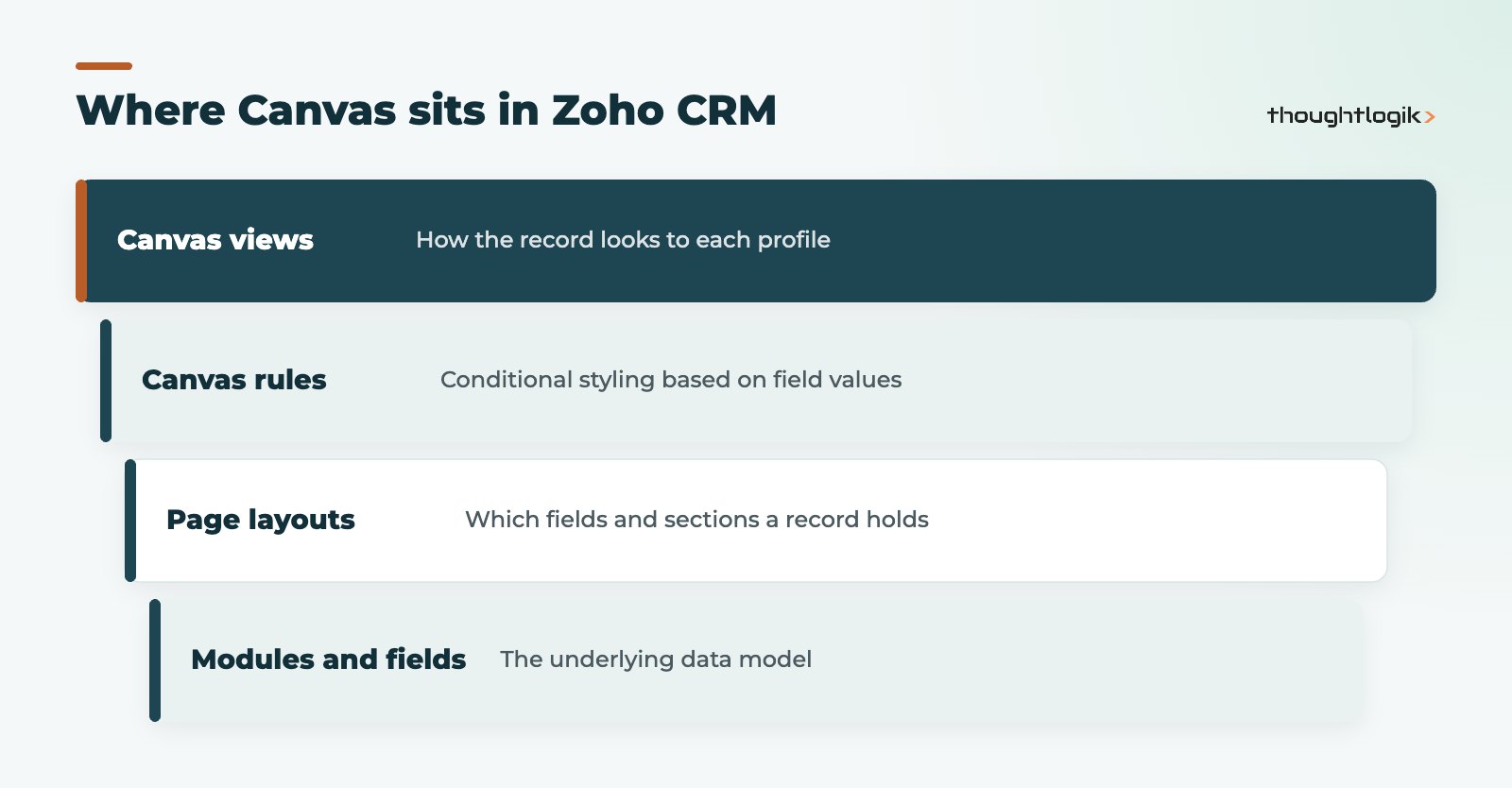
This is the question we are asked most. Page layouts define which fields and sections exist on a record for a given layout, which fields are mandatory, and what data is captured. Canvas defines how that record is displayed. They work together.
| Question | Page layouts | Zoho CRM Canvas |
|---|---|---|
| Controls which fields exist | Yes | No |
| Controls visual design | Limited | Yes |
| Conditional styling | No | Yes, with Canvas rules |
| Assigned to | Profiles, per layout | Profiles, per module and view |
| Affects stored data | Yes, through fields and rules | No |
Fields you leave off a Canvas design still exist. Zoho notes that users cannot see or edit them from that Canvas view, but the data remains available in reports, through the API and in other views. Plan page layouts first, then design with Canvas. Think of the canvas design studio as the final presentation layer.
How to design a record detail page in Canvas
- Go to Setup, then Customization, then Canvas, and choose Detail View.
- Click to create a record detail page and choose the module and layout.
- Pick a design from the gallery or start from a blank canvas.
- Drag in fields, related lists, buttons and structural elements, then style them.
- Add Canvas rules for any conditional styling.
- Save, then use Canvas Assignment to set which profiles see the design by default.
Zoho’s Canvas record detail page help article covers each element and option.
Using Canvas rules
Canvas rules apply styling when a condition is met, for example showing a currency field in red when it passes a threshold, or flagging a deal whose closing date has passed. Rules are reusable across canvases in the same module. Use them sparingly: if everything is red, nothing stands out.
Designing a Zoho CRM Canvas page by role
Because assignment is by profile, you can give each team a design suited to its job. A sales rep’s deal page might lead with stage, next step and recent activity. A finance user might see payment terms, credit status and linked quotes first. Our Creditsafe credit check for Zoho CRM is a good example of data worth surfacing prominently for finance users.
List views and forms
The canvas design studio is not limited to the record detail page. List views can be redesigned so each row shows the information a user scans for, such as a status badge, owner and value, rather than a plain grid of columns. Form views control how records look when they are created or edited, which helps when a long form needs grouping into clear steps. As with detail views, you can design separate list and form views for different profiles in the same module.
A practical order is to start with the detail page for your busiest module, gather feedback for a couple of weeks, then move on to its list view and form. Designing everything at once makes it hard to tell which change helped.
Best practice for Zoho CRM Canvas designs
Good record pages start with questions, not colours. Before designing, ask each team what they need to know in the first five seconds after opening a record.
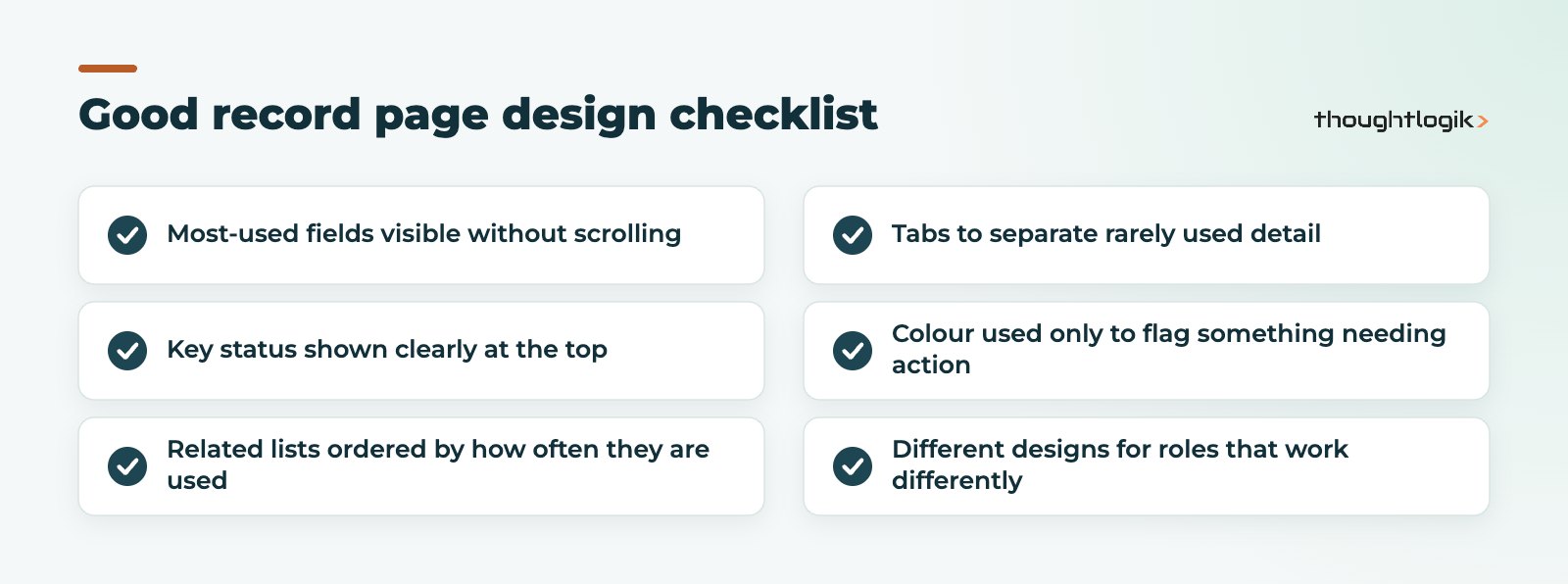
- Design for the task. Put the fields people use on every call or visit at the top. Move rarely used detail into tabs.
- Keep it consistent. Use the same position for status and ownership across modules so users know where to look.
- Test before you roll out. Build and review designs in a sandbox with real users; see our Zoho CRM sandbox guide.
- Do not hide mandatory data. If a Blueprint or validation rule needs a field, make sure users can find it.
- Check mobile. Many field sales users live in the app, so review how designs appear there; see our Zoho CRM mobile app guide.
Limitations to know
Canvas is flexible, but Zoho’s own FAQs list some limits, such as designs not being reusable across modules and no import or export of designs between separate Zoho accounts. Feature availability also varies by CRM edition, so confirm what your plan includes. Users need the relevant customisation permission to create and edit designs; everyone else simply sees what is assigned to them.
If you change your mind, removing the Canvas assignment returns users to the standard Zoho CRM view. No data is lost.
Is Zoho CRM Canvas worth the effort?
For modules people open dozens of times a day, such as Deals, Contacts or a custom Jobs module, yes. Time saved finding information adds up quickly, and a clearer page encourages people to keep records up to date. For modules that are rarely opened, the standard view is usually fine.
How ThoughtLogik helps
ThoughtLogik designs Zoho CRM Canvas pages as part of CRM projects and optimisation work.
- User workshops to find what each team needs on screen.
- Page layouts and Canvas designs built together, with Canvas rules where they add value.
- Profile-based assignment and user testing before roll-out.
- Improvements to existing systems through our Zoho optimisation service.
Frequently asked questions
Does Zoho CRM Canvas change my data?
No. Canvas changes how records are displayed. Fields not included in a design still exist and remain available in reports, the API and other views.
Can different teams see different Canvas designs?
Yes. Canvas designs are assigned by profile, so sales, service and finance users can each see a design suited to their role.
How do I go back to the standard record detail page?
Remove the Canvas assignment for the profile. Users then return to the default Zoho CRM view automatically.
Is Canvas included in every Zoho CRM edition?
Availability varies by edition. Check your plan, or talk to us about which edition fits your needs.
Do I need a developer to use Canvas?
No. Canvas is a drag-and-drop, no-code editor. Custom CSS properties are available for fine styling, but most designs need none.
Record pages nobody reads? We can redesign your key modules with Canvas around how your team works. Book a free consultation or see our Zoho CRM services.