Why we built it
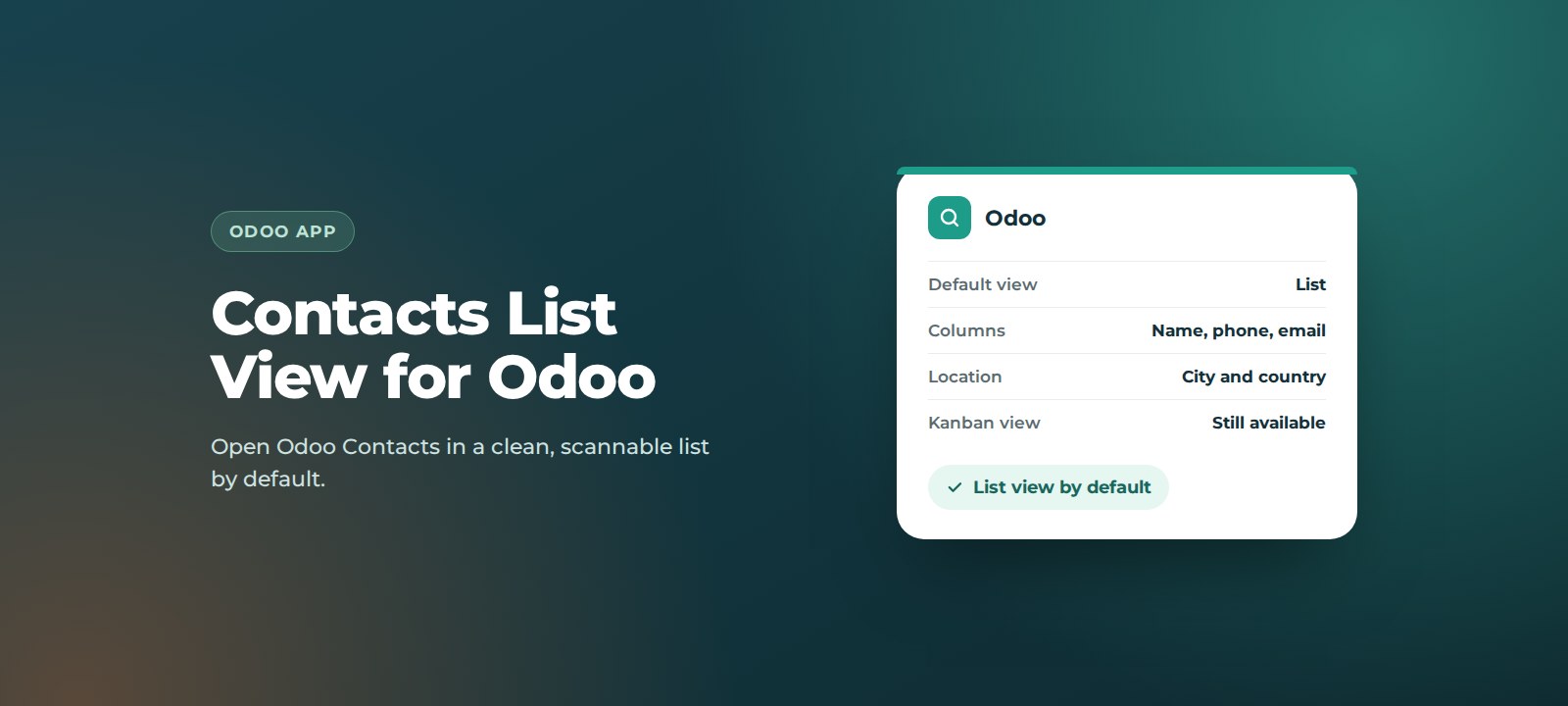
Out of the box, Odoo opens Contacts as a grid of cards. That looks good with a handful of records, but once you have hundreds of customers, suppliers and people, cards make it hard to scan, compare and spot gaps. Most teams switch to the list view every time. This app simply makes that the default.
Key benefits
- See more at a glance. Dozens of contacts on one screen, with the details that matter in columns.
- Faster to scan and compare. Line up phone numbers, emails, cities and countries side by side.
- Spot missing data quickly. Empty columns make incomplete records obvious, so you can tidy them up.
- One less click, every time. No more switching views each time you open Contacts.
- Nothing else changes. Kanban and other views are still one click away.
How it works
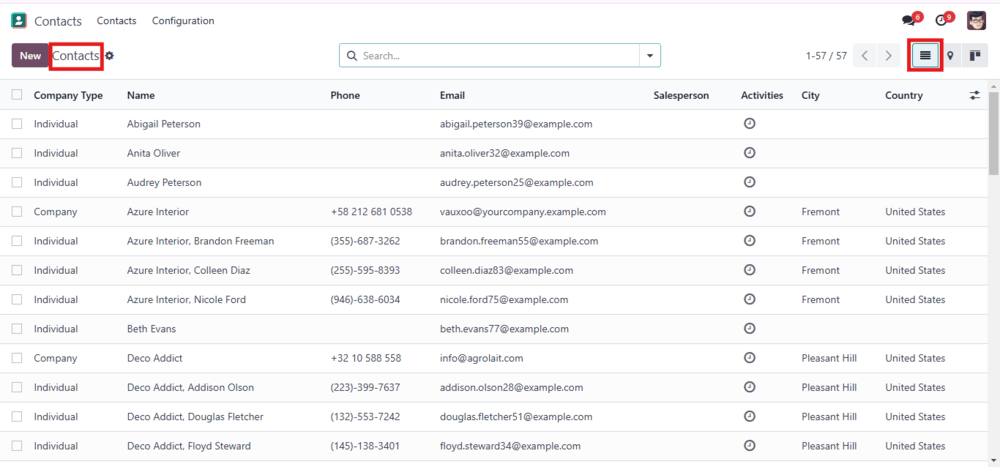
Open the Contacts app. Contacts now open in the list view, showing company type, name, phone, email, salesperson, activities, city and country. Use the view buttons in the top right if you want to switch to cards or the map.
How to set it up
Before you start: third-party apps can be installed on Odoo.sh and on self-hosted (on-premise) Odoo. Odoo Online does not support custom apps. If you are not sure which you have, ask us.
- Get the app. Download it from the Odoo Apps Store, or we can install it for you.
- Install it. Add the module to your Odoo instance, then go to Apps, update the apps list, search for the app and click Activate.
- Check it. Open Contacts. The list view should load straight away.
Support
Contacts List View is built and supported by ThoughtLogik, an Odoo Partner, so you speak to the people who wrote it.
- Get in touch: email support@thoughtlogik.com, or contact your ThoughtLogik account manager if you have a support plan with us.
- Help us help you faster: tell us the app name, your Odoo version and hosting (Odoo.sh or on-premise), what you expected to happen and what actually happened, and include a screenshot of any error message.
- Quick check first: refresh your browser after installing, as Odoo may remember the last view you used.
- Need it to do more? We can adapt the app to your process or build a new one around it.
Frequently asked questions
Does this remove the kanban view?
No. The kanban, map and other views are still there. The app only changes which view opens first, and you can switch views at any time from the view buttons.
Does it change any contact data?
No. It only changes how contacts are displayed. Your records are not modified.
Which Odoo versions does it support?
Contact us to confirm compatibility with your Odoo version and edition before you install.
Can I use it on Odoo Online?
No. Odoo Online does not support third-party apps. It works on Odoo.sh and self-hosted Odoo.
Want Contacts List View in your Odoo? ThoughtLogik is an Odoo Partner. Book a free consultation or email support@thoughtlogik.com and we will get you set up.