Why we built it
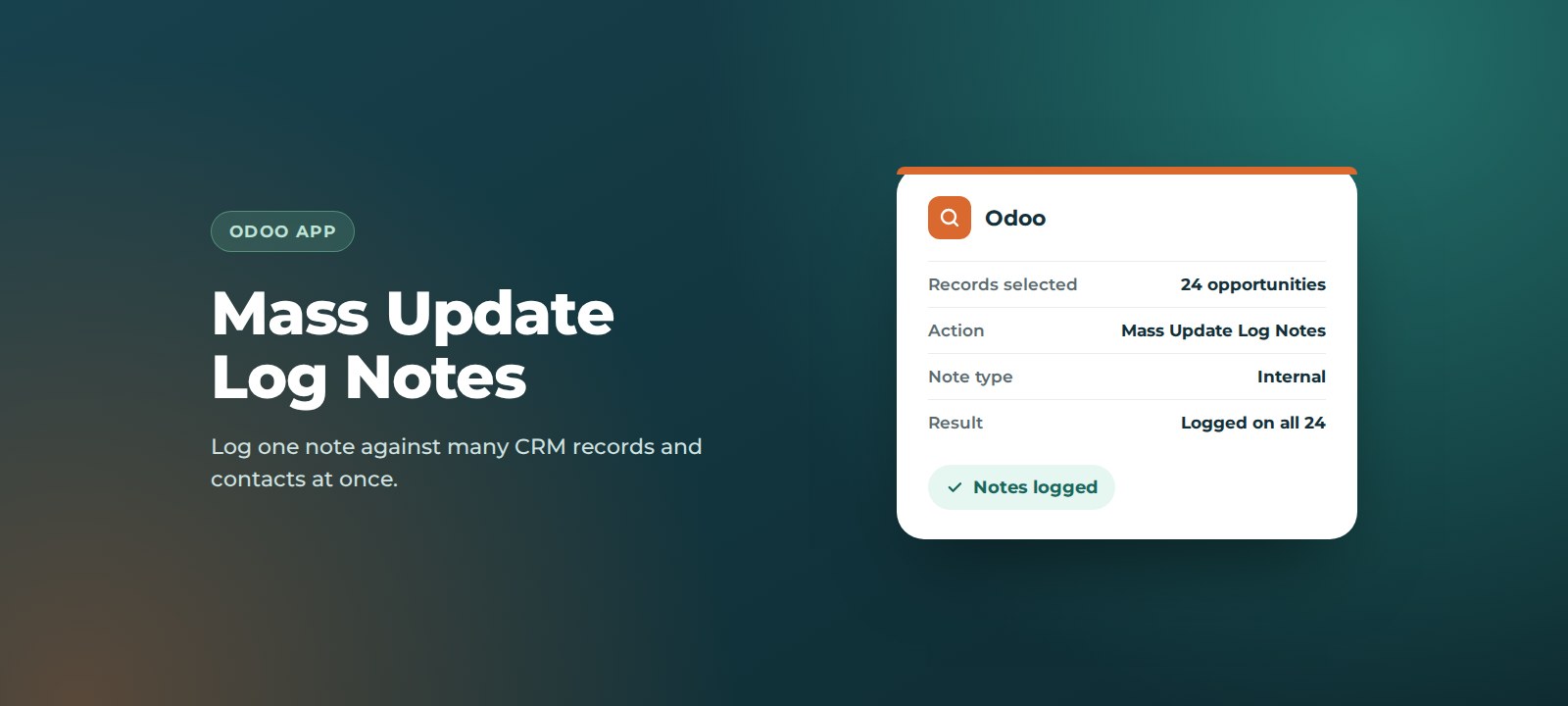
Teams often need to record the same update against many records: a price change communicated to a group of prospects, a trade show follow-up, or a note that a batch of contacts has been reassigned. In standard Odoo you open each record and log the note one at a time. It is slow, and in practice notes get skipped and history ends up incomplete.
Key benefits
- Minutes, not hours. Log one note against dozens of records in a single action.
- Complete, consistent history. Every selected record gets exactly the same note, with the same wording and timestamp.
- Works where you work. Available in CRM and Contacts, straight from the list view.
- Internal by design. Notes are logged internally, so nothing is sent to your customers by mistake.
- Better handovers and audits. Anyone opening a record can see what happened and when.
How it works
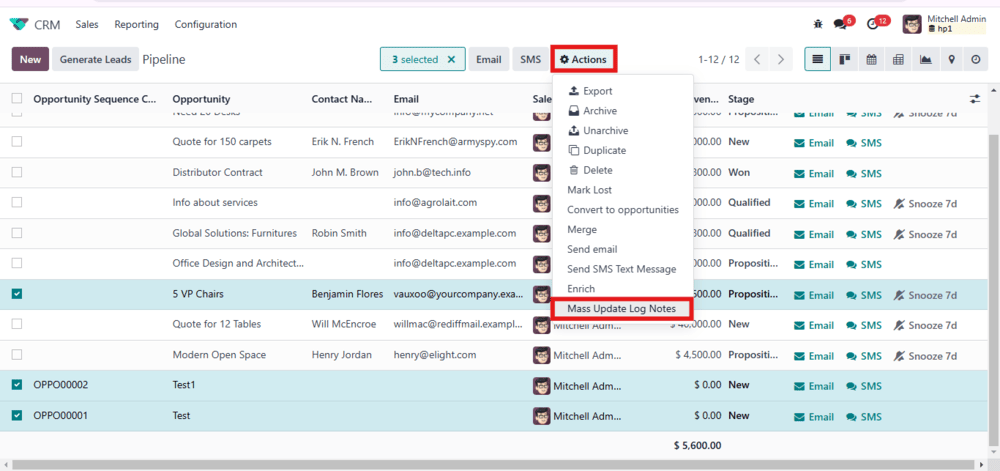
1. Select your records
Open CRM (or Contacts) in list view and tick the records you want to update.
2. Choose Mass Update Log Notes
Click Actions and choose Mass Update Log Notes.
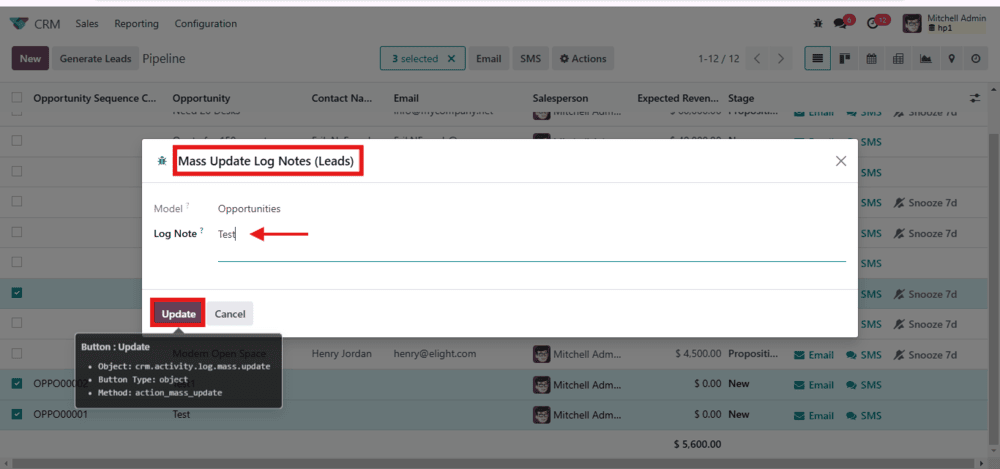
3. Write the note and update
Type your note in the pop-up and click Update.
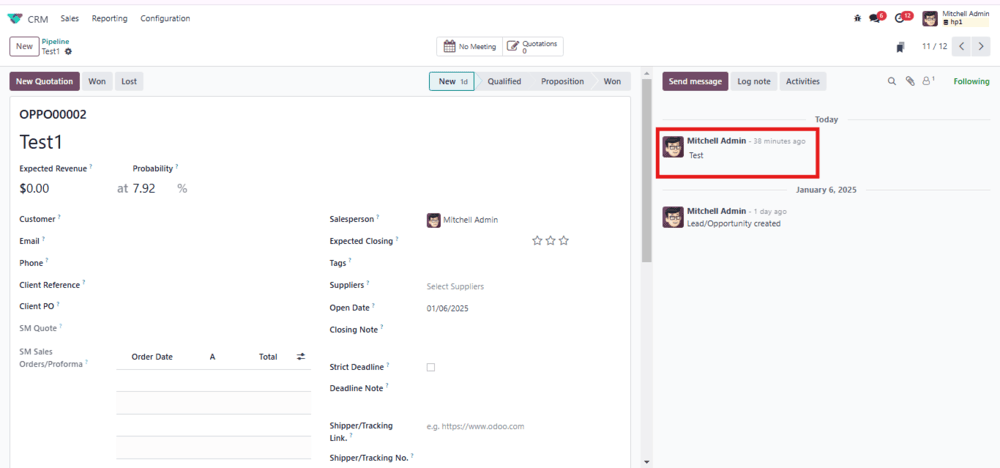
4. Check the chatter
Open any of the selected records. The note appears in the chatter alongside the rest of its history.
The same steps work in Contacts: select contacts in list view, then Actions > Mass Update Log Notes.
How to set it up
Before you start: third-party apps can be installed on Odoo.sh and on self-hosted (on-premise) Odoo. Odoo Online does not support custom apps. If you are not sure which you have, ask us.
- Get the app. Download it from the Odoo Apps Store, or we can install it for you.
- Install it. Add the module to your Odoo instance, then go to Apps, update the apps list, search for the app and click Activate.
- Check user access. Users need normal access to CRM or Contacts to use the action.
- Run a test. Select two records, add a test note and check it appears on both.
Support
Mass Update Log Notes is built and supported by ThoughtLogik, an Odoo Partner, so you speak to the people who wrote it.
- Get in touch: email support@thoughtlogik.com, or contact your ThoughtLogik account manager if you have a support plan with us.
- Help us help you faster: tell us the app name, your Odoo version and hosting (Odoo.sh or on-premise), what you expected to happen and what actually happened, and include a screenshot of any error message.
- Quick check first: make sure you are in the list view with at least one record ticked, as the action only appears once records are selected.
- Need it to do more? We can adapt the app to your process or build a new one around it.
Frequently asked questions
Are the notes sent to customers?
No. They are added as internal log notes, which only your team can see. No email is sent.
Which records does it work on?
CRM leads and opportunities, and Contacts.
Is there a limit to how many records I can update?
You can update any records you can select in the list view. For very large batches, work through them a page at a time.
Can I use it on Odoo Online?
No. Odoo Online does not support third-party apps. It works on Odoo.sh and self-hosted Odoo.
Want Mass Update Log Notes in your Odoo? ThoughtLogik is an Odoo Partner. Book a free consultation or email support@thoughtlogik.com and we will get you set up.