Why we built it
Sales, service and delivery teams copy contact details all day: into emails, phone systems, courier sites and route planners. Selecting text by hand is fiddly, easy to get wrong and slow, especially on multi-line addresses. Finding where a customer actually is means copying the address into a map in another tab.
Key benefits
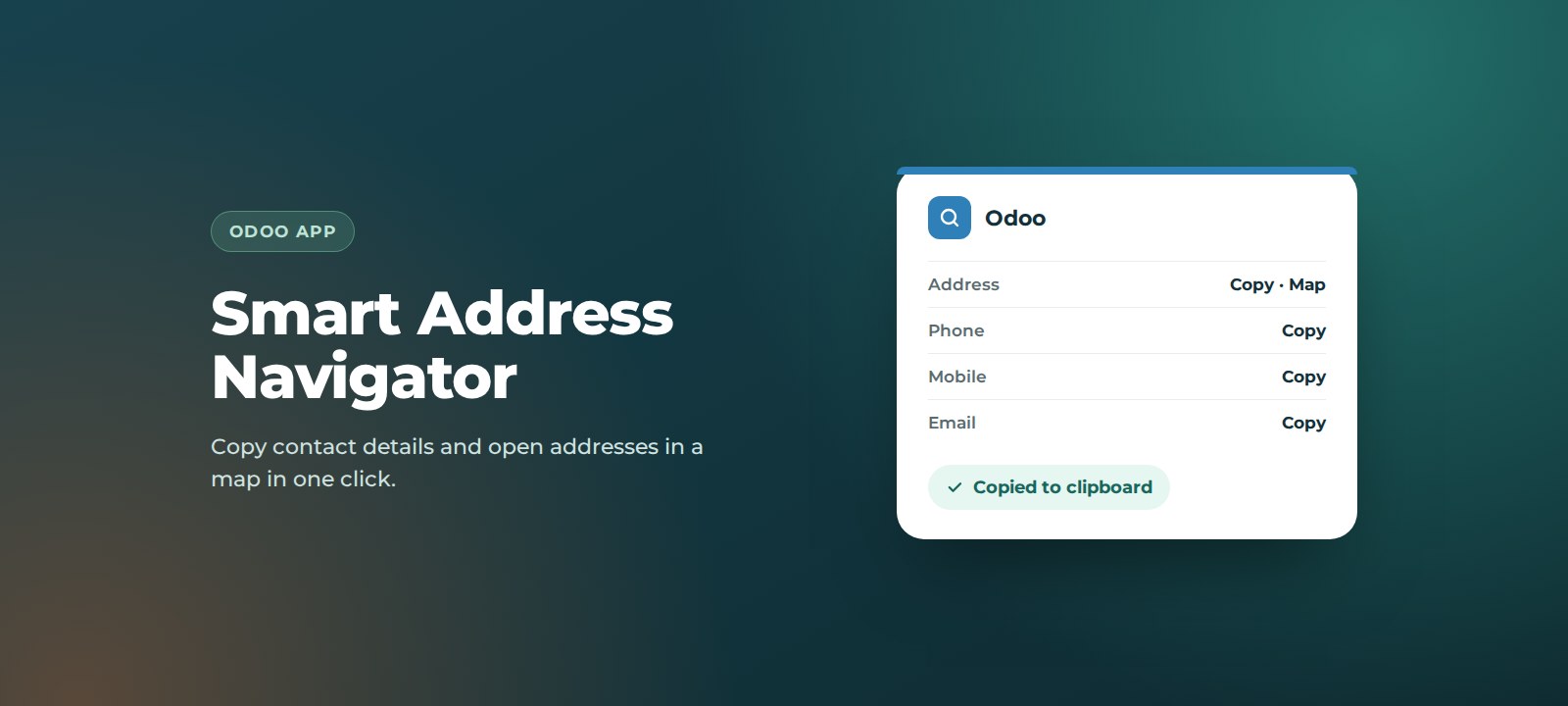
- One click to copy. Copy a full address, phone number, mobile or email instantly.
- Fewer mistakes. No missed characters or half-copied addresses.
- Find locations fast. The location button opens the address in a map, ready for directions.
- Great for field and delivery teams. Plan visits and deliveries straight from the contact record.
- No change to your data. The app adds buttons only, so nothing else about your contacts changes.
How it works
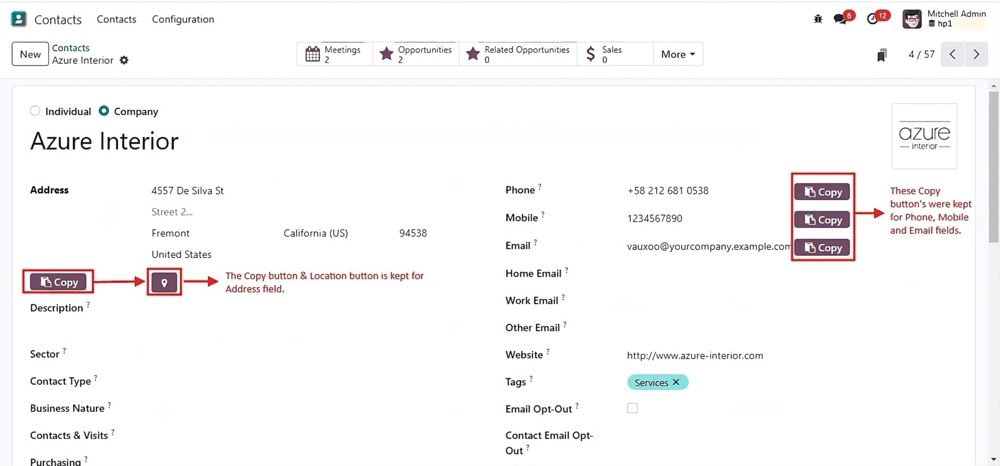
Open any contact in the Contacts app. Next to the address you will see a Copy button and a location button. Phone, mobile and email each have their own Copy button.
- Click Copy to put the value on your clipboard, then paste it wherever you need it.
- Click the location button to open the address in a map.
How to set it up
Before you start: third-party apps can be installed on Odoo.sh and on self-hosted (on-premise) Odoo. Odoo Online does not support custom apps. If you are not sure which you have, ask us.
- Get the app. Download it from the Odoo Apps Store, or we can install it for you.
- Install it. Add the module to your Odoo instance, then go to Apps, update the apps list, search for the app and click Activate.
- Check it. Open any contact with an address and try the Copy and location buttons.
Support
Smart Address Navigator is built and supported by ThoughtLogik, an Odoo Partner, so you speak to the people who wrote it.
- Get in touch: email support@thoughtlogik.com, or contact your ThoughtLogik account manager if you have a support plan with us.
- Help us help you faster: tell us the app name, your Odoo version and hosting (Odoo.sh or on-premise), what you expected to happen and what actually happened, and include a screenshot of any error message.
- Quick check first: if the map does not open, check that your browser is not blocking pop-ups from your Odoo site.
- Need it to do more? We can adapt the app to your process or build a new one around it.
Frequently asked questions
Which map service does the location button use?
It opens the contact’s address in an online map in your browser, so you can check the location or plan a route.
Which fields have copy buttons?
Address, phone, mobile and email on the contact form.
Does it change my contact data?
No. It adds buttons to the form. Your data stays exactly as it is.
Can I use it on Odoo Online?
No. Odoo Online does not support third-party apps. It works on Odoo.sh and self-hosted Odoo.
Want Smart Address Navigator in your Odoo? ThoughtLogik is an Odoo Partner. Book a free consultation or email support@thoughtlogik.com and we will get you set up.