Short answer
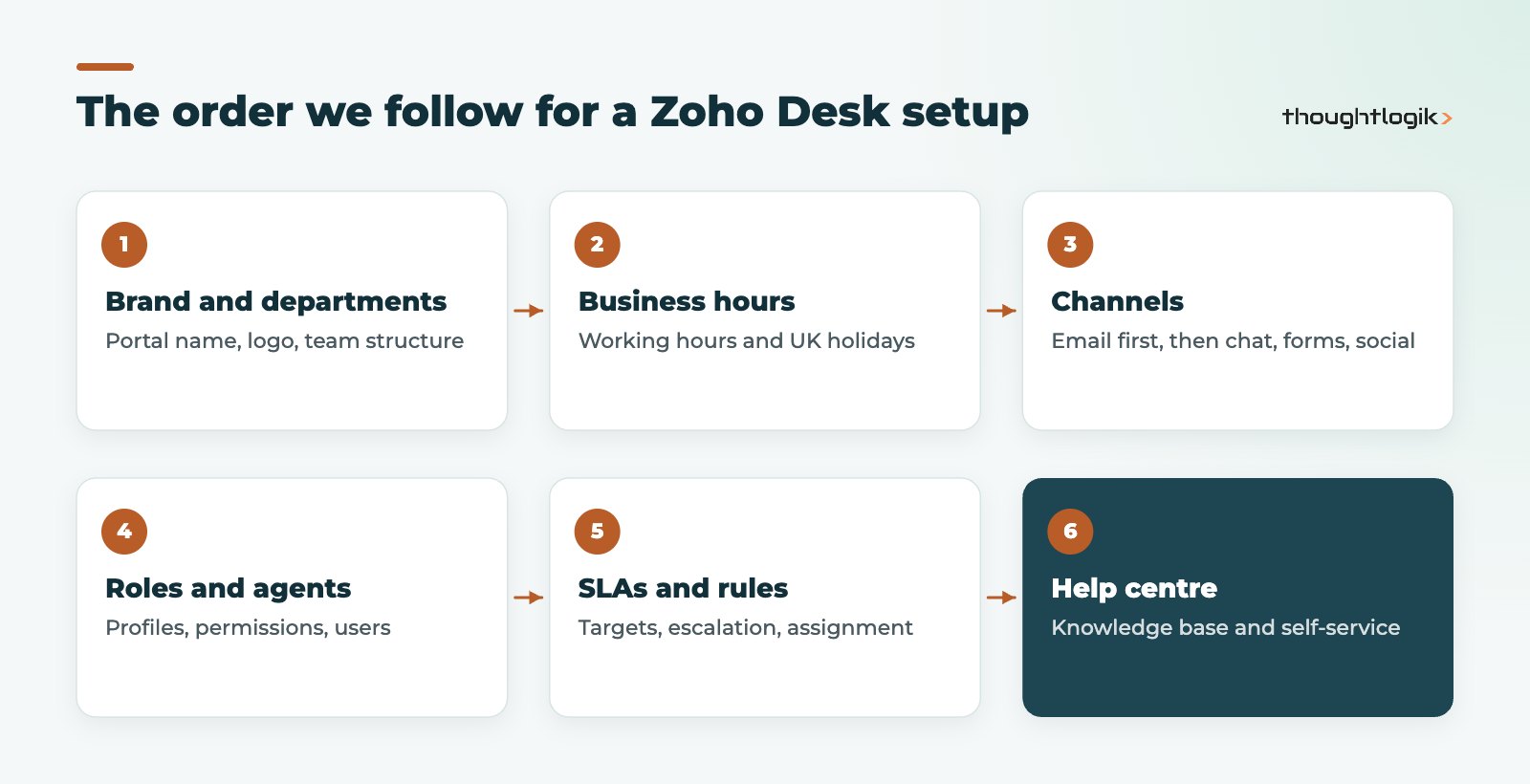
A good Zoho Desk setup follows a clear order: brand the portal and create departments, set business hours, connect the email channel and other channels, define roles and agents, then add assignment rules, SLAs, workflows and a help centre. Getting the structure right first means automation and reporting work properly later. Most teams can run a basic helpdesk quickly and then refine it over the first few months.
Key takeaways
- Decide your departments before anything else; most settings hang off them.
- Set business hours and UK bank holidays before SLAs, because SLA timers depend on them.
- The email channel is usually the first and most important channel to connect.
- Assignment rules and SLAs do more for response times than any other setting.
- A focused knowledge base cuts repeat questions and gives agents consistent answers.
Zoho Desk is Zoho’s customer service platform, handling tickets from email, web forms, chat, social media and other channels in one place. It is straightforward to switch on, but a helpdesk that routes tickets correctly, measures response times accurately and helps customers help themselves needs deliberate configuration. This guide follows the order Zoho recommends in its admin guide to getting started with Zoho Desk, with the practical decisions we make on client projects.
Where should a Zoho Desk setup start?
Start any Zoho Desk setup with structure, not channels. Every later setting, from email addresses to SLAs to reports, is tied to departments, so these decisions come first.
Branding and departments
Rebrand the portal with your company name and logo, and map a custom domain for the help centre if you want customers to see your own address. Then create departments. These might follow teams (customer service, technical support, returns), products or regions. Keep the number small: every department needs its own channels, rules and reporting.
Business hours and holidays
Set your working hours and holiday list for each department. For UK teams, remember regional bank holidays if you support customers in Scotland or Northern Ireland. SLA timers use these hours, so an incorrect calendar produces misleading breach reports.
Connecting the email channel and other channels
Email is still the main support channel for most businesses, so it is the first channel to set up. You typically keep your existing support address and forward incoming mail to the address Zoho Desk provides for the department, then configure outgoing mail so replies come from your own domain. Test the full loop: a customer email creates a ticket, an agent replies, and the reply arrives looking as it should.
After the email channel, add the channels your customers actually use:
- Web forms on your website, with fields that capture what agents need (order number, product, category).
- Live chat for quick questions, if you can staff it.
- Social media accounts where customers raise issues publicly.
- Telephony, so calls create or update tickets.
- Community forums, for products with an engaged user base.
Available channels and limits depend on your Zoho Desk edition, so confirm this before you promise a channel to customers.
Setting up roles, profiles and agents in Zoho Desk
Define roles (who sees whose tickets) and profiles (what each person can do) before inviting agents. A common pattern is agents seeing their department’s tickets, team leads seeing their team, and managers seeing everything. Then add agents to the right departments. Customise ticket fields and layouts at this stage too, and keep them lean: every mandatory field slows agents down.
Zoho Desk SLA, assignment rules and automation
With structure and channels in place, automation is where Zoho Desk earns its keep.
Assignment rules in a Zoho Desk setup
These rules decide who gets each ticket. Options include routing by criteria (channel, category, customer or keywords) and round-robin distribution across agents. Start simple: route by department and category, then balance within the team.
Zoho Desk SLA targets and escalation
SLAs set response and resolution targets. Zoho Desk can apply different targets based on criteria such as the channel, the customer and the ticket’s priority, calculate due times against business hours, and escalate overdue tickets to a manager or another agent. A practical Zoho Desk SLA design has a small number of tiers, for example standard customers and customers on a premium support plan, with targets you can realistically meet.
| Automation | What it does | Typical use |
|---|---|---|
| Ticket assignment | Routes tickets to agents or teams | Send billing queries to finance support |
| SLAs | Sets due times and escalates breaches | Escalate high-priority tickets not answered in time |
| Workflow rules | Runs actions when conditions are met | Tag and alert on tickets mentioning a refund |
| Notification rules | Keeps customers and agents informed | Acknowledge new tickets automatically |
| Blueprints | Guides agents through a defined process | Returns handling with mandatory steps |
Workflows and notifications
Workflow rules handle the rest: tagging, field updates, alerts and follow-ups. Pair them with notification rules so customers receive an acknowledgement and agents are told when tickets are assigned or overdue. Resist automating everything in week one; watch how tickets actually flow first.
Building a Zoho Desk knowledge base
The help centre is where self-service happens. A good Zoho Desk knowledge base answers the questions your agents answer most often, in plain language, organised the way customers think rather than the way your teams are structured.
- Pull the top recurring questions from your first weeks of tickets.
- Write short articles with one answer each, and link related articles.
- Use articles in agent replies so answers stay consistent.
- Review articles with low ratings or high views followed by new tickets.
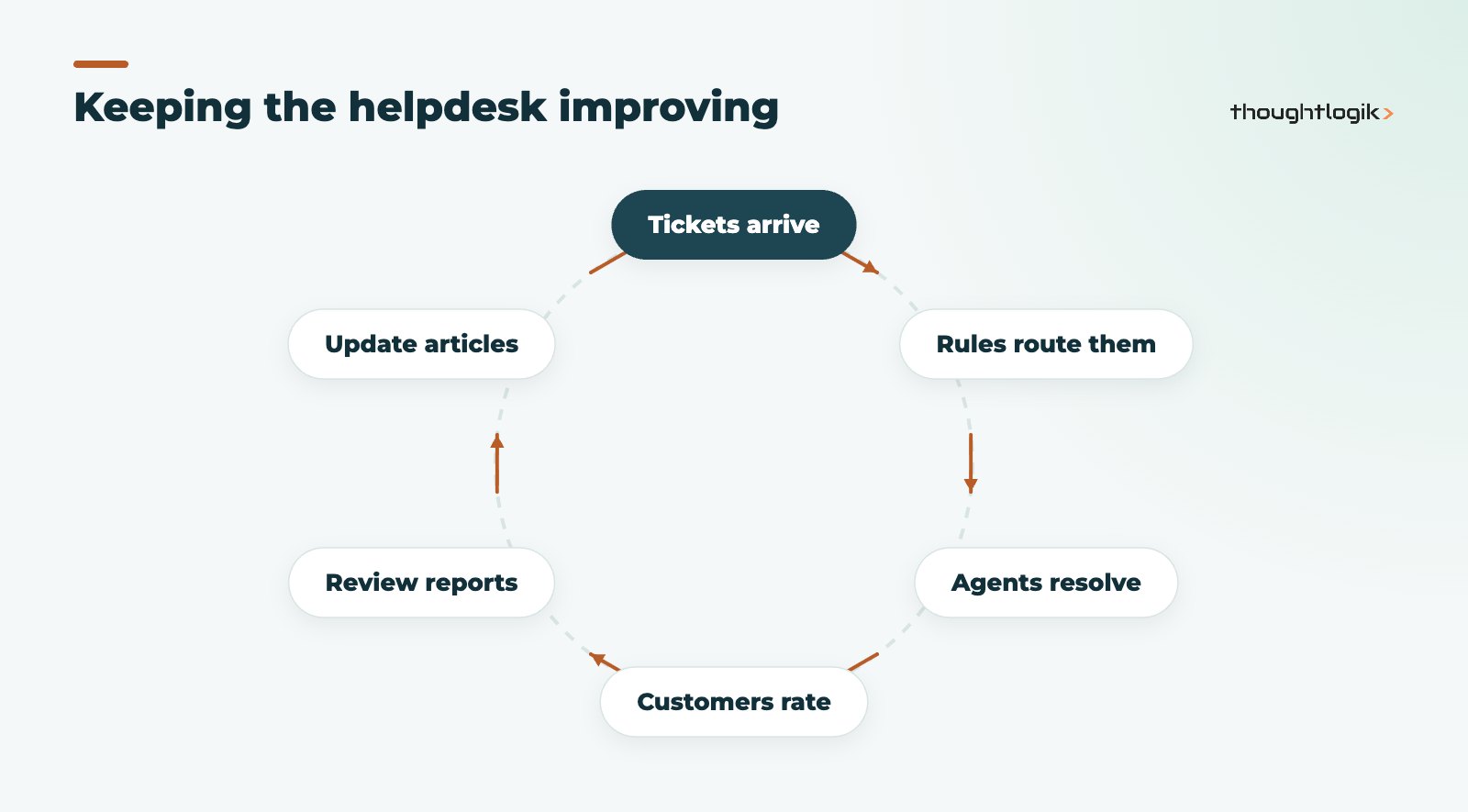
After the Zoho Desk setup: measure and improve
Turn on customer happiness ratings so customers can rate responses, and build reports for first response time, resolution time, SLA breaches and ticket volumes by category. Review them monthly and feed what you learn into rules and content. A Zoho Desk setup is never truly finished: products change, customers find new questions to ask, and the best helpdesks are tuned steadily. If yours has drifted, our Zoho optimisation service can review it.
If you run Zoho CRM, connect it with Zoho Desk so sales can see open tickets and support can see account context. Import historical tickets, contacts and articles at the end of the Zoho Desk setup, once fields and departments are final, so imported data lands in the right place. If you are still choosing a helpdesk, see our Zoho Desk vs Freshdesk comparison.
How ThoughtLogik helps
We configure Zoho Desk for UK service teams as part of wider Zoho projects or as a standalone helpdesk rollout.
- Department, role and channel design based on how your team works
- SLA, assignment and workflow configuration with realistic targets
- Knowledge base structure and help centre branding
- Ongoing admin help through our Zoho support service
- Integration with Zoho CRM and other systems via our Zoho integration services
Frequently asked questions
How long does a Zoho Desk setup take?
A basic single-department helpdesk with email can be running quickly. Multi-department setups with several channels, SLAs, integrations and data import take longer and benefit from a short design phase.
Can I keep my existing support email address?
Yes. You normally forward your existing support address to Zoho Desk and configure outgoing mail so customers continue to see your own address.
Do Zoho Desk SLA timers respect UK bank holidays?
SLA due times are calculated against the business hours and holiday lists you configure, so add UK bank holidays for each department.
Is the Zoho Desk knowledge base public?
You choose. Articles can be public in the help centre or restricted, for example to signed-in customers or internal agents.
Does Zoho Desk integrate with Zoho CRM?
Yes. Zoho Desk integrates with Zoho CRM so contact and account information can be shared and teams can see each other’s context.
Setting up a new helpdesk? We will help you get the structure right before your customers see it. Book a free consultation or see our Zoho implementation services.