Short answer
A Sage to Odoo migration moves your master data (customers, suppliers, products, nominal codes), open items and opening balances from Sage 50 or Sage 200 into Odoo, usually at a period or year end. Transaction history normally stays in Sage or an archive for reference. Success depends on mapping your chart of accounts and VAT codes properly, cleaning data first and rehearsing the cut-over before go-live.
Key takeaways
- Migrate master data, open items and balances; archive most history.
- Map Sage nominal codes and tax codes to Odoo’s UK chart of accounts and taxes.
- Sage 50 and Sage 200 differ in how data is extracted, not in what you move.
- Run at least one trial migration and reconcile totals before go-live.
- Switch at a period end, ideally a VAT quarter or financial year end.
Sage has been the default accounting system for UK businesses for decades, so a large share of Odoo projects start with Sage data. This guide covers what to move, the steps we follow, and the pitfalls that turn a clean migration into a messy first month.
Planning to leave Sage? See how we replace Sage 200 and Sage 50 with Odoo, with ledgers and open items reconciled through trial migrations.
Why businesses move from Sage to Odoo
Most businesses do not leave Sage because the accounting is wrong. They leave because stock, orders, CRM and production run in other tools or spreadsheets, and pulling everything into one database removes re-keying and reconciliation work. Our comparison of Odoo vs Sage covers the decision itself. This article assumes you have decided and want the move done properly.
What data moves in a Sage to Odoo migration?
Separate your data into four groups and decide the treatment for each before any export is run.
| Data group | Examples | Usual approach |
|---|---|---|
| Configuration | Nominal codes, VAT codes, departments, payment terms | Mapped and rebuilt in Odoo, not copied blindly |
| Master data | Customers, suppliers, products, price lists | Cleaned, then imported |
| Open items | Unpaid sales invoices, unpaid supplier bills, open orders | Imported at cut-over |
| Balances and history | Trial balance, stock quantities, past transactions | Opening balances imported; history archived |
Mapping nominal codes to Odoo
Sage uses nominal codes; Odoo uses a chart of accounts supplied by the UK localisation. You can rename or add Odoo accounts to match your reporting, but Odoo’s documentation warns against deleting the default accounts, because some are used by core processes such as invoicing. Map each Sage nominal code to an Odoo account in a spreadsheet, agree it with your accountant, and keep that map as a migration document. Nominal codes that are no longer used should simply not be carried across.
Mapping VAT codes
Sage tax codes (the familiar T-codes) need mapping to Odoo taxes, each linked to the correct VAT return boxes. Get this wrong and your first MTD return will be wrong. Our Odoo Making Tax Digital guide explains how Odoo submits the return.
Migrate from Sage 50 or Sage 200: what is different?
When you migrate from Sage 50, data is typically extracted through Sage’s reports and list exports to CSV or Excel, then reshaped into Odoo import templates. Sage 200 runs on a Microsoft SQL Server database, so data can also be extracted with queries, which suits larger volumes and more structured extraction. In both cases, the target is the same: Odoo’s import templates for contacts, products, journal entries, invoices and bills.
A Sage 200 to Odoo move often involves more modules, such as stock, purchasing and sales order processing, and sometimes several companies. That widens the migration, but the method does not change.
Moving stock and orders from Sage 200 to Odoo
When stock is part of a Sage 200 to Odoo project, decide early how your warehouses and bin locations will be modelled in Odoo, because stock counts are loaded by location. If you track batches or serial numbers, those must be enabled and imported with the quantities, otherwise traceability starts from zero. Open purchase orders and sales orders are usually recreated in Odoo at cut-over, with partly received or partly delivered orders reduced to their outstanding quantities. Customer-specific prices and discounts from Sage need rebuilding as Odoo price lists, which is also a good moment to retire price agreements nobody uses. Our Odoo inventory management guide explains warehouses, locations and routes.
Step-by-step Sage to Odoo migration
Odoo’s Accounting onboarding documentation sets out the sequence: install the fiscal localisation, configure master data, then import opening entries at implementation. We follow the same shape.
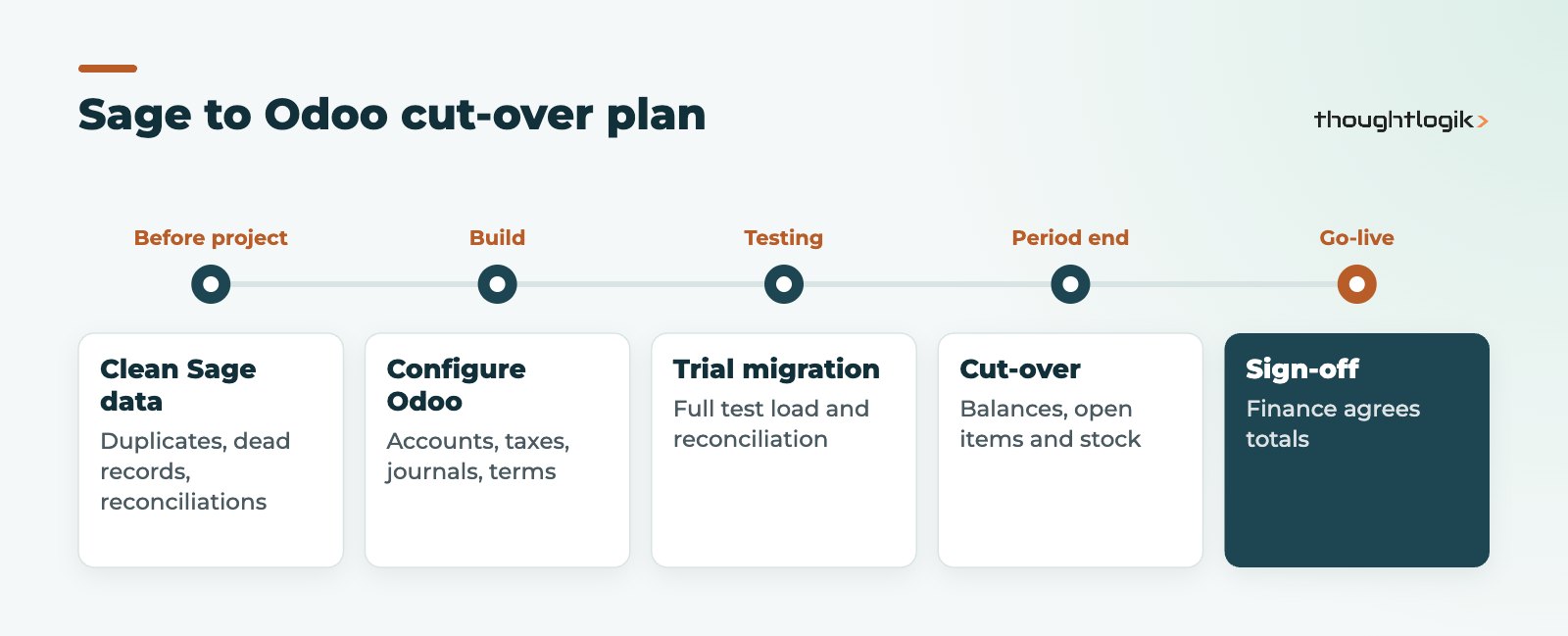
- Clean the Sage data. Merge duplicate customers and suppliers, archive dead products, and reconcile bank and control accounts.
- Configure Odoo. UK localisation, chart of accounts, taxes, journals, payment terms and fiscal positions.
- Import master data. Contacts and products, with the product costs set before stock is loaded.
- Trial migration. Load a full copy into a test database and reconcile against Sage reports.
- Cut-over. Close Sage for the period, then import the opening trial balance, open invoices and bills, and stock counts.
- Reconcile and sign off. Finance confirms the Odoo balances match the Sage closing position.
How should opening balances be loaded?
Odoo’s documentation recommends importing the opening trial balance as a journal entry using the provided import template, replacing the receivable and payable accounts with temporary clearing accounts so they are not duplicated when open invoices and bills are imported. Open invoices and bills should be imported with their total amounts due, rather than individual lines. Opening stock is loaded through an inventory count, with product costs set first. Getting opening balances right is the single most important part of the finance cut-over.
Common pitfalls in a Sage to Odoo migration
These are the problems we are most often asked to fix after a migration someone else started. All of them are avoidable with planning.
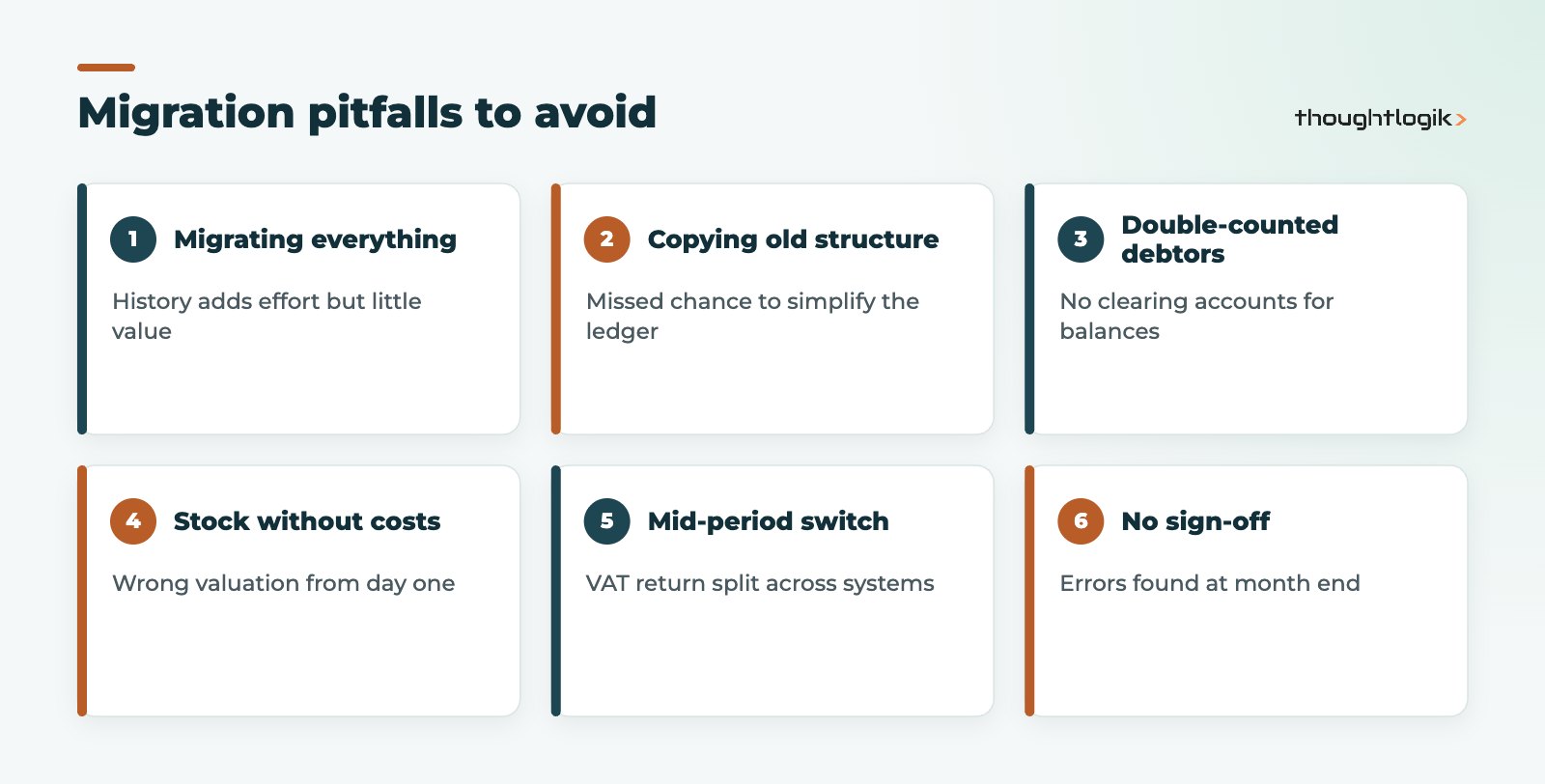
- Migrating everything. Years of history slow the project and add little value. Archive it.
- Copying Sage’s structure exactly. A cluttered nominal ledger is a chance to simplify, not something to rebuild.
- Double-counting debtors and creditors. Skipping clearing accounts means opening balances and open invoices both hit the ledger.
- Stock without costs. Loading quantities before product costs gives a wrong valuation from day one.
- Choosing a mid-period date. Cutting over mid-quarter splits your VAT return across two systems.
- No reconciliation sign-off. If finance has not agreed the totals, problems surface at month end.
How long does a Sage to Odoo migration take?
The data work runs alongside the wider implementation, so the timeline depends on scope and data quality more than on Sage itself. A single company moving finance only is quicker than a Sage 200 group with stock and several entities. See our Odoo implementation timeline guide for how phases fit together, and our Odoo data migration guide for data cleansing tips that apply to any source system.
How ThoughtLogik helps
We have moved UK businesses from Sage to Odoo and plan every Sage to Odoo migration around your year end and VAT calendar.
- Nominal and VAT code mapping agreed with your accountant
- Extraction from Sage 50 exports or Sage 200 databases
- Trial migrations with reconciliation reports
- Cut-over planning and post go-live support
Find out more about our Odoo migration service.
Frequently asked questions
Can we migrate all our Sage history to Odoo?
Technically yes, but it is rarely worthwhile. Most businesses import balances and open items, and keep Sage in read-only use or archive the data.
What is the best date for a Sage to Odoo migration?
The start of a financial year or VAT quarter, so the balances are clean and returns are not split between systems.
Do we need to keep our Sage licence?
Many businesses keep read access for a period for reference and audit queries. Check your record-keeping obligations with your accountant.
Is Sage 200 to Odoo harder than Sage 50?
Usually larger rather than harder: more modules, more companies and more data, but the same mapping and cut-over method.
Can we migrate from Sage 50 ourselves?
Simple setups can be done with Odoo’s import templates, but mapping, opening balances and reconciliation are where expert help pays off.
Planning to leave Sage? We will map your data and plan a clean cut-over. Book a free consultation or see our Odoo accounting guide for UK businesses.