Short answer
Odoo Making Tax Digital support is built into the UK accounting localisation: Odoo Accounting connects to HMRC, imports your VAT obligations and submits the VAT return directly from the tax report. Every VAT-registered UK business now has to keep digital records and file through compatible software, and Odoo covers that without bridging spreadsheets. The main things to get right are the UK fiscal localisation, your tax configuration and who holds the HMRC connection.
Key takeaways
- MTD for VAT applies to all VAT-registered businesses, whatever their turnover.
- Odoo submits the HMRC VAT return from Accounting, Reporting, Tax report after a one-off connection.
- The HMRC submission features sit in the UK accounting reports modules of Odoo Enterprise.
- Only one user and one company can hold the HMRC connection at a time.
- Returns more than three months late cannot be sent through Odoo.
If you run your finances in Odoo, or are moving to it, the question of HMRC compliance comes up early. Finance teams want to know whether Odoo is genuine MTD compatible software, what setup is needed and what can go wrong on the first submission. This Odoo Making Tax Digital guide answers those questions using the current Odoo documentation and what we see on UK projects.
What does Making Tax Digital mean for VAT-registered businesses?
Making Tax Digital is HMRC’s programme to move tax records and returns online. For VAT, the rules are straightforward: you keep your VAT records digitally and send your returns through software that talks to HMRC’s API. GOV.UK guidance states that all VAT-registered businesses should now be signed up for Making Tax Digital for VAT, and that compatible software asks you to grant it authority to access your HMRC data, an authority that lasts 18 months.
MTD for VAT is separate from MTD for Income Tax, which began in April 2026 for sole traders and landlords above HMRC’s qualifying income threshold. Limited companies filing VAT are affected by MTD for VAT, not by the Income Tax rollout.
How does Odoo Making Tax Digital compliance work?
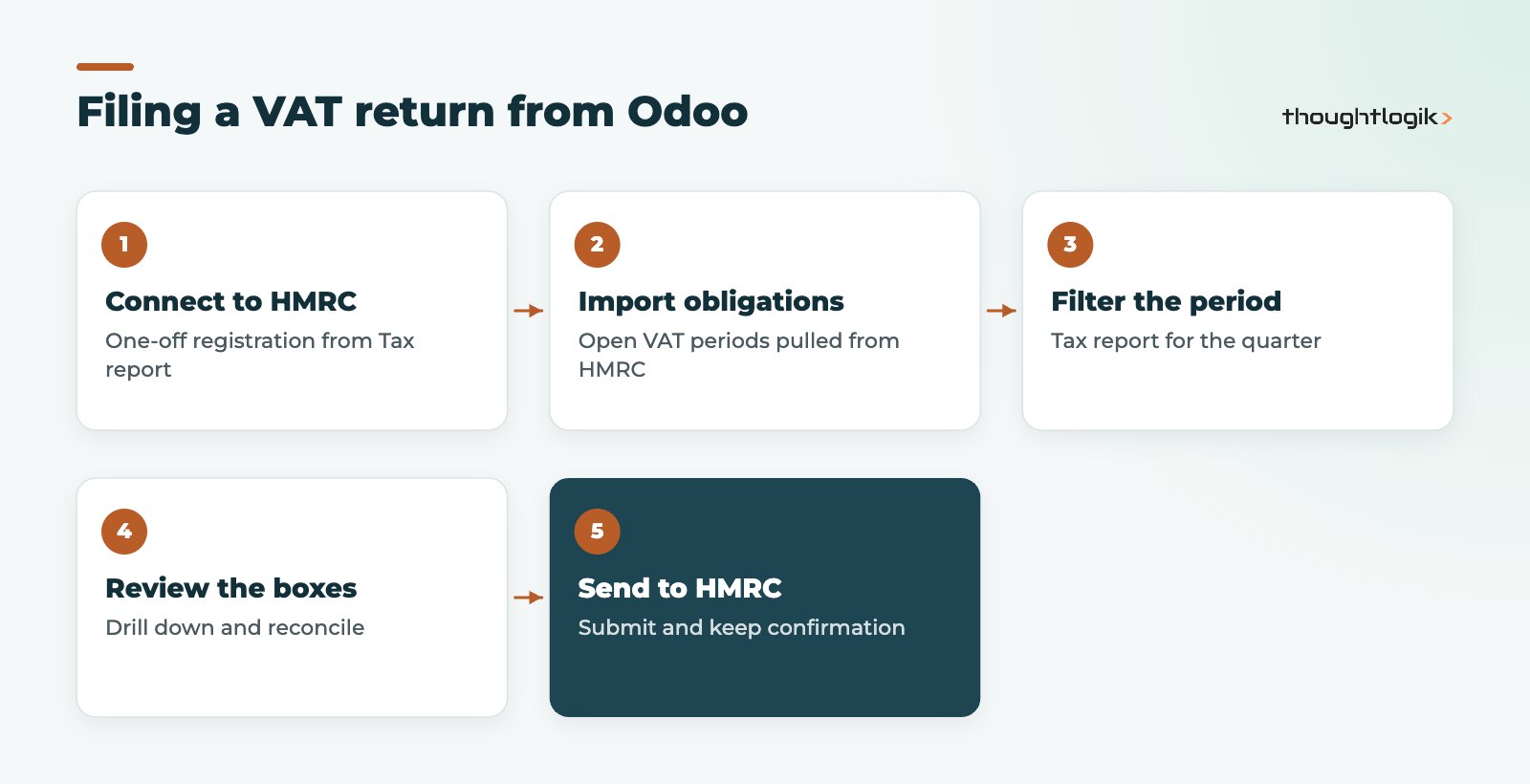
Odoo handles MTD for VAT inside the Accounting app. Once the UK localisation is installed and the HMRC connection is registered, the VAT return is generated from the posted journal entries in Odoo, so there is no manual rekeying into a separate portal. The documentation describes three moves: import your obligations from HMRC, filter the report to the period you are filing, then click Send to HMRC.
The flow below shows the full Odoo Making Tax Digital cycle for a quarterly return.
Which modules make up the Odoo UK localisation?
The official Odoo UK localisation documentation lists these modules:
| Module | What it does |
|---|---|
| UK – Accounting (l10n_uk) | UK chart of accounts and base taxes |
| UK – Accounting Reports (l10n_uk_reports) | UK reports and the HMRC VAT return submission |
| UK – HMRC API (l10n_uk_hmrc) | The connection layer used for HMRC submissions |
| UK BACS Payment Files (l10n_uk_bacs) | Generates BACS files from batch payments |
| UK – Construction Industry Scheme (l10n_uk_reports_cis) | CIS deduction reports and monthly returns |
The reporting and HMRC submission features belong to Odoo Enterprise. Businesses on Odoo Community usually rely on third-party connectors from the Odoo Apps Store, which then need their own testing and maintenance. Our guide to Odoo Community vs Enterprise covers the wider trade-offs.
How do you submit an HMRC VAT return from Odoo?
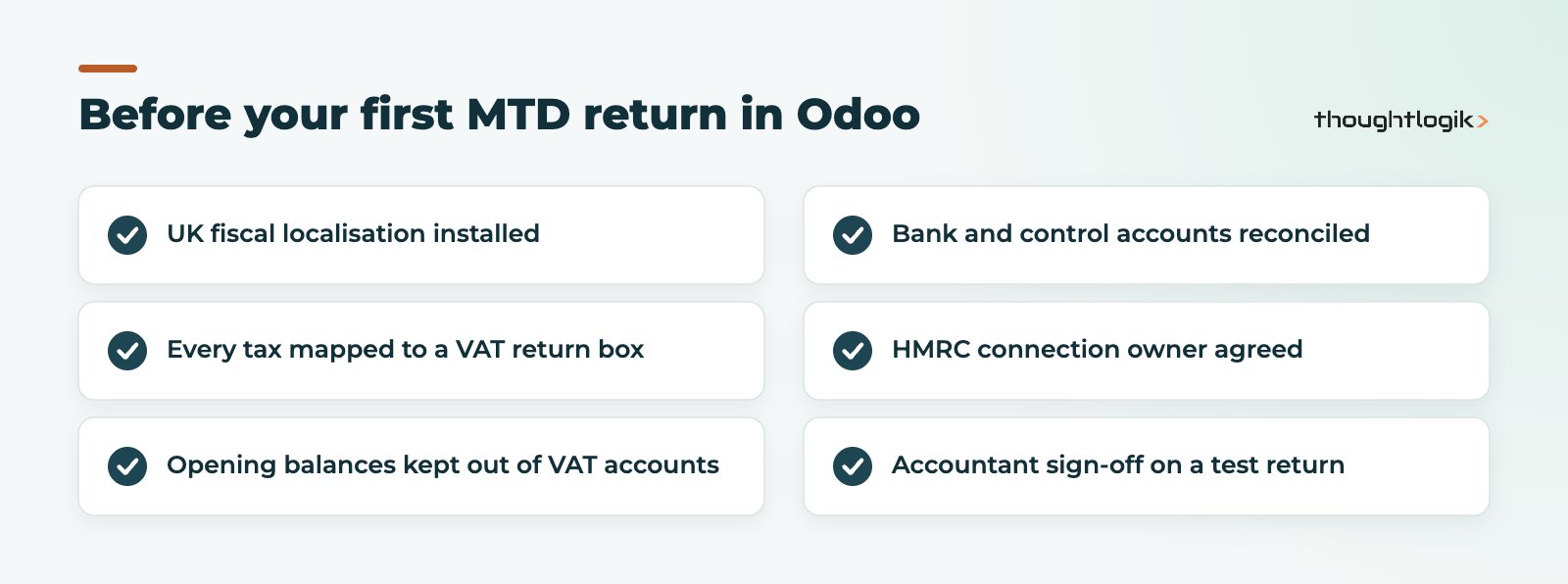
Your first Odoo Making Tax Digital submission, the first HMRC VAT return, is where most of the setup effort shows. In practice the steps are:
- Install the UK fiscal localisation so the UK chart of accounts and VAT taxes are loaded.
- Review the tax setup. Check each tax maps to the right VAT return box, especially reverse charge, imports and zero-rated sales.
- Connect to HMRC. Go to Accounting, Reporting, Tax report and click Connect to HMRC. This registration is done once.
- Import obligations. Odoo retrieves your open VAT periods from HMRC.
- Check the figures. Filter the tax report to the period, drill into each box and reconcile against your bank and control accounts.
- Send to HMRC. Submit and keep the confirmation for your records.
What limits should you know before the first submission?
Two limits catch people out. First, only one company and one user can be connected to HMRC at a time, so groups with several VAT registrations need to reset the user’s HMRC credentials between submissions (via the user’s UK HMRC Integration tab in Settings). Second, Odoo only retrieves open obligations from the last three months, so a return more than three months late cannot be sent through Odoo and must be handled another way.
Is Odoo MTD compatible software for every UK business?
For most UK SMEs, yes: Odoo Making Tax Digital support in Odoo Enterprise, with the UK localisation, files VAT returns directly and keeps the digital records in one system. The picture needs more thought when:
- You run several VAT-registered companies in one database and file for each (see the connection limit above).
- You use a VAT scheme with special calculations, such as flat rate or margin schemes, where the standard tax report may need extra configuration and accountant review.
- Your sales come in from other systems (ecommerce, EPOS, marketplaces). Those feeds must post correctly coded transactions, or the return will be wrong however good the submission step is.
Before relying on any MTD compatible software, check the tax mapping with your accountant, and run a parallel quarter if you are moving from another package such as Sage or Xero.
What else does the Odoo UK localisation cover beyond MTD for VAT?
The same localisation includes BACS payment files for paying suppliers in batches and a CIS module that produces deduction reports and monthly returns for contractors. For a wider view of UK finance in Odoo, see our guide to Odoo accounting for UK businesses and our post on Odoo bank reconciliation, since a clean reconciliation is what gives you confidence in the VAT figures.
Common Odoo Making Tax Digital mistakes we fix
- Custom taxes without return tags. A tax created by copying another but without the right report tags will not land in the correct box.
- Imported opening balances posted to VAT accounts. Migration journals can distort the first return if not handled carefully.
- Connection held by a leaver. The HMRC authority is tied to a user; plan who owns it.
- No review step. Submitting straight from the report without checking the drill-downs is how small errors reach HMRC.
How ThoughtLogik helps
ThoughtLogik is a UK Odoo Partner. We set up the UK localisation, map taxes with your accountant and run a test cycle before your first live Odoo Making Tax Digital submission.
- UK chart of accounts and VAT configuration review
- HMRC connection and multi-company filing process design
- Data migration from Sage, Xero or QuickBooks with clean opening balances
- Ongoing Odoo support through each VAT quarter
If you are still choosing a platform, our Odoo implementation service covers finance setup end to end.
Frequently asked questions
Is Odoo recognised for Making Tax Digital?
Odoo Enterprise includes an HMRC connection in its UK localisation that submits VAT returns through HMRC’s MTD API. Always confirm current compatibility on GOV.UK’s software finder before relying on any product.
Can Odoo Community file an HMRC VAT return?
Not with the standard Enterprise reporting modules. Community users typically install a third-party connector from the Odoo Apps Store, which should be tested before use.
Does Odoo support MTD for Income Tax?
The Odoo UK documentation covers VAT, BACS and CIS. MTD for Income Tax applies to sole traders and landlords, who usually use dedicated software, so check with your accountant.
How long does Odoo Making Tax Digital setup take?
The HMRC connection itself is quick. The time goes on tax mapping, testing and opening balances, which depend on how complex your VAT position is.
What happens if a VAT return is more than three months late?
Odoo only retrieves open obligations from the last three months, so a return later than that cannot be submitted through Odoo.
Want your first MTD return in Odoo to go smoothly? We will check your tax setup and HMRC connection before you file. Book a free consultation or see our UK Odoo partner services.