Short answer
Zoho CRM Blueprint is a process management tool that moves a record through defined states, such as deal stages, using transitions that control who can act, what they must enter and what happens next. Use Blueprint when a process has a set order and required information at each step; use workflow rules for simple automatic actions and approval processes for sign-off. Blueprint is available from the Professional edition upwards.
Key takeaways
- A Blueprint is built from states (stages) and transitions (the moves between them).
- Each transition has three parts: Before (who and when), During (what the user must provide) and After (automatic actions).
- You create a Blueprint under Setup, Process Management, Blueprint, based on a module, layout and picklist field.
- Common transitions, parallel transitions, automatic transitions and SLA escalations handle real-world exceptions and delays.
- Keep Blueprints simple: over-branching and too many mandatory fields are the most common reasons teams stop following them.
Most CRMs record what happened. Zoho CRM Blueprint goes further by guiding what should happen next. It turns an offline process, such as qualifying a deal or onboarding a new customer, into clear steps inside the record, so nothing is skipped and every stage captures the right information. For UK SMEs with growing teams, it is one of the most useful tools in Zoho CRM, but it needs thought before you build.
What is Zoho CRM Blueprint?
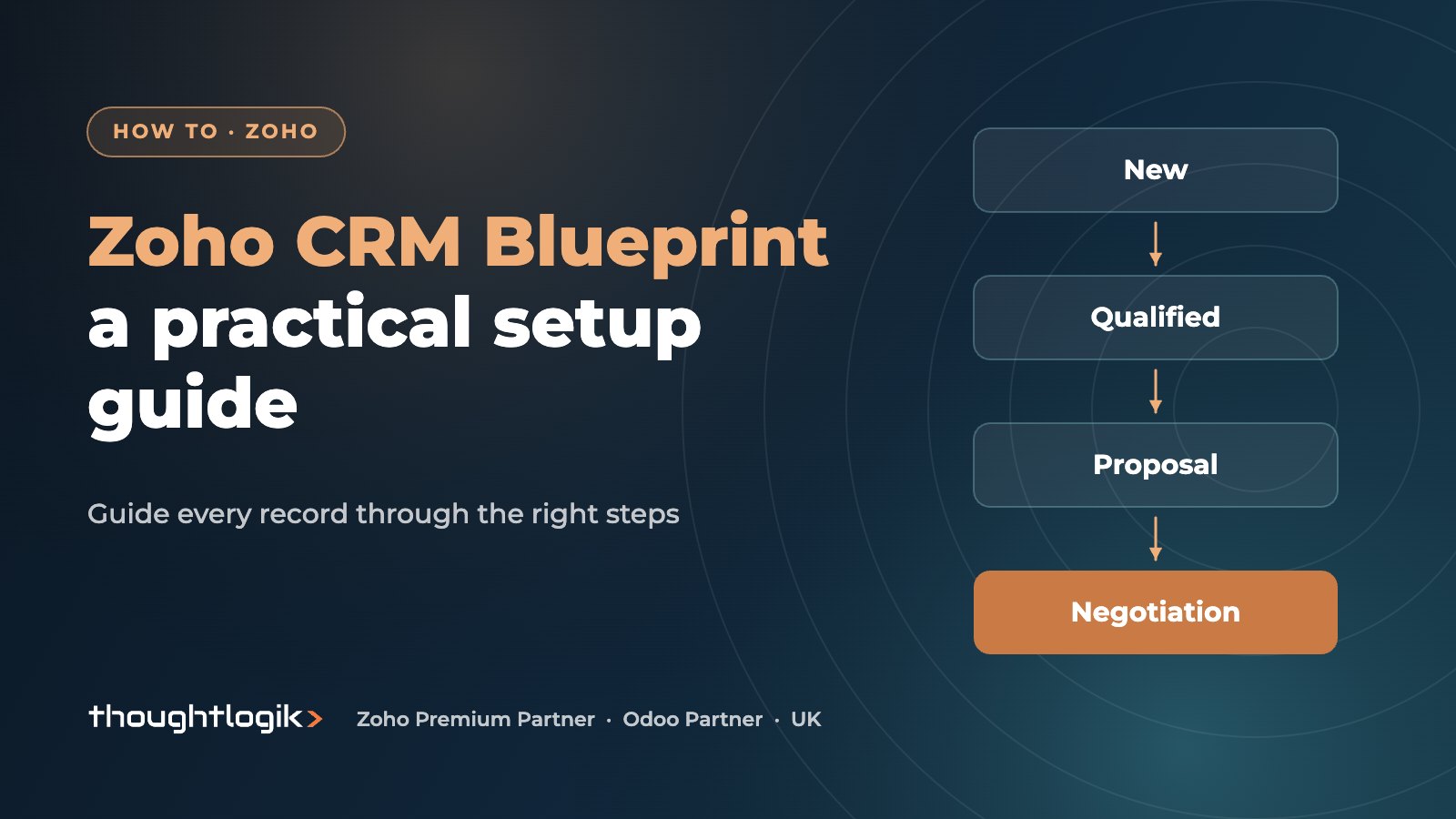
A Blueprint maps a business process onto a picklist field in a module, such as Stage in Deals or Lead Status in Leads. It has two building blocks:
- States: the stages in the process, taken from the picklist values (for example Qualification, Needs Analysis, Proposal, Negotiation).
- Transitions: the moves between states. Each one appears as a button on the record, so users progress the record by completing a transition rather than editing the field.
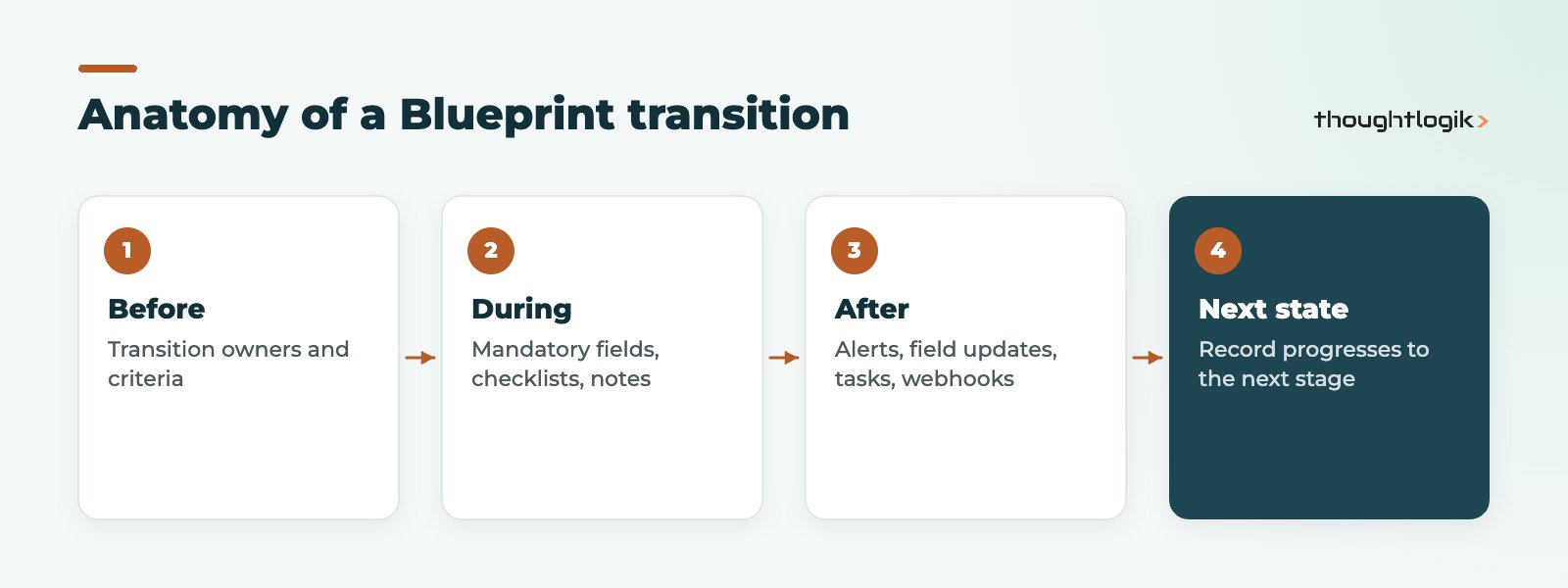
Every transition has three parts:
- Before: who can perform the transition (transition owners) and which records it applies to.
- During: what the user must provide, such as mandatory fields with validation, checklists, notes, attachments, tags, messages or associated items like tasks, calls and quotes.
- After: what happens automatically once it is complete, such as email alerts, field updates, tasks, webhooks or custom functions.
Once a record enters a Blueprint, the field that drives it is locked for direct editing, so users follow the process rather than jump stages.
Blueprint vs workflow rules vs approval processes
Zoho CRM has several automation tools and they are often confused. Here is how we decide which to use.
| Tool | Best for | Needs user input? | Example |
|---|---|---|---|
| Blueprint | Multi-step processes with a set order and required information at each stage | Yes, at each transition | Deal qualification, customer onboarding, claims handling |
| Workflow rules | Automatic actions when a record is created, edited or meets criteria | No | Send a welcome email when a lead is created |
| Approval process | Getting sign-off from a manager before a record is accepted | Only from approvers | Approve discounts above a threshold |
They can work together. Zoho notes that, other than workflow, no other automation tool can override a Blueprint action, so plan any workflow rules on the same module carefully to avoid conflicts.
How to set up a Zoho CRM Blueprint, step by step
- Map the process on paper first. List the stages, who owns each move, and what information must exist before a record progresses. Agree it with the people who do the work.
- Prepare the picklist. Make sure the picklist field has a value for every state. Add any fields the process needs to the layout.
- Create the Blueprint. Go to Setup, then Process Management, then Blueprint, and click Create Blueprint. Choose the module, layout and picklist field. Add entry criteria if only some records should follow it, for example deals with an amount of at least 50,000. Without criteria, all records in that layout enter the process.
- Draw the flow. Drag the states onto the canvas and connect them. The Start state represents the picklist’s None value.
- Configure each transition. Set the Before (owners and criteria), During (fields, checklists, attachments) and After (automatic actions) parts. Give transitions action-style names such as “Book discovery call”.
- Add exception handling. Use common transitions for outcomes possible at any stage, set SLAs where records must not stall, and consider automatic transitions for time-based moves.
- Test, then publish. Run test records through every path, including the unhappy ones. Then publish and brief users.
Features that handle real-world processes
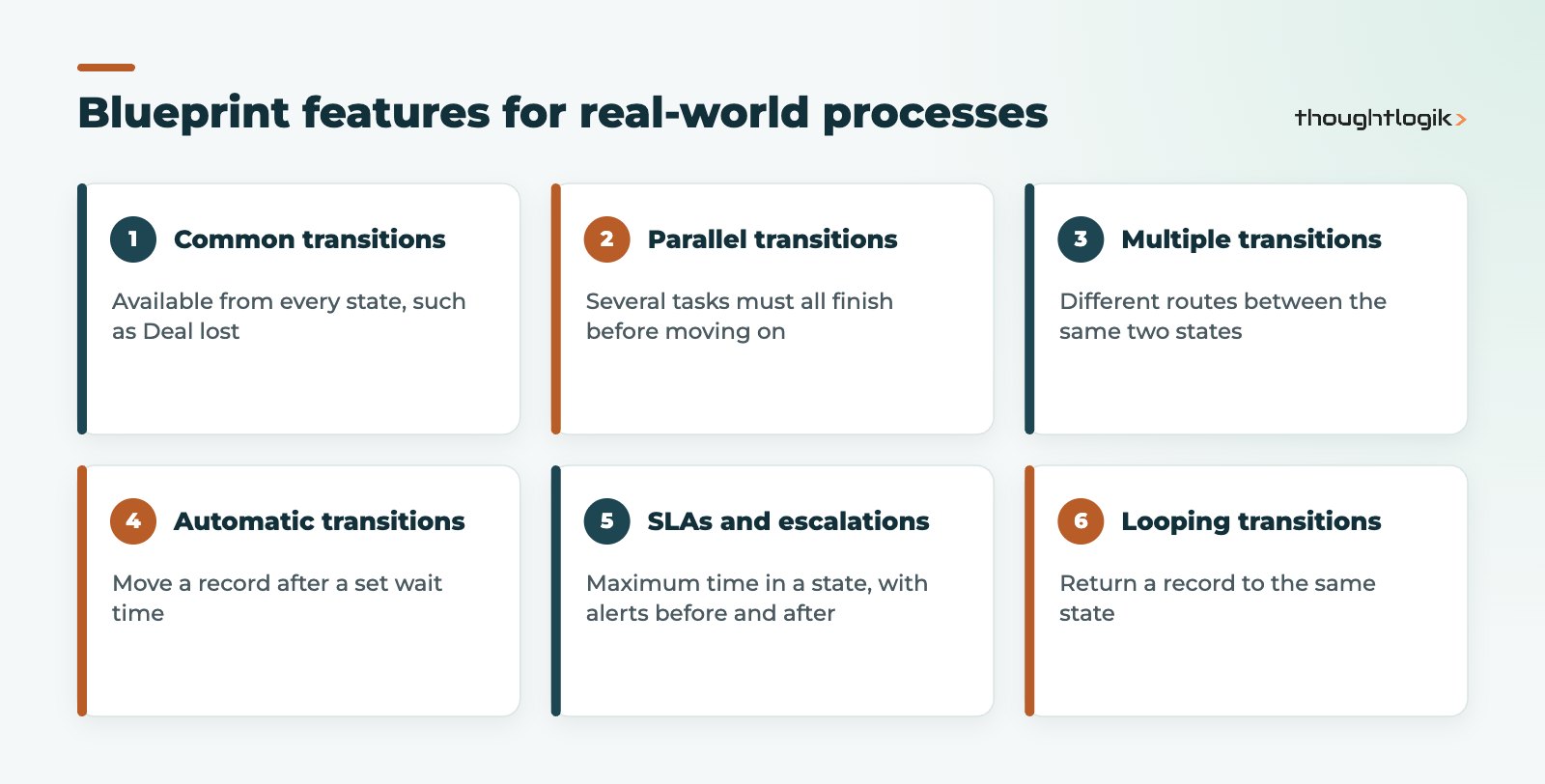
- Common transitions: available from every state. Ideal for “Deal lost” or “Customer withdrew”.
- Parallel transitions: several tasks that must all be completed before the record moves on, such as credit check, contract signature and kick-off booking.
- Multiple transitions: different routes between the same two states, for example contacting a lead by email, phone or text.
- Automatic transitions: move a record automatically after a set wait time if no one acts.
- SLAs and escalations: set a maximum time in a state, alert people before and after the limit, and on Enterprise edition and above add your own SLA actions such as tasks, field updates or webhooks.
- Looping transitions: return a record to the same state, for example “Retry contact”.
Example 1: deal qualification
A UK B2B services firm wants every deal properly qualified before a proposal goes out.
- New to Qualified: the deal owner must record budget, decision maker, timeline and main pain point. After: a task is created to book a discovery call.
- Qualified to Proposal: requires discovery notes and an attached requirements document. After: the sales manager is notified.
- Proposal to Negotiation: requires a quote to be created in the transition. An SLA alerts the manager if the deal sits in Proposal for more than ten working days.
- Common transition, Closed Lost: available at every stage and requires a loss reason, which feeds reporting.
Example 2: customer onboarding
After a deal is won, a custom Onboarding module takes over.
- Welcome: account manager confirms primary contacts and billing details.
- Set-up: a parallel transition requires three things before moving on: contract signed, access provided and kick-off meeting scheduled.
- Training: checklist of sessions delivered, with attendees recorded.
- Live: after the transition, a workflow sends a satisfaction survey and hands the account to support.
Common Blueprint mistakes
- Over-branching. Too many paths make a process nobody follows. Start linear and add branches only when needed.
- Too many mandatory fields. Ask only for what the next step genuinely needs.
- Building without the users. A Blueprint designed in isolation rarely matches how deals really move.
- Forgetting exits. Without common transitions for lost or cancelled records, users get stuck.
- Clashing automations. Workflow rules that update the same picklist can conflict with the Blueprint.
- No reporting. Use Blueprint usage reports to see where records stall and refine the process.
Clean data makes Blueprints work better, so it is worth tackling duplicate records in Zoho CRM first. A well-defined Blueprint also gives Zia Agents a clear process to support.
How ThoughtLogik helps
ThoughtLogik is a Zoho Premium Partner based in Northampton. We design Blueprints with your team, not just for them, so the process in Zoho CRM matches how you actually sell and deliver.
- Process mapping workshops with sales, ops and service leads
- Blueprint, workflow and approval design as part of Zoho implementation
- Reviews of existing Blueprints through our Zoho optimisation service
- Custom functions and integrations where standard actions are not enough
Frequently asked questions
What is Blueprint in Zoho CRM?
Blueprint is a process management tool that moves records through defined states using transitions. Each transition controls who can act, what information they must provide and what happens automatically afterwards.
Which Zoho CRM editions include Blueprint?
Blueprint is available from the Professional edition onwards. The number of Blueprints you can create varies by edition, and some options, such as user-defined SLA actions and kiosks in transitions, need Enterprise edition or above.
What is the difference between Blueprint and workflow rules?
Workflow rules run actions automatically when records meet conditions, with no user input. Blueprint guides users through a sequence of steps and requires information at each transition. They can work together on the same module.
Can a record skip stages in a Blueprint?
Not directly. Once a record enters a Blueprint, the field driving it is locked for editing, so users must complete the available transitions. You can add common transitions or multiple transitions to allow legitimate alternative routes.
Why is a record not entering my Blueprint?
Common reasons are that the Blueprint is disabled, the record uses a layout the Blueprint does not cover, or the entry criteria do not match the record. Check these three settings first.
Want a Blueprint your team will actually follow? We will map and build it with you. Book a free consultation or see our Zoho CRM services.