Short answer
Zoho CRM Outlook integration has two main parts: mailbox email sync, set up under Setup, Channels, Email, Email Configuration, and the Outlook add-in that puts a CRM panel inside your inbox. Gmail works the same way, with sign-in for the mailbox and a Chrome extension for the inbox panel. Most sync problems come from expired sign-ins, tenant security rules, sharing settings or email addresses that do not match a CRM record.
Key takeaways
- Mailbox sync links sent and received emails to the matching leads and contacts in Zoho CRM.
- Gmail, Outlook and Office 365 mailboxes can be connected by signing in through OAuth rather than typing a password.
- The Outlook add-in and the Gmail Chrome extension let reps create leads, log activities and view deals without leaving the inbox.
- Email sharing can be Private, Public or Custom, and this often explains why colleagues “cannot see” emails.
- Calendar and contact sync is a separate Microsoft 365 integration that an administrator enables.
Email is where most sales conversations actually happen, which is why a CRM without email in it quickly becomes a CRM nobody opens. Yet “my emails are not showing in Zoho” is one of the most common support requests we see from UK businesses. Usually the integration was switched on without anyone deciding what it should do. This guide explains what Zoho CRM Outlook integration covers, how to set it up, and how to fix sync when it stops.
What does Zoho CRM Outlook integration actually include?
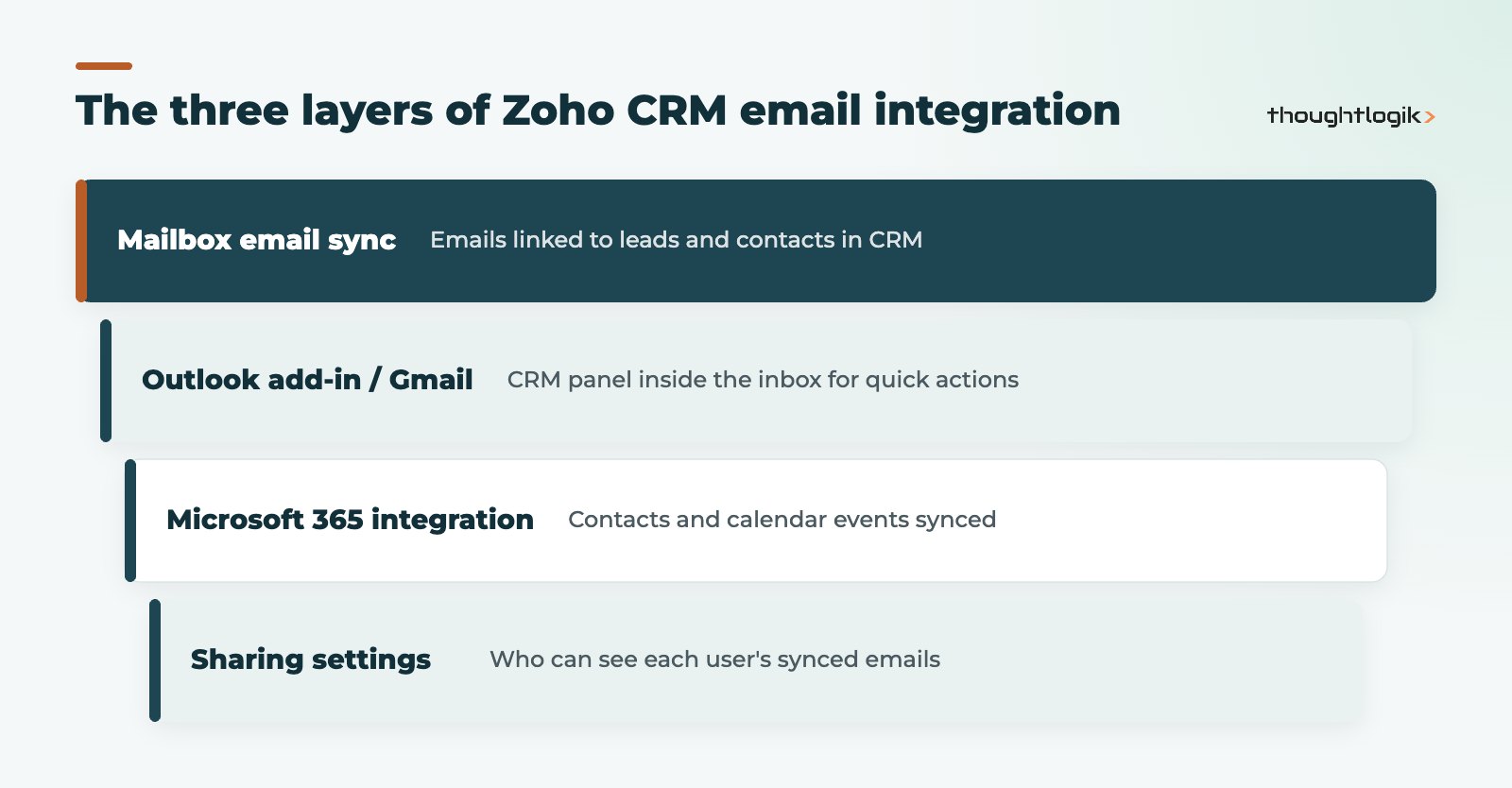
People use “Outlook integration” to mean three different things. It helps to separate them before you configure anything.
| Option | What it does | Who sets it up |
|---|---|---|
| Mailbox email sync | Associates sent and received emails with leads and contacts in CRM | Each user, within admin permissions |
| Outlook add-in | Shows CRM details beside an email and lets you create records and activities | Each user, or IT if add-ins are managed |
| Microsoft 365 integration | Syncs contacts and calendar events, and can import users | A Microsoft 365 administrator |
| Gmail extension | CRM panel inside Gmail in the Chrome browser | Each user |
How to connect Outlook or Microsoft 365 email to Zoho CRM
Mailbox sync is the foundation of any Zoho CRM Outlook integration. Without it, the add-in is only a shortcut for creating records.
- In Zoho CRM, go to Setup, then Channels, then Email, then Email Configuration.
- Choose your provider. Outlook and Office 365 are listed as popular services; other providers use the custom IMAP option.
- Sign in with your Microsoft account. Zoho supports OAuth for these providers, so you authorise access rather than storing a password in CRM.
- Choose how far back to sync: the last six months, one year, two years, from inception or a custom date. You can change this later.
- Set your email sharing option and save.
Zoho’s email configuration help article walks through each screen. Once connected, SalesInbox is enabled automatically for that user.
Installing the Outlook add-in for Zoho CRM Outlook integration
The Outlook add-in, listed as Zoho CRM for email, adds a CRM panel to Outlook. From an email you can view lead and contact details, add new leads or contacts, convert leads, create tasks, calls, meetings and notes, associate one email with several records and create deals. You can add it from the Apps menu in Outlook or from Microsoft’s add-in marketplace.
Zoho lists support for Office 2019 or later on Windows, Office 2016 or later on Mac, and Microsoft 365 subscriptions, with Exchange 2016 or 2019 for Exchange accounts. If your IT team manages add-ins centrally, they may need to deploy or approve it for you.
Calendar and contacts with Microsoft 365
The separate Microsoft 365 integration covers contact sync, calendar events and user import. A user with an administrative role in Microsoft 365 enables it, and the organisation’s approved users can then use it. Decide early whether Outlook or CRM is the master for meetings, or you will end up with duplicates.
Zoho CRM Gmail integration
For Google Workspace users, Zoho CRM Gmail integration mirrors the Outlook set-up. Connect the mailbox in Email Configuration by choosing Gmail and signing in with OAuth. Then install the Zoho CRM for Gmail extension from the Chrome Web Store. Zoho documents it for the Chrome browser, where it lets reps add leads and contacts, view activities, deals and campaigns, add notes and convert leads from inside Gmail.
If your team uses a mix of Outlook and Gmail, both can feed the same CRM. What matters is consistent sharing settings, so managers see the full picture regardless of mail client.
Why is my Zoho CRM email sync not working?
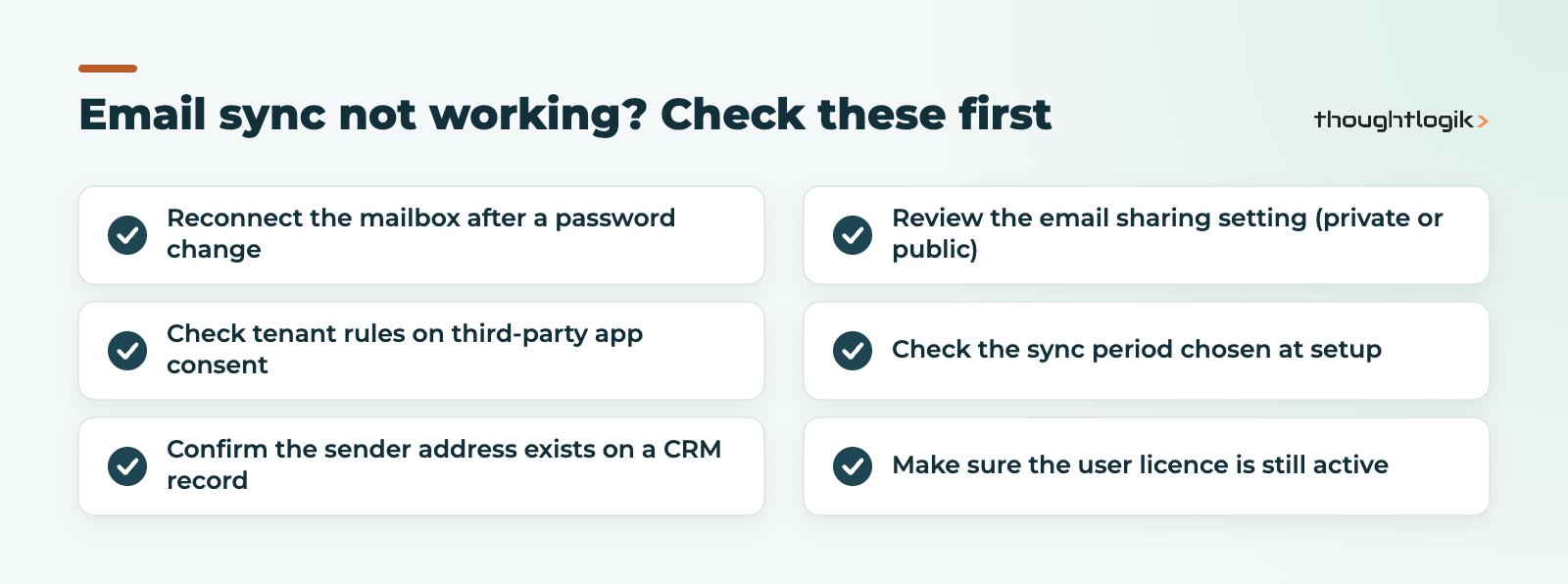
When email sync breaks, whether on Zoho CRM Outlook integration or Gmail, work through these causes in order. They account for most cases we see.
The sign-in has expired
Password changes, reset MFA methods or revoked sessions can break the OAuth connection. Reconnecting the mailbox in Email Configuration normally fixes it. If you use a custom IMAP connection with two-factor authentication, Zoho requires an app-specific password rather than your normal one.
Your Microsoft 365 tenant blocks the app
Many organisations restrict users from granting consent to third-party apps. If the sign-in screen asks for administrator approval, your Microsoft 365 administrator needs to approve the connection. This is a security setting on your side, not a Zoho fault.
Emails sync but do not appear on records
Zoho associates emails with leads and contacts by email address. If the customer writes from a different address, or the address sits only on an account, the email has nothing to attach to. Clean contact data helps, as does our guide to fixing duplicate records in Zoho CRM.
Colleagues cannot see my emails
Check sharing. Private keeps a user’s emails to themselves; Public or Custom opens them up. Whether users can change their own setting depends on the permission the administrator grants.
Sync stopped for an old user
Zoho pauses syncing for mailboxes inactive for six months or more, or where the licence has expired. Reactivate and reconnect.
Best practice for Zoho CRM Outlook integration rollout
- Agree the email sharing policy with managers before users connect mailboxes. Retrofitting it causes friction.
- Pick one sync period for everyone. Importing years of history adds noise and raises data protection questions.
- Tell staff what personal emails will and will not be visible. It matters under UK GDPR and for trust; see our Zoho CRM GDPR guide.
- Test with a pilot group, including one Mac user and one Gmail user if you have them.
- Include the add-in in onboarding so new starters are set up from day one.
How ThoughtLogik helps
ThoughtLogik configures Zoho CRM Outlook integration, Microsoft 365 calendar sync and Gmail sync as part of CRM projects, and fixes it when it breaks.
- Email, calendar and add-in configuration during a Zoho implementation.
- Working with your IT team on Microsoft 365 consent and add-in deployment.
- Sharing policies that suit your sales structure.
- Ongoing fixes through Zoho support.
Frequently asked questions
Does Zoho CRM Outlook integration work with the new Outlook?
The Zoho CRM for email add-in is documented for Microsoft 365 subscriptions as well as desktop Office versions, and mailbox sync runs on the server side, so it does not depend on which Outlook client a user opens. Check Zoho’s add-in page for the current list of supported clients.
Do I need a password to connect Microsoft 365 to Zoho CRM?
Not usually. For Gmail, Outlook and Office 365, Zoho CRM lets you sign in with OAuth, which authorises access without storing your password. Custom IMAP connections with two-factor authentication need an app-specific password.
Can managers see all their team’s emails in Zoho CRM?
Only if email sharing allows it. Each user’s synced emails can be Private, Public or Custom, and the administrator controls whether users can change their own setting.
Why are some emails missing from a contact’s record?
Emails are matched by email address. If the sender used an address that is not on the lead or contact, or the mailbox sync period excludes those dates, the email will not appear on that record.
Is there a Zoho CRM Gmail integration for browsers other than Chrome?
Zoho documents the Zoho CRM for Gmail extension for the Chrome browser. Mailbox sync itself works regardless of browser once the Gmail account is connected in Email Configuration.
Emails not showing in Zoho CRM? We can diagnose and fix your email sync in one session. Book a free consultation or see our Zoho integrations work.