Short answer
To migrate Excel to Zoho CRM cleanly, cleanse the spreadsheets first, then import them in order: accounts, then contacts, then deals, using a unique field to catch duplicates. Zoho CRM imports CSV, XLS and XLSX files directly, maps columns to fields and lets you undo added records for 30 days. A small test import before the full load catches most problems.
Key takeaways
- Most of the work happens in the spreadsheet, not in Zoho CRM.
- Import parent records before child records so lookups can link them.
- Use a unique field, such as email or your own ID, to stop duplicates.
- Row limits per import depend on your Zoho CRM edition.
- You can undo records added by an import for 30 days, but you cannot undo updates to existing records.
A sales team that runs on spreadsheets usually has several of them: a master customer list, a pipeline tracker per rep, an export from an old email tool and a file nobody admits to owning. Each has its own column names and its own spelling of “Ltd”. Moving from spreadsheet to CRM is the moment to fix that, because whatever you import becomes the data your team trusts, or stops trusting, on day one.
Why migrate Excel to Zoho CRM at all?
Spreadsheets fail sales teams in predictable ways. Two people edit different copies. Nobody knows when a customer was last contacted. Managers build the forecast by hand every Monday. Leavers take their files with them. A CRM gives one record per customer, with an owner, a history and a pipeline that updates as people work.
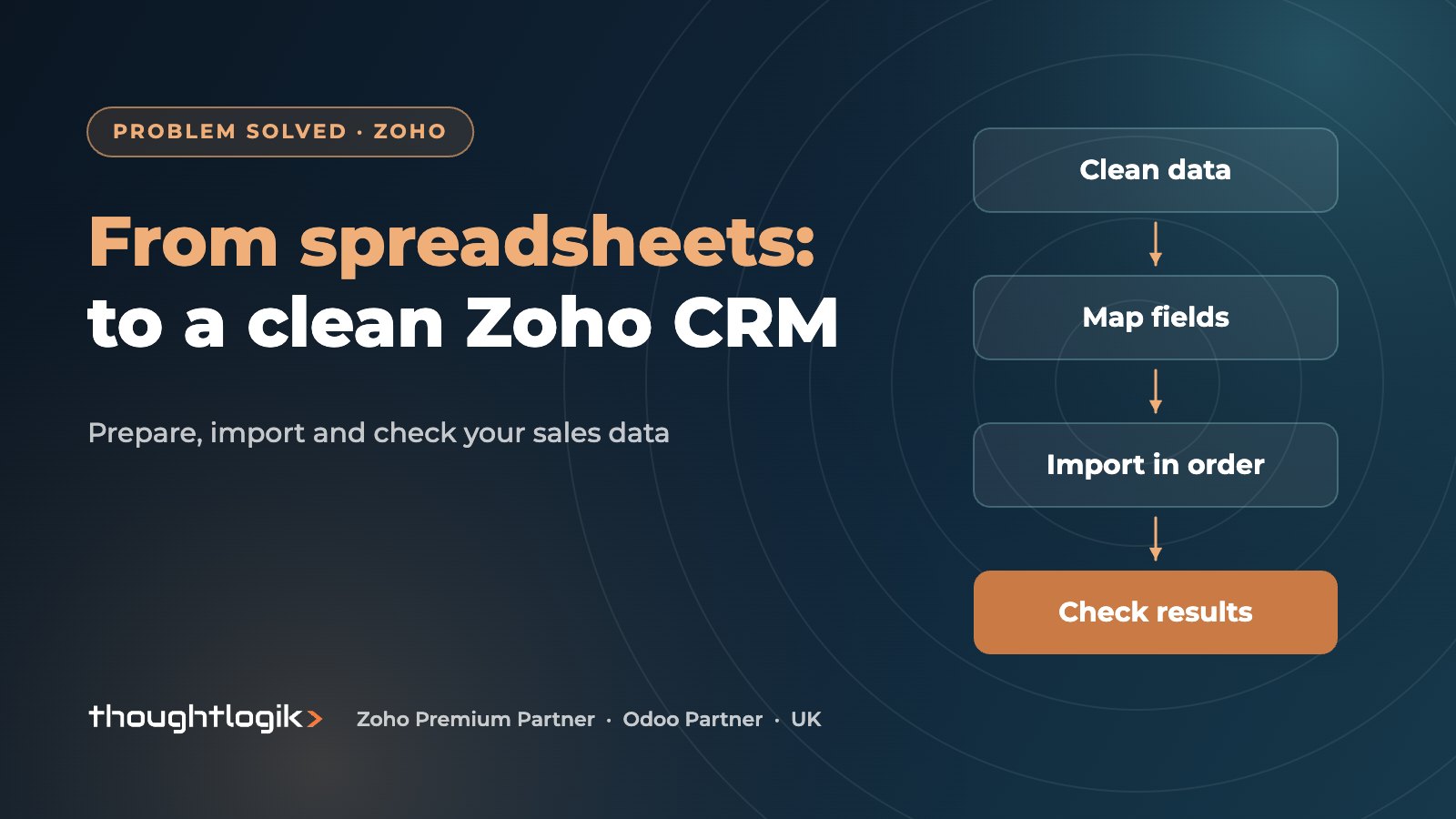
The move only pays off if the data arrives clean. Import a messy spreadsheet and you get a messy CRM, faster. The four steps below are the process we follow whenever we migrate Excel to Zoho CRM for a client, whatever the size of the team.
Step 1: data cleansing before you import
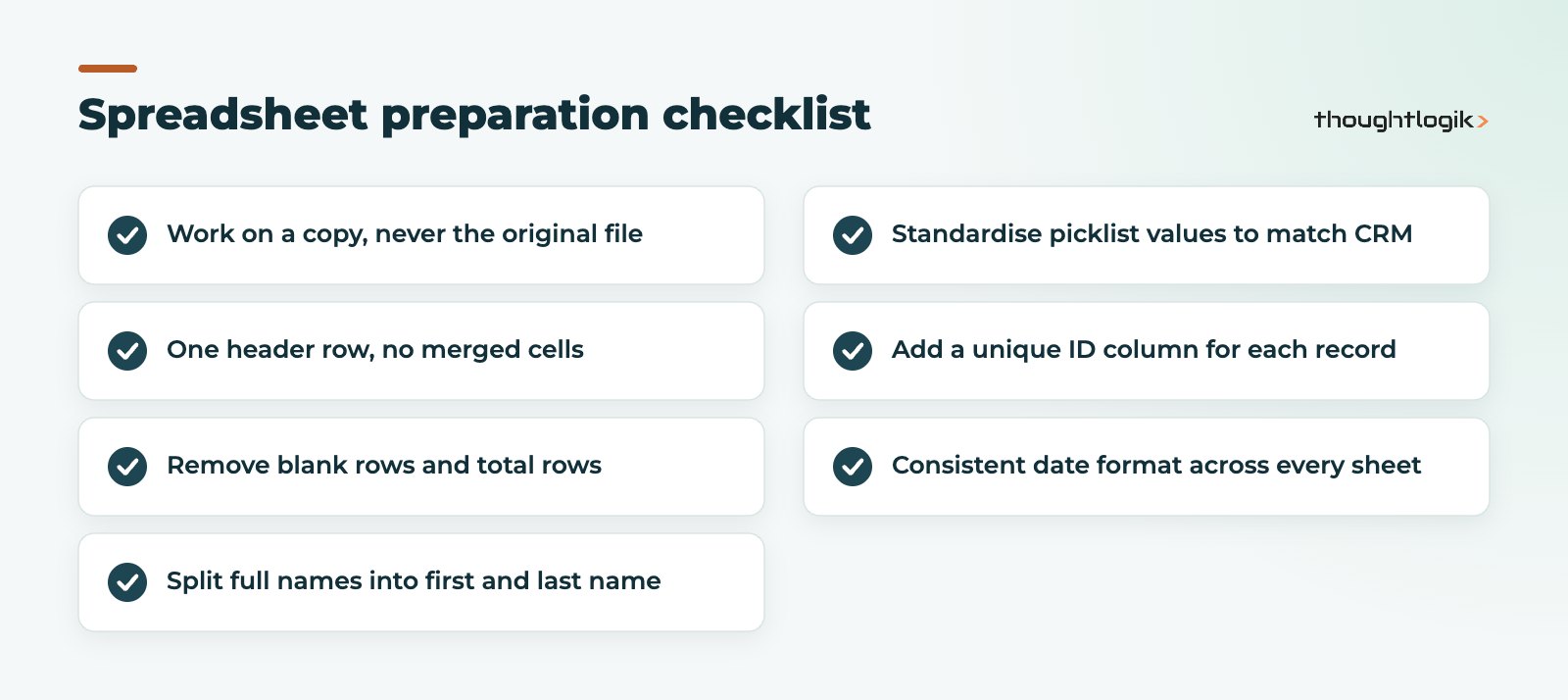
Data cleansing is where most of the effort goes when you migrate Excel to Zoho CRM, and it should. Start by combining every source into one working file per record type, keeping an untouched copy of each original.
Deduplicate in the spreadsheet
Sort by company name and email and remove obvious duplicates. Agree a rule for conflicts, for example the most recently updated row wins. Zoho CRM will also check duplicates during import, but only against the single field you choose, so it will not catch “Acme Ltd” and “ACME Limited”.
Match your values to CRM fields
If a column will map to a picklist, such as Lead Source or Industry, standardise the values first. Zoho expects tags as comma-separated values and multi-select picklist values separated by semicolons. Make sure every mandatory field in the target module has a value in every row.
Fix structure
The first row must contain column headers, not data. Remove blank rows, because Zoho treats more than ten consecutive empty rows as the end of the file. Remove subtotals, merged cells and colour-coded meaning that will not survive import.
Step 2: plan the order of your Zoho CRM import
Zoho CRM links records through lookup fields: a contact looks up to an account, a deal looks up to an account and contact. The parent record must exist before the child can link to it.
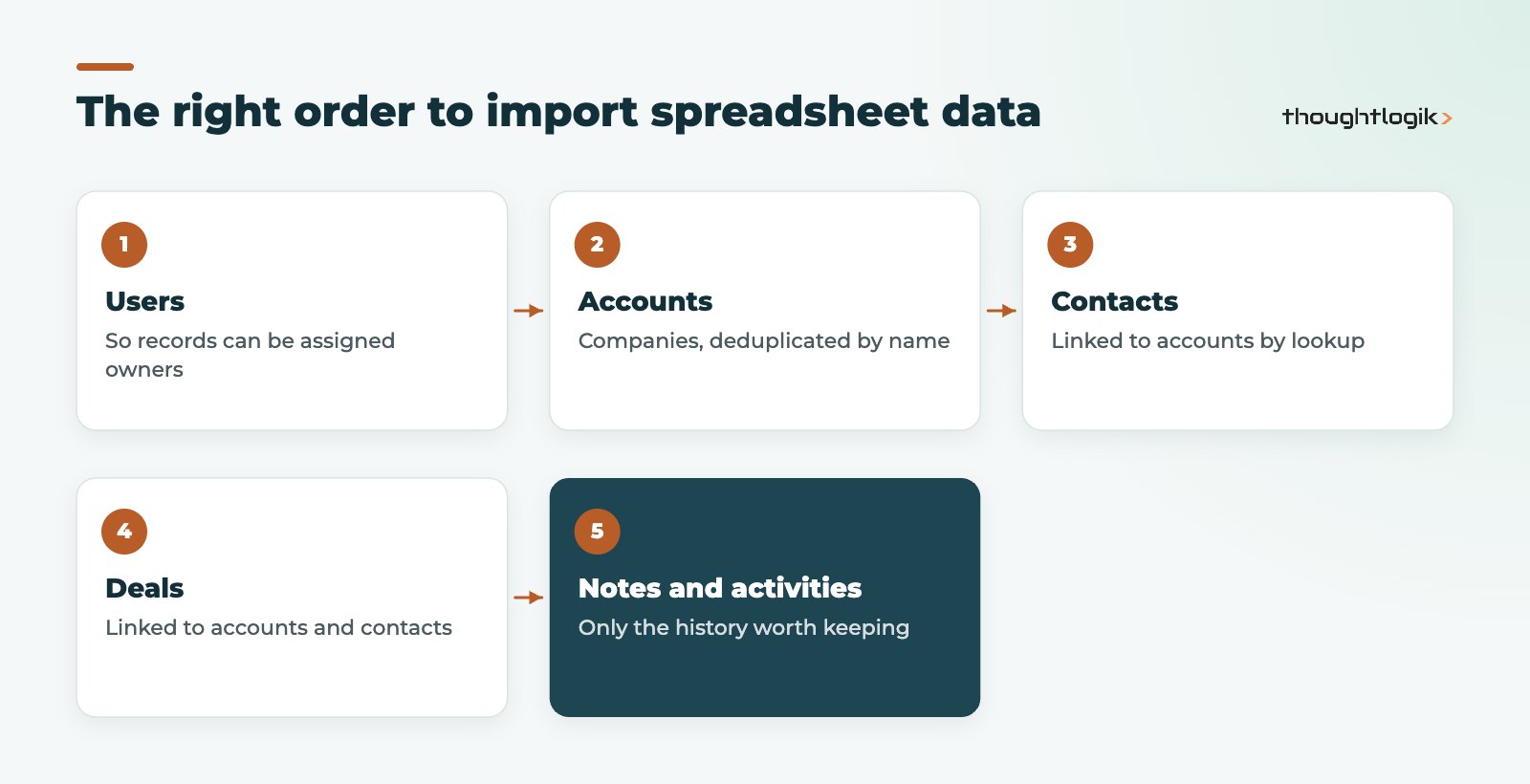
During mapping, Zoho asks which field to use to find the linked record, such as the record ID, a unique field, the record name or email. Including your own ID column in every sheet makes this reliable, especially where two companies share a name.
Step 3: how to import data into Zoho CRM
Open the module, click the arrow next to the Create button and choose Import. The wizard then walks you through the file, the mapping and the duplicate options. The full options are in Zoho’s import data help article.
File formats and limits
Zoho CRM accepts CSV, XLS and XLSX files, plus VCF for leads, contacts and users. Each file can be up to 25 MB and 500 columns. The number of rows per import depends on edition; at the time of writing Zoho documents these limits:
| Zoho CRM edition | Maximum rows per import |
|---|---|
| Free | 1,000 |
| Standard | 20,000 |
| Professional | 50,000 |
| Enterprise | 100,000 |
| Ultimate | 200,000 |
Larger files simply need splitting into batches. See our Zoho CRM editions comparison if you are still choosing a plan.
Mapping and duplicate handling
Auto Map matches columns to fields by name; always review it. Set the date and currency formats that match your file. Then choose what the import should do: add new records, update existing records only, or both. When adding, pick a unique field so rows that already exist are not created twice. When updating, you can choose to skip empty values so a blank cell does not wipe good data.
Owners and automation
You can assign owners using assignment rules. There is also an option to trigger automation for imported records. Leave it off for historic data unless you want every imported lead to fire welcome emails and tasks; see our guide to Zoho CRM workflow rules for what that would set off.
Step 4: test, check and undo if needed
Import twenty rows first. A test run is the cheapest insurance in any spreadsheet to CRM project. Open several records and check names, owners, picklists, dates and the account link. Fix the spreadsheet, not the records, then run the full import.
Once you migrate Excel to Zoho CRM in full, compare record counts against the spreadsheet and run a few reports by owner and stage. Import History, under Setup, Data Administration, Import, shows each import. Zoho lets you undo records added by an import within 30 days, but updates to existing records cannot be undone, so take an export before any update import.
Common mistakes when you migrate Excel to Zoho CRM
- Importing everything. Ten-year-old leads with no email address add clutter. Archive what you will never call.
- Everything into Leads. Existing customers belong in Accounts and Contacts, not Leads.
- Losing pipeline stages. Map spreadsheet statuses to Zoho deal stages before import, not after.
- Skipping the test. One wrong date format across 20,000 rows takes longer to fix than a test run.
- No owner for the data. Someone must sign off the cleansed file before it goes in.
If you are moving from another CRM rather than spreadsheets, our HubSpot to Zoho CRM migration guide covers the API route.
How ThoughtLogik helps
ThoughtLogik helps UK sales teams migrate Excel to Zoho CRM without losing history or trust in the data. We treat every spreadsheet to CRM move as a data project first and a software project second.
- Data cleansing, deduplication and mapping before anything touches the CRM.
- Test and full imports in the right order, with reconciliation reports.
- Pipeline stages, fields and views designed around how your team sells.
- Part of a wider Zoho migration or Zoho implementation project.
Frequently asked questions
Can I import an Excel file directly into Zoho CRM?
Yes. Zoho CRM accepts XLS and XLSX files as well as CSV, so you do not need to convert to CSV first. Each file can be up to 25 MB.
How do I stop duplicates when I import data into Zoho CRM?
Deduplicate in the spreadsheet first, then choose a unique field such as email during the import. Zoho uses that field to skip or update rows that already exist rather than creating new records.
Can I undo a Zoho CRM import?
Records added by an import can be undone within 30 days from Import History. Updates to existing records cannot be undone, so export the module before running an update import.
Should spreadsheet contacts go into Leads or Contacts?
Existing customers and people linked to a company you already trade with belong in Accounts and Contacts. Unqualified prospects belong in Leads. Splitting them before import saves a lot of converting later.
How long does it take to migrate Excel to Zoho CRM?
It depends mostly on how many spreadsheets you have and how messy they are. The import itself is quick; cleansing, mapping and testing take the time, so plan for those.
Still running sales from spreadsheets? We can clean, map and import your data so Zoho CRM starts right. Book a free consultation or see our Zoho migration services.