Short answer
Zoho CRM workflow rules automate actions when records meet conditions you define: for example, sending an email, creating a task or updating a field when a deal reaches a stage. Each rule has a module, a trigger, one or more conditions and instant or scheduled actions. They are configured under Setup, Automation, Workflow Rules, and the features and limits available depend on your edition.
Key takeaways
- Every rule is built from a module, a trigger, conditions and actions.
- Triggers include record actions (create, edit, delete), date fields and score changes.
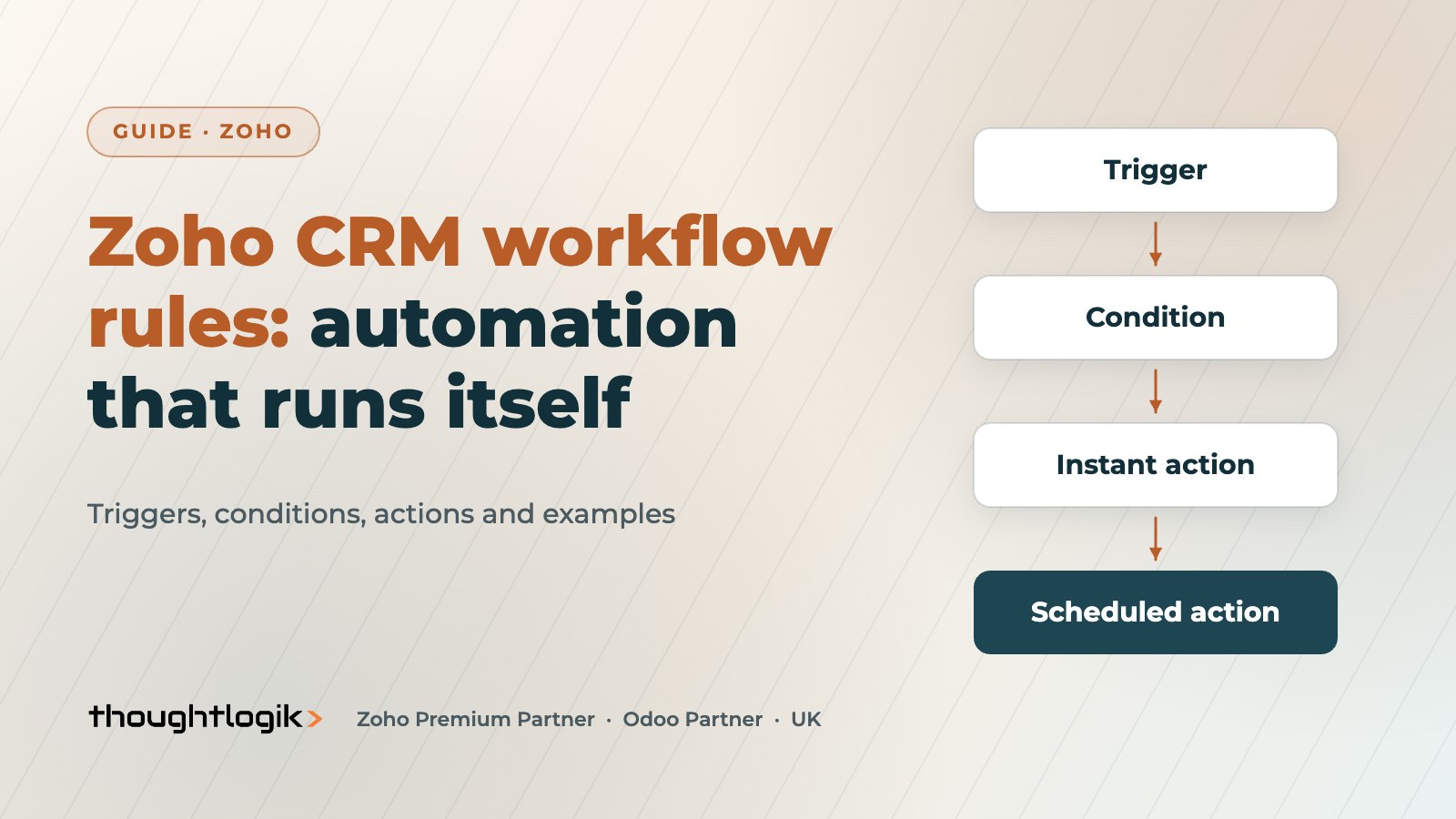
- Instant actions run straight away; scheduled actions run later, relative to a time or date.
- Field updates run first when a rule fires, which matters when rules interact.
- Name rules clearly and test them before activation; most problems come from overlapping rules.
Workflow rules are the backbone of Zoho CRM automation. They remove the reminders, emails and field changes that otherwise depend on someone remembering to do them. Used well, they make a CRM feel as if it runs itself. Used carelessly, they create duplicate emails and fields that change for no obvious reason. This guide explains how Zoho CRM workflow rules work and gives workflow rule examples you can adapt.
How do Zoho CRM workflow rules work?
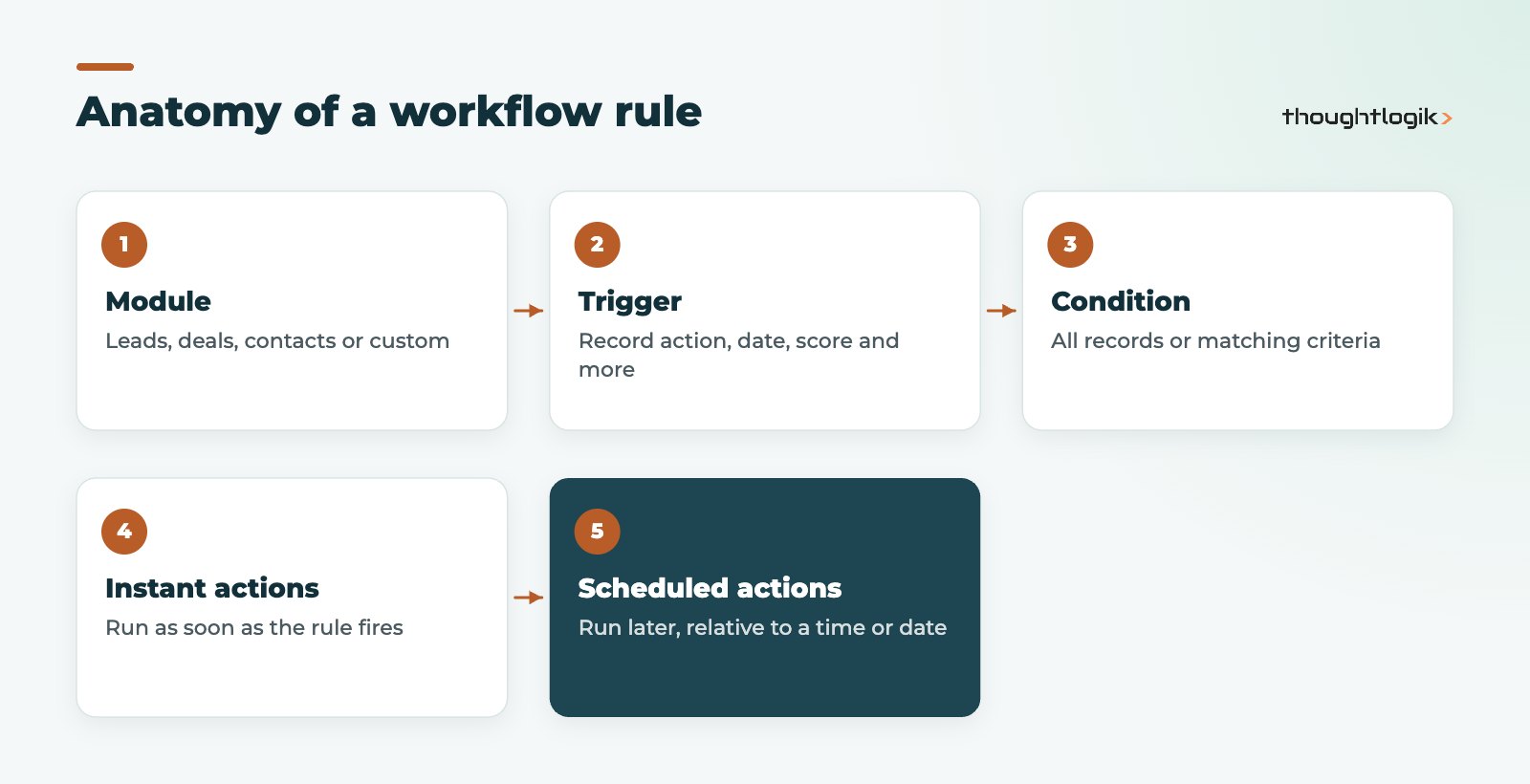
Each of your Zoho CRM workflow rules belongs to one module and has four parts. Planning all four on paper before you open the rule builder saves a lot of trial and error.
Triggers
According to Zoho’s help documentation on configuring workflow rules, the main trigger types are:
- Record action: when a record is created, edited (any field or specific fields), created or edited, or deleted. Edit triggers can be set to repeat.
- Date or date/time field: relative to a date on the record, such as a renewal date or close date, with options to repeat monthly or yearly.
- Score: when a record’s score increases, decreases or changes (paid editions).
- Notes: when notes are added, modified or deleted.
Some triggers, such as those based on Zia recommendations or competitor mentions, depend on specific Zia features being enabled.
Conditions
Conditions decide which records the rule applies to: all records, records matching criteria, or, from the second condition onwards, records not matching earlier conditions. Each condition can have its own set of actions, so one rule can handle several scenarios. The maximum number of conditions per rule depends on your edition.
Instant actions and scheduled actions
The first type runs as soon as the rule fires. The second runs later, for example two days after the trigger or seven days before a date field. Both can include:
| Action | What it does | Example |
|---|---|---|
| Email notification | Sends a templated email to users, record owners or the customer | Welcome email when a contact is created |
| Task | Creates a task for a user | Follow-up call three days after a quote is sent |
| Field update | Changes a field value on the record | Set priority to High when deal value exceeds a threshold |
| Webhook | Sends record data to an external URL | Notify an ERP when a deal is won |
| Function | Runs custom Deluge code | Roll up deal values to the account |
| Create record | Creates a related record | Create an onboarding record when a deal closes |
Immediate actions can also post notifications to Zoho Cliq, Slack or Cisco Webex, and some modules support conversion actions such as converting a lead. Each rule has limits on how many actions of each type it can run, set out in Zoho’s documentation.
What order do Zoho CRM workflow rules run in?
This matters as soon as you have more than a handful of rules. Zoho documents two sequences:
- Across automation features: assignment rules run before workflow rules, which run before approval processes and Blueprint.
- Within a rule: field updates run first, then tags, then email notifications, then tasks, then webhooks, functions and similar actions, with conversion last.
So if an email template uses a field that the same rule updates, the email shows the updated value. Rules within a module can also be reordered, which helps when two rules could act on the same record.
Five Zoho CRM workflow rules examples you can adapt
These workflow rule examples cover the situations we automate most often for UK sales teams. Adjust the stages, timings and recipients to match your own process.
1. Instant follow-up for new web leads
Trigger: lead created. Condition: lead source is Website. Actions: email the lead a confirmation, create a call task for the owner due today, and notify the sales channel in Cliq.
2. Stalled deal reminder
Trigger: deal edited, stage field. Condition: stage is Proposal Sent. Delayed action: five days later, create a follow-up task for the owner. Pair this with a check so the task only matters if the stage has not moved.
3. Renewal reminders from a date field
Trigger: date field, renewal date. Delayed actions: 60 days before, create a renewal deal; 30 days before, email the account manager.
4. Won deal hand-off
Trigger: deal edited, stage changed to Closed Won. Actions: create an onboarding record, send a webhook to your finance or ERP system, and email the delivery team.
5. Data quality guardrail
Trigger: account created or edited. Condition: country is United Kingdom and postcode is empty. Action: create a task for the owner to complete the address. (For address lookups at entry, see our UK postcode address finder for Zoho CRM.)
Best practice for Zoho CRM automation
Before you activate a rule, run through this checklist.
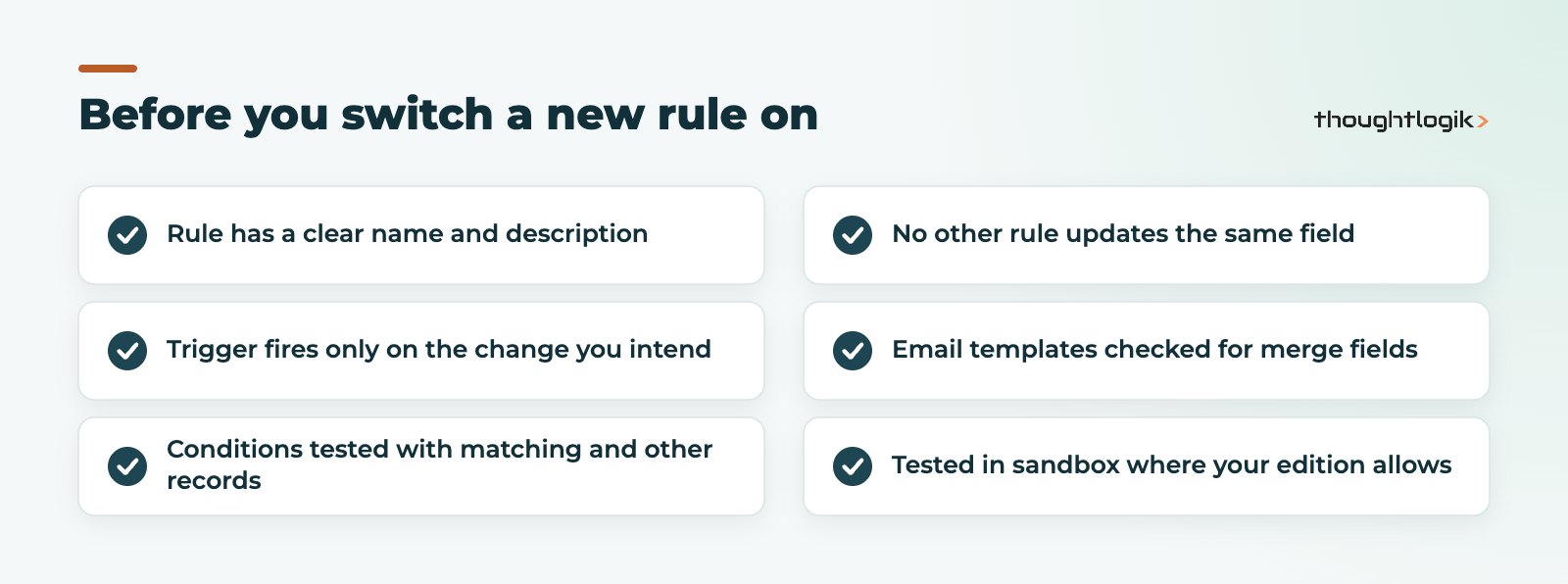
- Name rules consistently: module, purpose and trigger, such as “Deals: won hand-off on stage change”.
- Prefer specific field triggers: “edit of any field” fires far more often than you expect.
- Use Blueprint for processes, workflow for reactions: if you are forcing steps in order, our Zoho CRM Blueprint guide is a better fit than chained rules.
- Use functions sparingly: custom code is powerful but needs maintaining. Our guide to Zoho Deluge custom functions covers when it is worth it.
- Review usage: Zoho shows workflow usage, so retire rules that never fire.
When Zoho CRM workflow rules do not fire
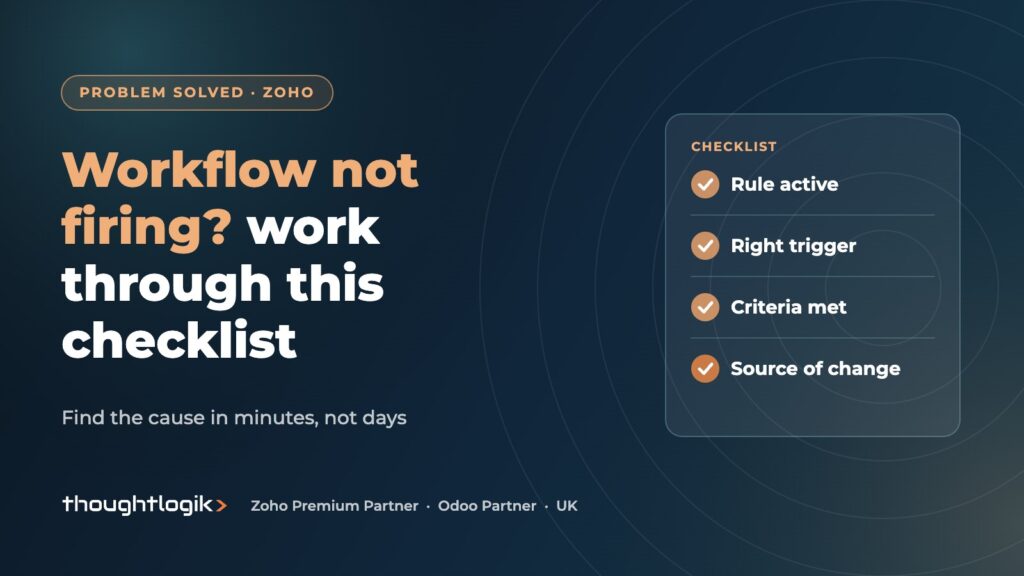
The usual causes are a trigger on the wrong field, conditions that never match, records created by import or API behaving differently than expected, or another rule changing the field first. We cover diagnosis step by step in why a Zoho CRM workflow is not triggering.
How ThoughtLogik helps
We design and build Zoho CRM automation for UK businesses, and tidy up rule sets that have grown out of control.
- Automation mapping before build, so every rule has a purpose and owner
- Workflow rules, Blueprint and Deluge functions configured together
- Audits of existing rules to remove overlaps and duplicates via our Zoho optimisation service
- Integration actions using webhooks and functions
Frequently asked questions
Where do I create Zoho CRM workflow rules?
Go to Setup, then Automation, then Workflow Rules, and click Create Rule. You can also start from a module’s menu in the sidebar.
What is the difference between instant actions and scheduled actions?
Instant actions run as soon as the rule fires. Scheduled actions run at a later time, set relative to the trigger time or to a date field on the record.
Can workflow rules call external systems?
Yes. Webhooks send record data to an external URL, and functions can call external APIs with custom Deluge code.
How many Zoho CRM workflow rules can I have?
Limits depend on your edition, including rules per module and conditions per rule. Check Zoho’s feature comparison for current allowances.
Should I use a workflow rule or Blueprint?
Use workflow rules to react to changes automatically. Use Blueprint when users must follow defined steps in a process, with required actions at each stage.
Is your CRM automation getting messy? We can audit your rules and simplify them. Book a free consultation or see our Zoho AI and automation services.