Short answer
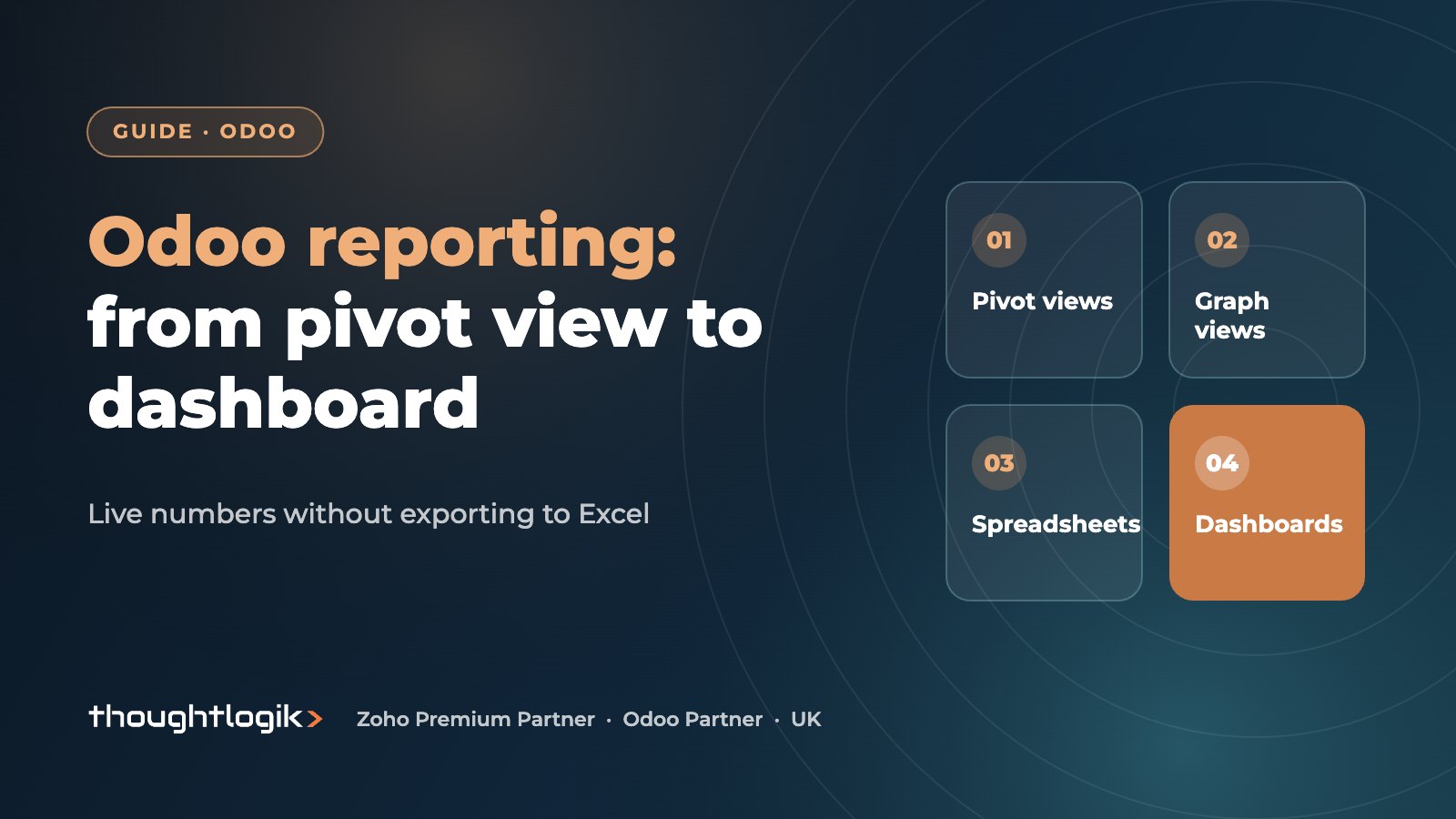
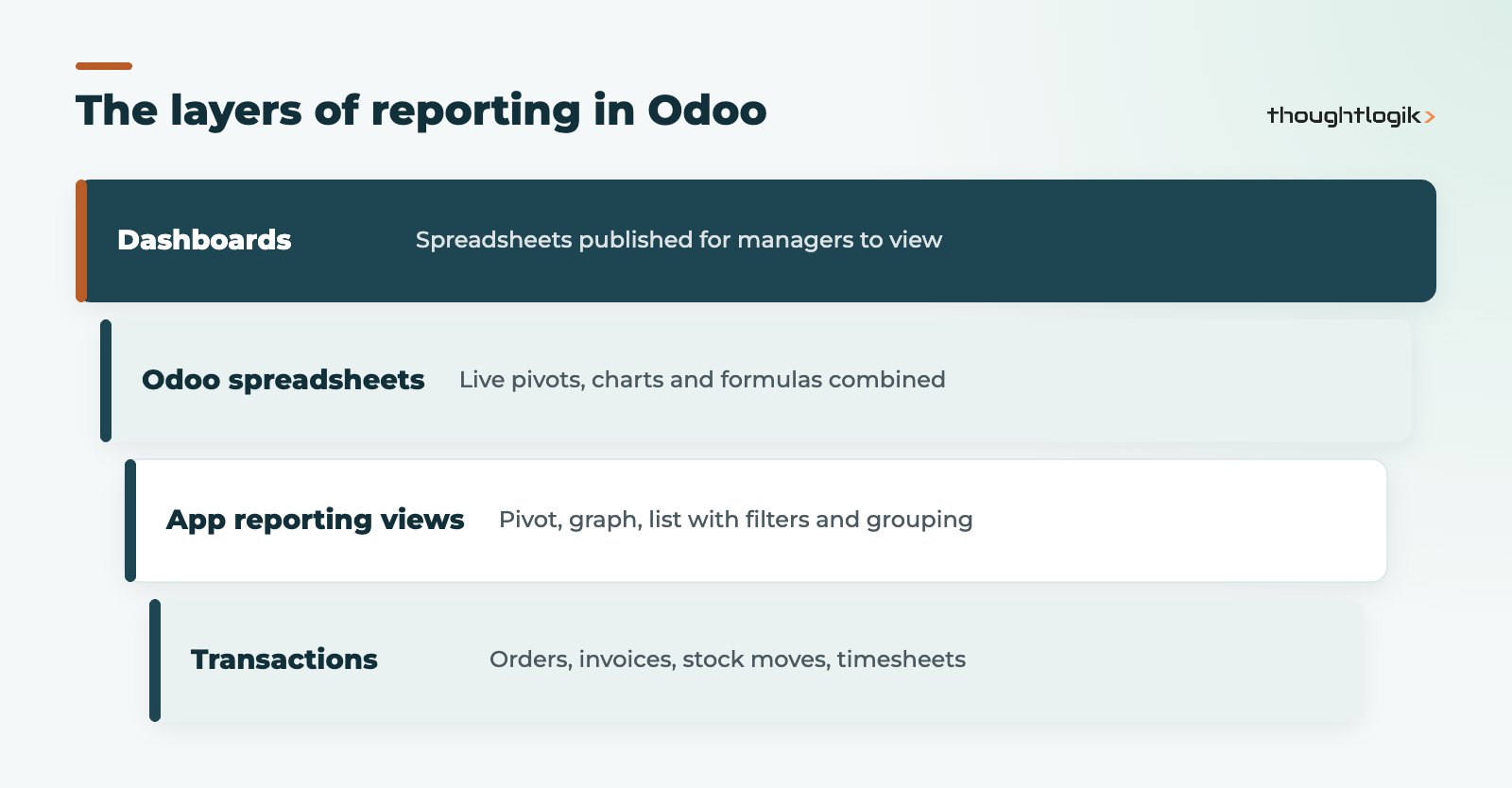
Odoo reporting works at three levels: every app has pivot, graph and list views you can filter, group and save; those views can be inserted into an Odoo spreadsheet where the data stays live; and spreadsheets can be published as dashboards for managers. Accounting adds statutory and management financial reports, so most SMEs can run their management pack inside Odoo without exporting to Excel.
Key takeaways
- Each Odoo app has a reporting menu with pivot and graph views on live data.
- Filters, grouping and saved favourites turn ad hoc queries into reusable reports.
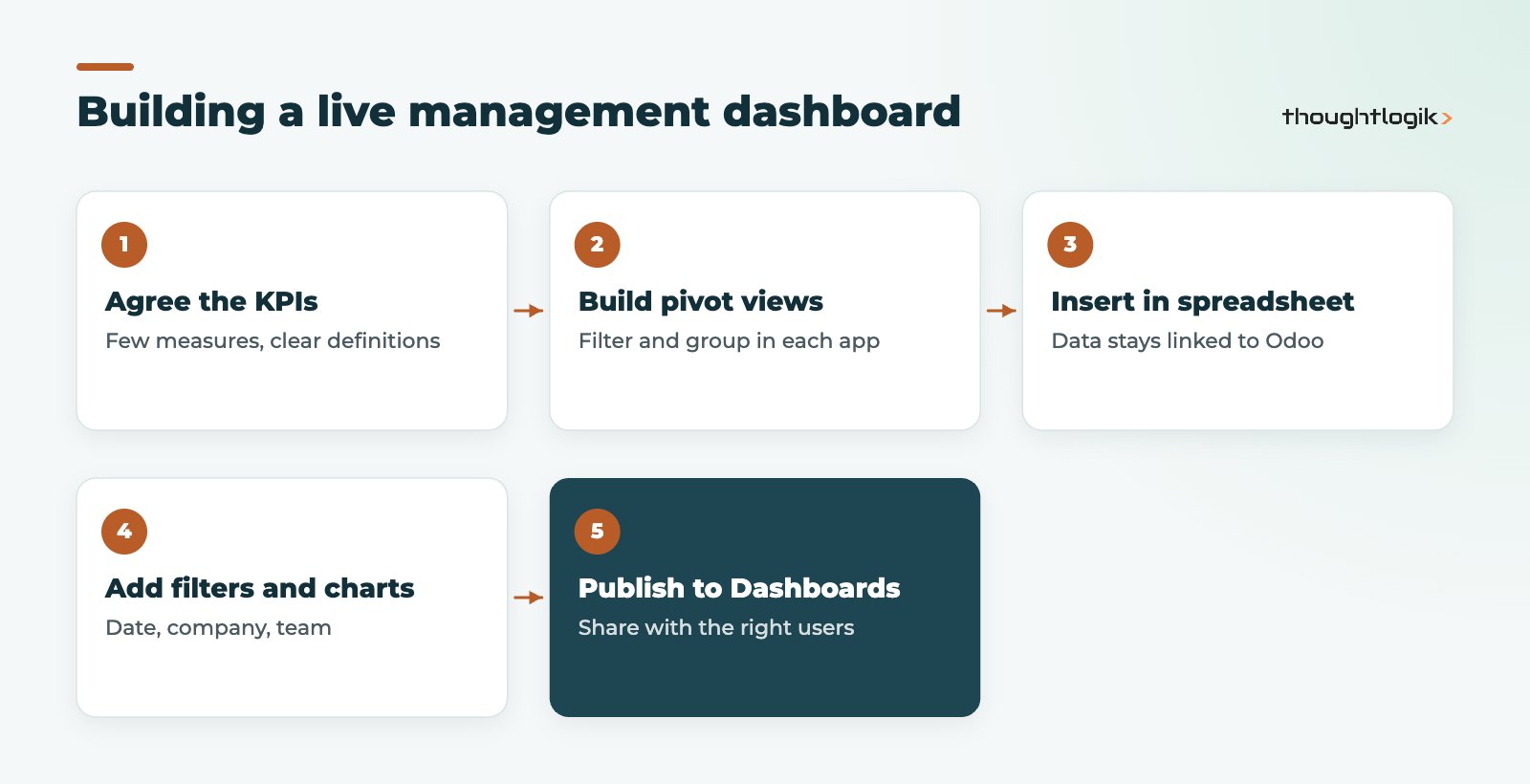
- Insert in spreadsheet links pivots, charts and lists to live Odoo data.
- Dashboards publish spreadsheets for managers, with global filters such as date.
- Spreadsheet and dashboard editing features depend on your Odoo edition.
One of the main reasons UK SMEs move to Odoo is to stop building reports by exporting data from four systems into Excel. When sales, stock, purchasing, projects and accounts share one database, the numbers already agree. The question becomes how to present them. This guide explains the Odoo reporting tools, when to use each, and how to design management reporting that people actually use.
What reporting tools does Odoo have?
Odoo reporting is layered. You can answer a quick question in a few clicks, or build a full board pack, using the same live data.
| Tool | Best for | Who typically uses it |
|---|---|---|
| Pivot view | Cross-tab analysis, for example sales by customer and month | Analysts, managers, finance |
| Graph view | Bar, line or pie charts of trends and splits | Anyone needing a quick visual |
| List view with grouping | Detailed records grouped with subtotals | Operational teams |
| Odoo spreadsheet | Combining several reports with formulas and formatting | Finance and operations leads |
| Dashboards | Shared, read-mostly views of key metrics | Directors and managers |
| Accounting reports | Profit and loss, balance sheet, aged debt, VAT | Finance |
How to use the pivot view in Odoo
Almost every Odoo app has a Reporting menu. Open it and switch to the pivot view to get a live cross-tab. You choose measures, such as untaxed amount, quantity or hours, and group rows and columns by fields such as customer, product category, salesperson or month. Click any figure to drill into the records behind it.
Filters, grouping and favourites
The search bar is the engine of Odoo reporting. Filters narrow the data, for example confirmed orders this quarter; group-by options set the structure; and saving the combination as a favourite means you, or your whole team, can reopen the same report later with one click. Pivot and list views can also be downloaded to Excel when you need to share outside Odoo.
Graph view for trends
The graph view shows the same data as a bar, line or pie chart. It is ideal for spotting trends, such as monthly revenue or tickets opened per week, before drilling into detail in the pivot view.
What is an Odoo spreadsheet?
Odoo spreadsheets look and feel like a familiar spreadsheet, with formulas, formatting and charts, but they live inside Odoo and can pull data from Odoo directly. From a pivot, graph or list view you can choose to insert it into a spreadsheet. The inserted data stays linked to Odoo, so when you reopen the spreadsheet the figures update. Odoo’s spreadsheet documentation covers inserting pivot tables and other data.
That removes the monthly export and copy-paste cycle. A finance lead can build a commentary sheet once, with calculations and formatting around live pivots, and simply refresh it each month. In recent versions, pivots can also be inserted in a dynamic form that expands automatically as new rows, such as a new month, appear in the data.
How do Odoo dashboards work?
The Dashboards app gathers dashboards in one place. Odoo provides ready-made dashboards for common areas such as sales, inventory and accounting, and you can publish your own spreadsheets as dashboards. Global filters, such as a date range, company or sales team, apply across every pivot and chart on the dashboard, so one control changes the whole view. Access can be limited to the groups of users who should see each dashboard.
Editing spreadsheets and building custom Odoo dashboards are Enterprise features. If you are on Community, check what is available in your version, or see our Community vs Enterprise guide.
Financial and management reporting in Odoo
Odoo Accounting includes standard financial reports such as profit and loss, balance sheet, cash flow, aged receivables and payables, general ledger and tax reports, with comparisons across periods. For UK businesses, the VAT return and Making Tax Digital submission are covered in our Odoo accounting UK guide. Analytic accounts let you report profit by department, project or site, which is often the backbone of management reporting in multi-site businesses.
Designing a management reporting pack people use
- Start with decisions, not data. For each metric, ask which decision it supports and who makes it.
- Define every KPI once. Agree what “revenue”, “margin” or “on-time delivery” mean and document the filters.
- Keep dashboards short. Eight to ten metrics per audience is plenty; link to detail rather than cramming it in.
- Fix data at the source. If a dashboard looks wrong, correct the process that created the data, not the spreadsheet.
Odoo reporting by department: what to build first
You do not need to build everything at once. These are the Odoo reporting views most UK SMEs set up first, usually within the first weeks after go-live.
- Sales: orders and revenue by salesperson, customer and month, with pipeline value from CRM.
- Inventory: stock value by warehouse and category, slow-moving items and late deliveries.
- Purchasing: spend by supplier and outstanding orders not yet received.
- Services: hours logged, billable versus non-billable time and project profitability.
- Finance: aged debtors, cash position and profit by analytic account.
Save each as a shared favourite so every manager opens the same definition, then combine the most important figures into one dashboard per audience. Review usage after a quarter: reports nobody opens can be retired, and questions people keep asking by email are candidates for the next report.
Odoo reporting and data quality
Every report depends on consistent data entry. Product categories, customer tags, sales teams and analytic accounts must be used the same way by everyone, or grouping breaks down. Agree these structures during implementation, because changing them later means historic data will not line up.
When do you need more than Odoo reporting?
Built-in tools cover most SME needs. You may want a dedicated BI tool when you combine Odoo with several other data sources, need heavy historical analysis across very large data sets, or want advanced modelling. In that case, plan the data connection carefully and keep Odoo as the source of truth. Our BI and reporting service covers that route.
Reporting performance also depends on database health. Very large pivots over years of data can be slow on under-sized hosting; our guide to slow Odoo performance explains the common causes.
How ThoughtLogik helps
ThoughtLogik is a UK Odoo Partner. We help leadership teams get reliable numbers out of Odoo without rebuilding reports in Excel every month.
- KPI definition workshops with finance and operations.
- Pivot, spreadsheet and dashboard build for each audience.
- Analytic accounting design for departmental and project profitability.
- Training so your team can build and maintain their own reports, plus ongoing Odoo optimisation.
Frequently asked questions
Can I export Odoo reports to Excel?
Yes. Pivot and list views can be downloaded to Excel. For recurring reports, an Odoo spreadsheet linked to live data usually saves more time than repeated exports.
Do Odoo dashboards update automatically?
Yes. Dashboards built from Odoo spreadsheets read live Odoo data, so figures reflect the latest transactions when the dashboard is opened or refreshed.
Can I restrict who sees each dashboard?
Yes. Dashboards can be limited to specific user groups, and users only see data their access rights allow.
Is Odoo reporting good enough to replace a BI tool?
For many SMEs, yes, especially when most data lives in Odoo. Businesses combining many external sources or doing advanced analysis may still benefit from a dedicated BI tool.
Still building your board pack in Excel? We can move it onto live Odoo data. Book a free consultation or see our Odoo solutions.