Short answer
A HubSpot to Zoho CRM migration can use Zoho’s built-in HubSpot migration, found under Setup, Data Administration, Import, which connects to HubSpot through an API token and moves contacts, companies, deals, activities, notes, products and quotes. HubSpot companies become Zoho accounts and meetings become events. Automation, custom objects and reports do not come across, so plan to redesign and rebuild them.
Key takeaways
- Zoho CRM has a built-in migration for HubSpot that works over the API, so you do not need to export and import CSV files for the core objects.
- Design your Zoho modules, fields and pipelines before you migrate, not after.
- Custom modules are not supported in API migrations; plan a separate import for custom objects.
- Zoho lets you undo or rerun the migration up to three times, so test runs are realistic.
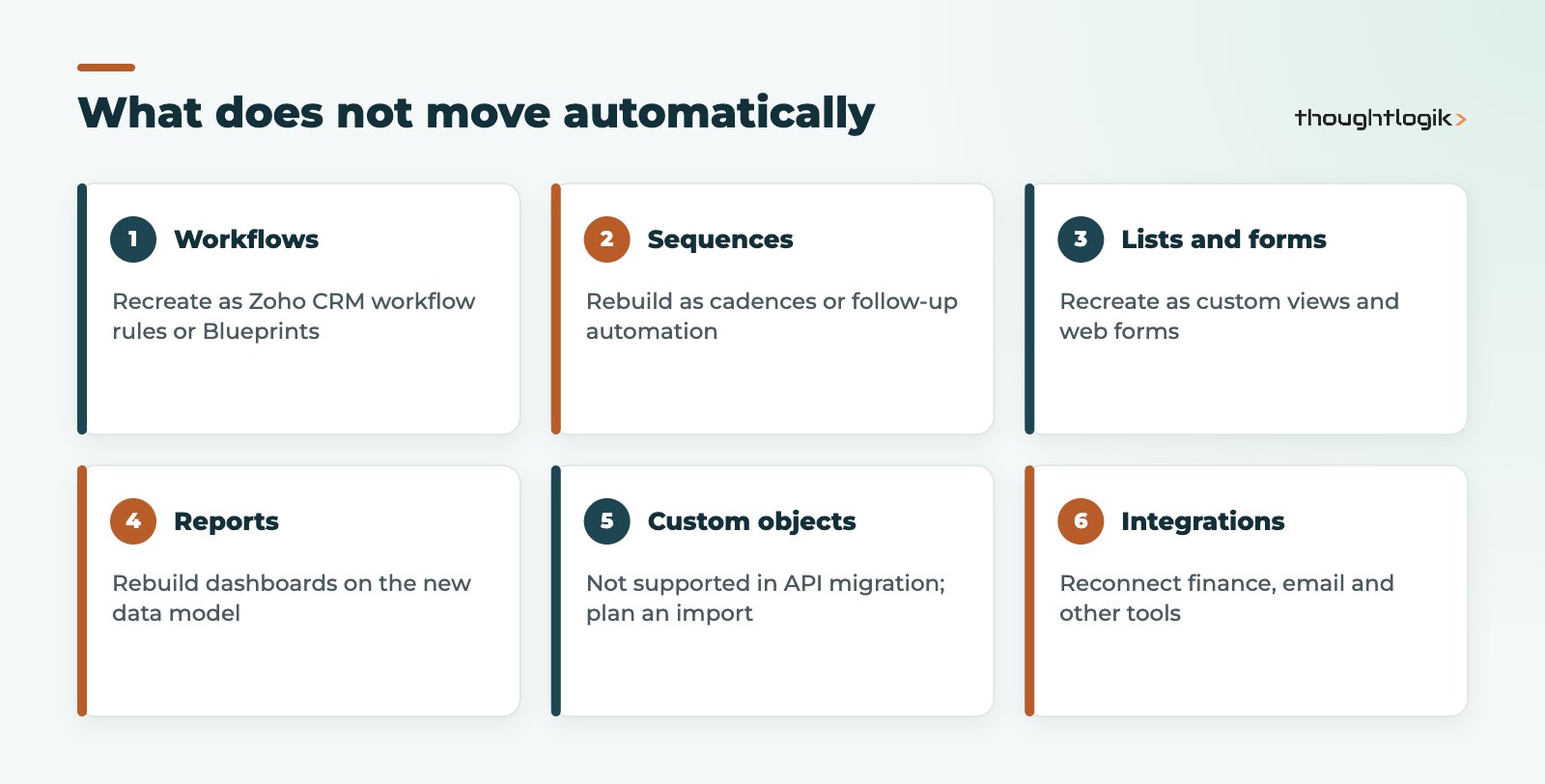
- Workflows, sequences, lists and reports must be rebuilt in Zoho CRM.
UK businesses move from HubSpot to Zoho CRM for different reasons: cost as the team grows, the wish to run sales, service and finance on one suite, or the need for deeper customisation. Whatever the reason, the migration is where projects go right or wrong. Moving the data is quick. Deciding what the data should look like in Zoho is the real work, and it is what separates a smooth HubSpot to Zoho CRM migration from a painful one.
Ready to switch? See our HubSpot to Zoho CRM switching service, with clean data, rebuilt workflows and a cut-over timed to your renewal.
How does a HubSpot to Zoho CRM migration work?
Zoho CRM includes a dedicated option to migrate from HubSpot. In Zoho, go to Setup, Data Administration, Import and choose HubSpot. You then connect using an access token from a private app created in your HubSpot account, with the read scopes Zoho lists (contacts, companies, deals, owners, quotes, line items and e-commerce). Zoho’s HubSpot migration help article sets out each step and the full field mapping.
Because the connection is API-based, records keep their relationships: a deal arrives linked to its account and contact, and activities stay attached to the right records.
What moves across
| HubSpot object | Zoho CRM module |
|---|---|
| Contacts | Contacts |
| Companies | Accounts |
| Deals | Deals |
| Tasks | Tasks |
| Meetings | Events |
| Calls | Calls |
| Notes | Notes |
| Products, quotes and quoted items | Products, Quotes and Quoted Items |
| Deal line items | Deal product relations |
| Owners | Users |
HubSpot to Zoho CRM migration steps
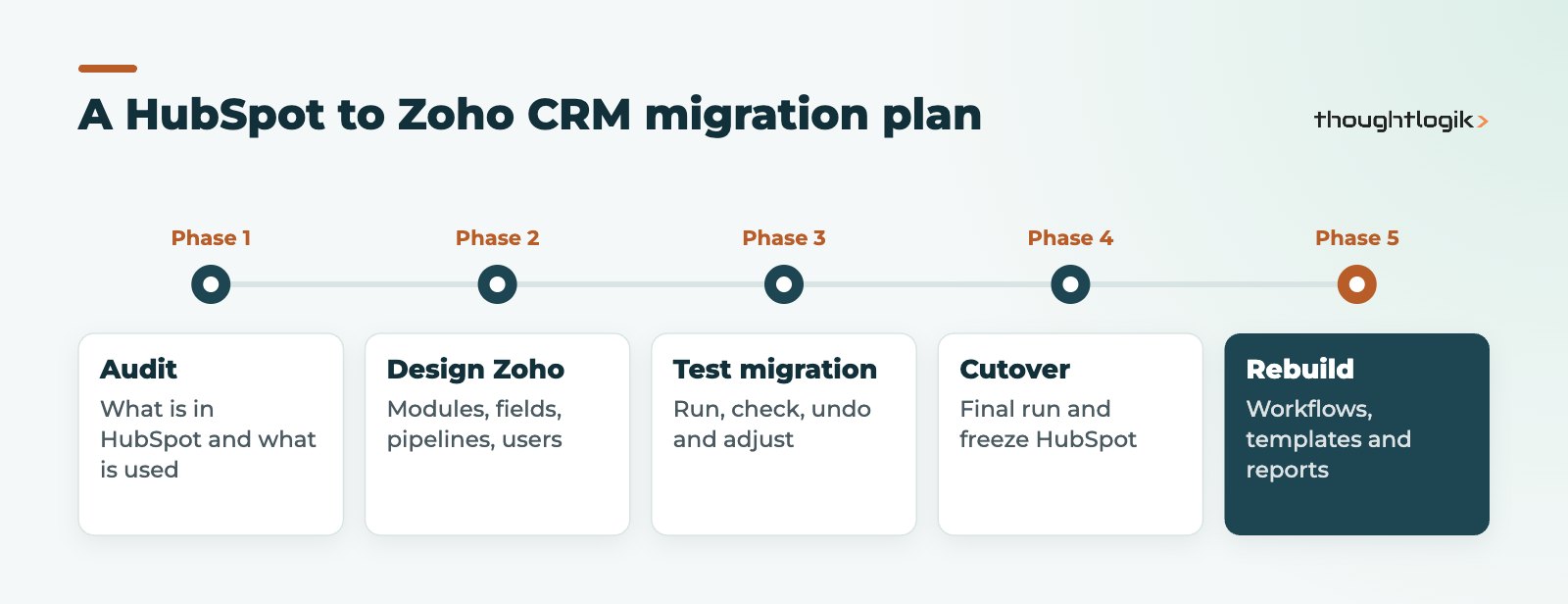
1. Audit what is in HubSpot
List every object, property and pipeline, and ask which are actually used. HubSpot accounts accumulate properties nobody fills in. Each one you drop now is one less field cluttering Zoho.
2. Design the Zoho CRM data model
This is the step teams rush. Decide:
- Leads or contacts? HubSpot keeps everyone as a contact with a lifecycle stage. Zoho CRM has a separate Leads module. Decide whether early-stage HubSpot contacts should live in Leads, and how you will handle that.
- Pipelines and stages. Map each HubSpot pipeline and stage to a Zoho pipeline and stage, including won and lost stages.
- Custom properties. Create matching custom fields in Zoho with the right field types before migrating.
- Users and ownership. Make sure every HubSpot owner exists as a Zoho user, or decide who inherits their records.
3. Data mapping and a test run
Work through the data mapping for each module, then run the migration. Check a sample of records in every module: names, owners, stages, amounts, dates and associations. Zoho allows you to undo or rerun the migration three times in total, so treat the first run as a test and keep one in reserve.
4. Cutover
Agree a cutover date, pause changes in HubSpot, run the final migration and switch the team over. Keep HubSpot read-only for a period so people can check history.
5. Rebuild automation and reporting
Recreate the processes that made HubSpot useful, designed for Zoho rather than copied. Our guides to Zoho CRM workflow rules and Zoho CRM Blueprint explain the options.
Built-in migration or a manual import?
For most small and mid-sized HubSpot accounts, the built-in route is the right starting point for a HubSpot to Zoho CRM migration. It keeps associations between records, which a spreadsheet export tends to break, and it handles owners, activities and quotes in one pass.
A manual export and import still has a place. Use it for custom objects, for historic data you want to reshape heavily before it lands, or where you only need a subset of records. Many projects use both: the built-in migration for the core objects and targeted imports for everything else.
Whichever route you take, timing matters. Avoid cutting over at month end or quarter end, when sales teams are busiest and pipeline reports are under the most scrutiny. A quiet week, with the team briefed and trained beforehand, makes the switch far smoother.
Common pitfalls when you migrate from HubSpot
Tags and skipped records
Zoho documents a few limits. Only the first ten tags on a record are migrated, and tags can be at most 25 characters. If more than 5,000 records are skipped in a module, the migration pauses, which is usually a sign that mandatory fields or picklist values do not match.
HubSpot companies and duplicates
HubSpot companies often contain duplicates created by automatic company association from email domains. Clean them in HubSpot first, or you will carry duplicate accounts into Zoho. Our guide to Zoho CRM duplicate records explains how to keep them out afterwards.
Custom objects
Custom modules are not supported in API migrations. If you use HubSpot custom objects, export them and import them into a Zoho custom module once the parent records exist. See our guide on how to migrate Excel to Zoho CRM for import technique.
Emails, files and marketing
Check what history you need beyond the objects listed above, such as logged emails and attachments, and decide how to keep it. Marketing assets, forms and sequences need a new home, whether that is Zoho CRM itself or Zoho Marketing Automation.
A HubSpot to Zoho CRM migration checklist
Use this migration checklist before the final run of your HubSpot to Zoho CRM migration:
- Unused HubSpot properties removed from scope.
- Zoho modules, fields, layouts and pipelines built and approved.
- All users created in Zoho CRM with the right roles and profiles.
- Test migration run, checked and undone.
- Company duplicates cleaned in HubSpot.
- Cutover date agreed and communicated.
- Automation and reports ready to switch on after migration.
Also plan your email connection so reps have history and new mail from day one; see our Zoho CRM Outlook integration guide.
How ThoughtLogik helps
ThoughtLogik runs HubSpot to Zoho CRM migration projects for UK businesses, from audit to go-live.
- Data model design and data mapping workshops.
- Test and final migrations with record reconciliation.
- Rebuilt workflows, Blueprints and dashboards.
- Training and post go-live support for your team.
Frequently asked questions
Does Zoho CRM have a built-in HubSpot to Zoho CRM migration tool?
Yes. Go to Setup, Data Administration, Import and choose HubSpot. It connects using an access token from a private app in HubSpot and migrates contacts, companies, deals, activities, notes, products and quotes.
How do HubSpot companies map to Zoho CRM?
HubSpot companies become Accounts in Zoho CRM. Contacts stay as Contacts and meetings become Events.
Can I run the migration more than once?
Zoho states you can undo or rerun the HubSpot migration three times, which lets you test and correct before the final run.
Will my HubSpot workflows migrate?
No. Automation such as workflows and sequences is not part of the migration. Rebuild it in Zoho CRM using workflow rules, Blueprints and other automation, ideally redesigned rather than copied.
How long does it take to migrate from HubSpot to Zoho CRM?
The migration run itself is fairly quick. The time goes into auditing HubSpot, designing Zoho, testing and rebuilding automation, and that depends on how complex your HubSpot account is.
Planning a move from HubSpot? We can map, migrate and rebuild your CRM in Zoho without losing history. Book a free consultation or see our Zoho CRM vs HubSpot comparison.